

In this tutorial, you carry out an interactive ADMET property estimation on a small database of demonstration compounds in the interactive mode. The input file for this tutorial has been generated in a compact .smi format where 2D molecular structures are represented by SMILES strings.
To load the data:
-
On the ADMET Predictor main menu bar, click FILE >> Open to launch the Open dialog.
-
In this dialog box, find the Demo2D.smi file in:
C:\Users\\<user_name>\AppData\Local\SimulationsPlus, Inc\ADMET_Predictor13.0
and then click Open. The contents of the Demo2D.smi file will be displayed in a spreadsheet.
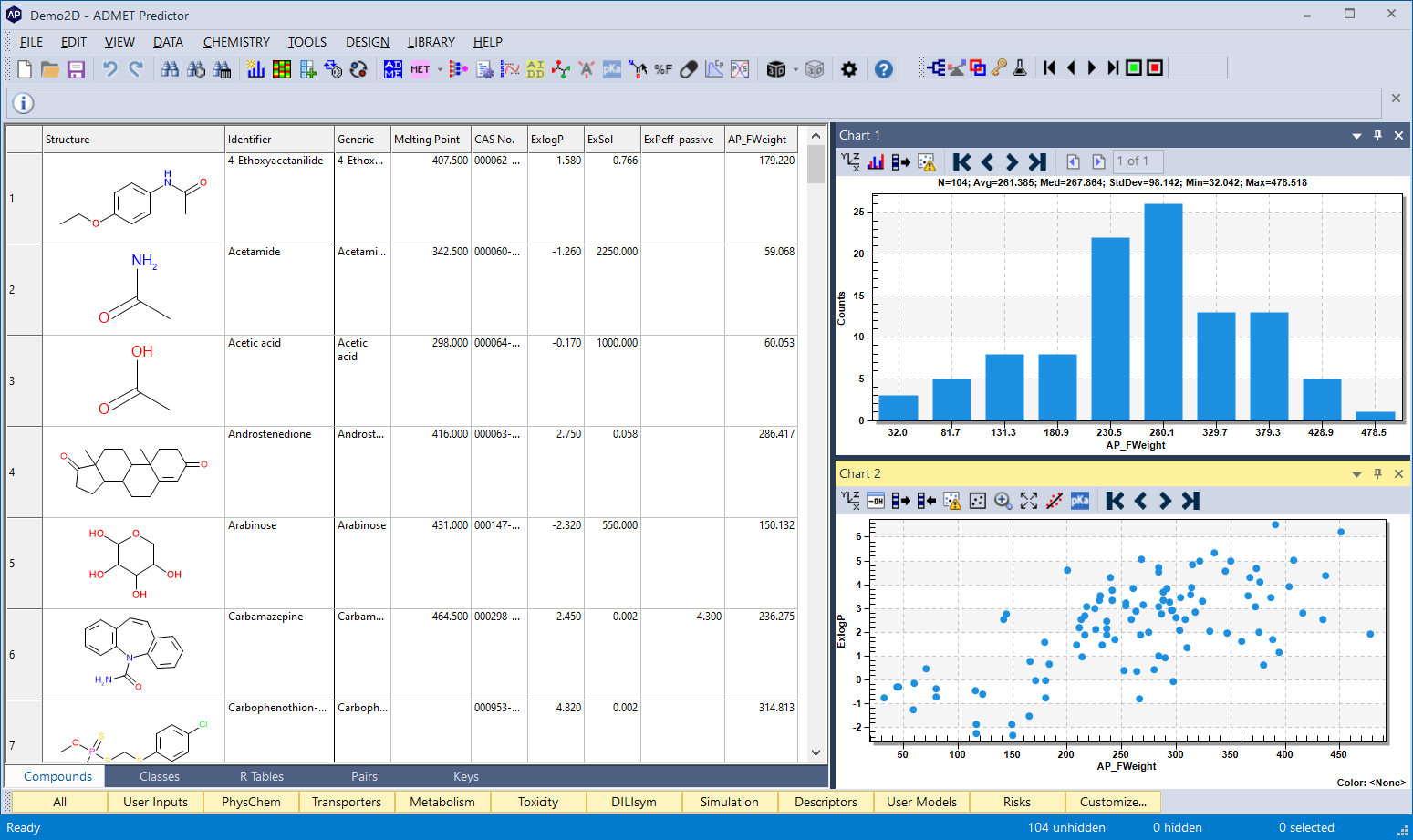
-
To start prediction run, select Calculate ADMET Properties from the DATA menu, or simultaneously press Ctrl+R keys. The Calculate ADMET properties dialog opens. The default run options for carrying out ADMET property estimations are displayed in the dialog.
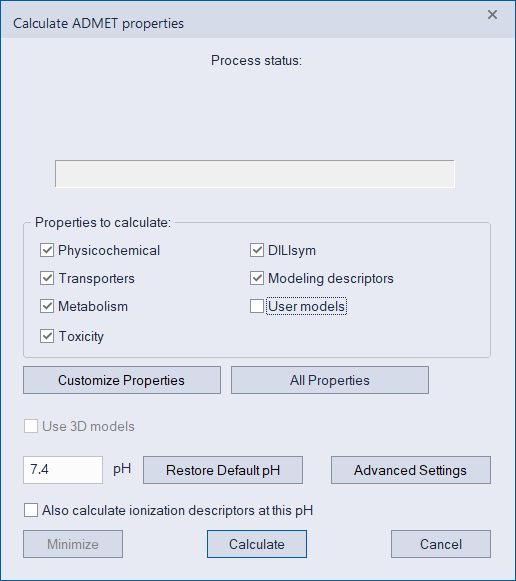
-
Click Calculate to accept the default run options. ADMET prediction results are displayed in columns. Molecular descriptors are displayed at the end of the spreadsheet. Scroll to the right to see all columns.
To control column display
-
By default, the program displays all columns, in the All tab. To see a particular type of property, select a different tab, for example PhysChem or Toxicity. Clicking on PhysChem, for example, will hide all columns except the member models of the Physicochemical and Biopharmaceutical Module. Again, module availability will depend on your software license. User Models set will be empty, because you haven’t built any custom models, yet.
-
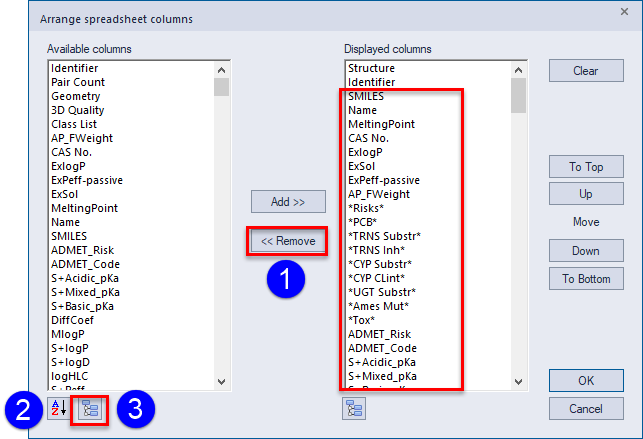
Try further reduction in displayed columns by invoking the Arrange Columns... option under the VIEW menu. The dialog for column selection opens as shown below, if you clicked PhysChem in the previous step.
-
Select all attributes except Structure and Identifier from Displayed columns and Remove them (1) from that list. Clicking on the highlighted sort state icon below the Available columns field (2) will toggle how the list is sorted, from alphabetical to by column order. The icon will no longer be highlighted.
Now click on the tree icon (3) next to the sort state icon. This will bring up a new dialog where all properties are organized based on modules, which makes selection easier.
-
Suppose you are only interested in pKa, lipophilicity, and aqueous solubility predictions. Do the following:
-
Click the small “+” box next to the PhysChemBiol heading to expand the list of columns.
-
If necessary, clear the check box next to the PhysChemBiol heading to unselect all columns in the list.
-
Check boxes next to DiffCoef, MlogP, RBP, S+Acidic_pKa, and S+logD, then click OK in the Attribute quick selection dialog.
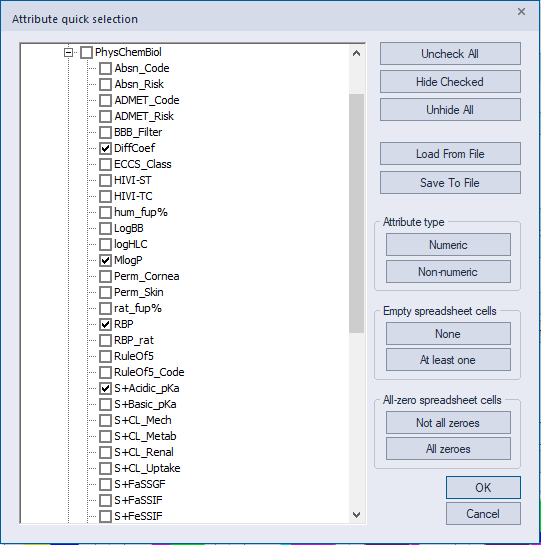
Doing so will transfer your selection to the Arrange spreadsheet columns dialog, where clicking on Add will move them to the Displayed columns list. Click OK to display the selected columns in the spreadsheet.
The spreadsheet view should now be limited to five ADMET columns.
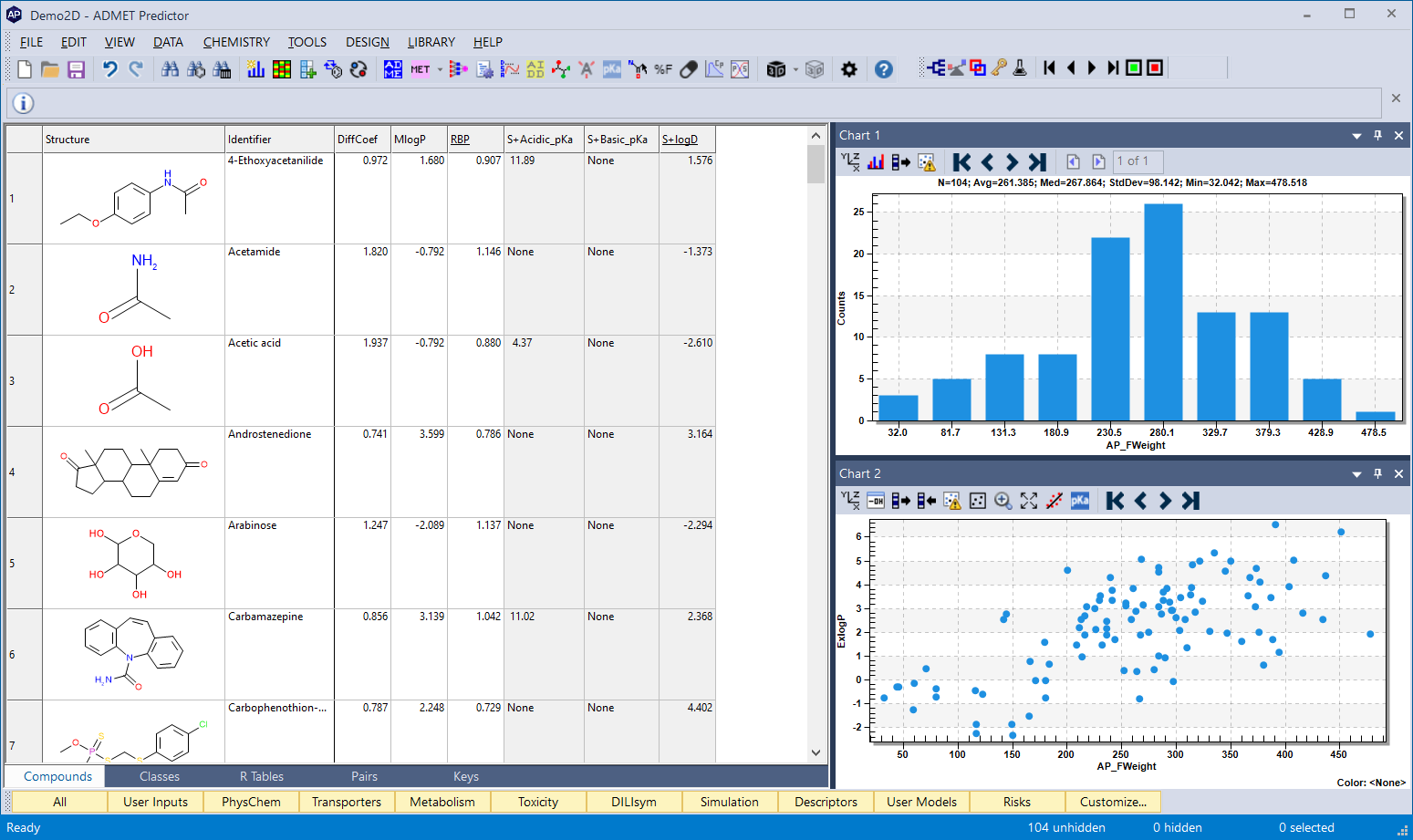
This selection, however, is only temporary and is forgotten once you click on any properties group button or a tab at the bottom of the spreadsheet. The next step will show how to engineer a more permanent solution.
-
Suppose that you are interested in comparing predictions of permeability and cardiotoxicity predictions against experimental results loaded in the input file every time you load new input. Click Customize at the bottom panel. A window similar to Arrange Columns... dialog will open.
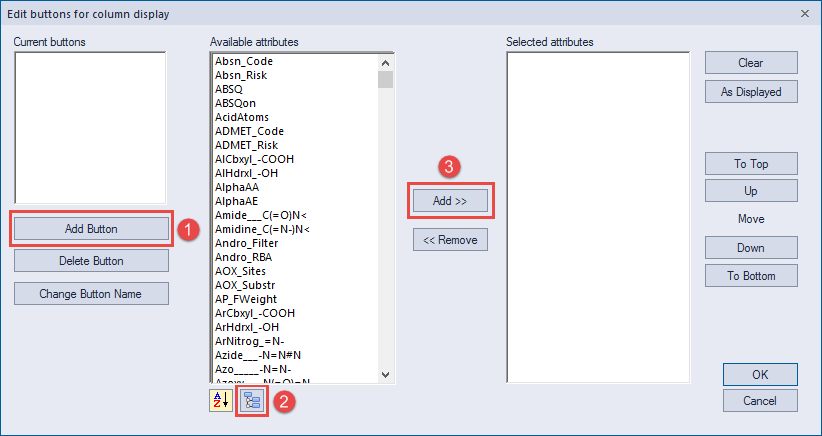
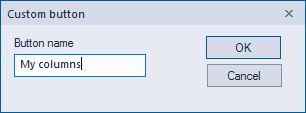
On the dialog select Add Button (1), then type a name "My columns".
-
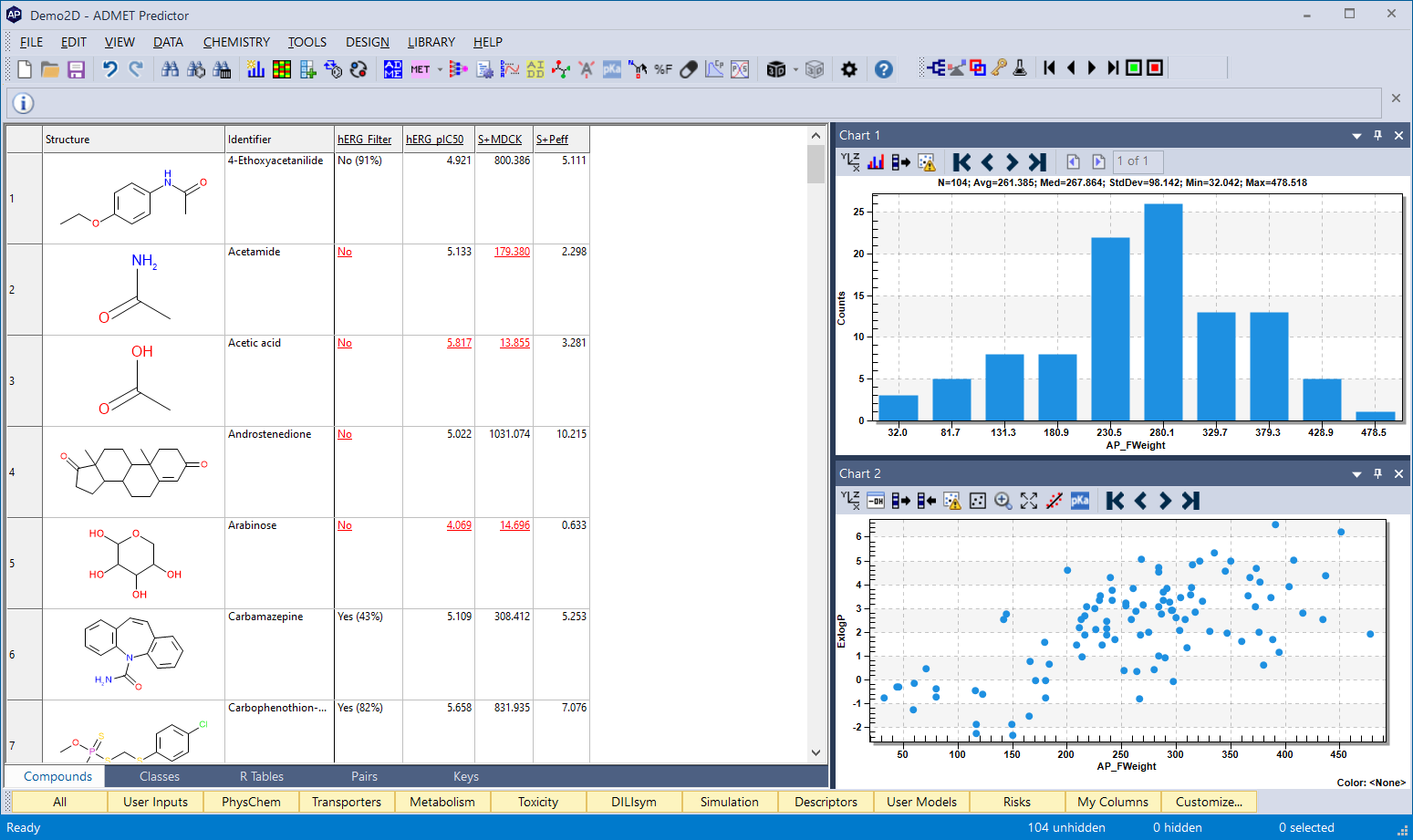
Then click on the button below Available attributes (2). Attribute quick selection dialog opens. Expand Toxicity box and check the hERG_Filter and hERG_pIC50 models.
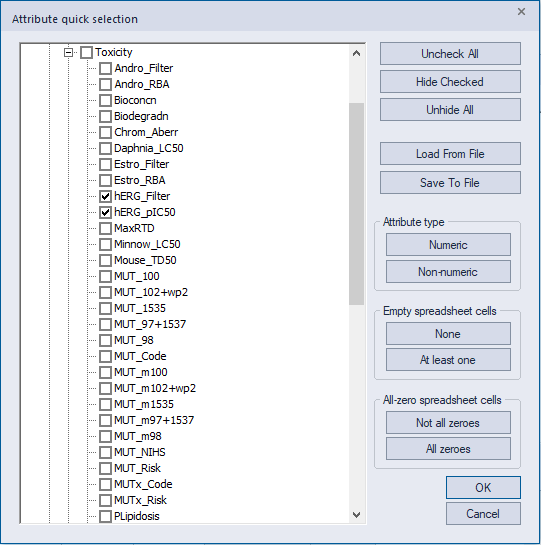
Then scroll up the tree and expand the PhysChemBiol box. Select S+Peff and S+MDCK models. Click OK.
-
Click Add >> (3). Make sure all desired properties appear on the list of Selected attributes, then click OK. A new button will appear at the bottom of the ADMET Predictor window.
-
Click on My columns button at any time to see the properties you selected.
You can remove the button with it's view by clicking on Customize, selecting the name and clicking on Delete button.