

7.2.1. Output: Chemistry File Formats (SDF, SMI, MOL)
You can save the ADMET properties that ADMET Predictor predicts in one of the following ways: in the original input format, as a SMILES file, as a 2D SDF file, and as a 2D RDF file. In this tutorial, you save these ADMET properties in a copy of the original input file in a SD file. Similar steps can be followed to save the data within ADMET Predictor spreadsheet in the SMILES file format.
-
Open the Demo2D.smi file from the ADMET Predictor application directory, and generate the ADMET Predictor data for the file as described in the tutorial Interactive Input: SMILES.
-
On the ADMET Predictor main menu, select FILE>>Export. This opens the Save As dialog shown below.
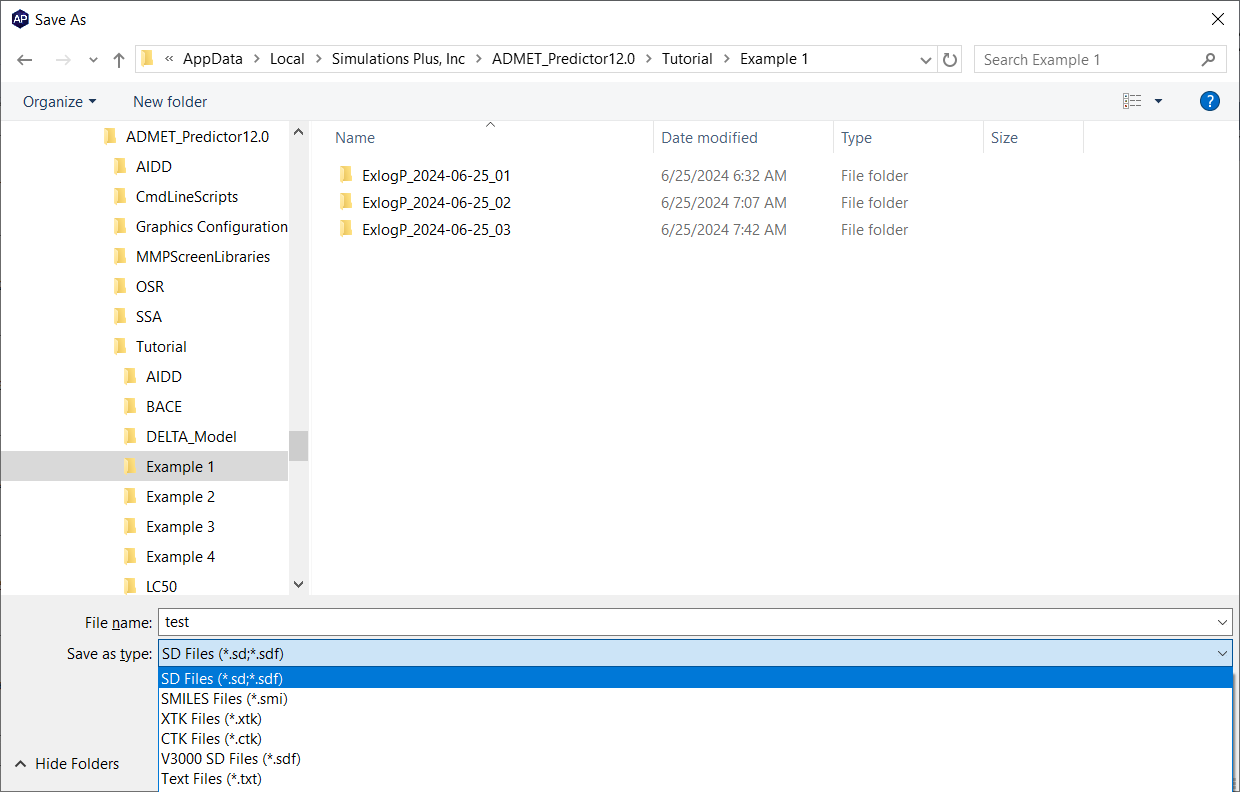
Provide an appropriate name for the file (test.sdf) and selecting SD Files (*.sd; *.sdf) from the available options in the Save as type box.
-
Navigate to the folder where you want to save the file and click on button Save.
-
A new pop-up window "Export compounds to a file" is opened which provides you to select the attribute names to be save in the SD file. Select the attributes from left box "Available attributes", you want to include in the file, and then click on the button "ADD >>". It will transport these selected variables in the right box "Attributes to export"
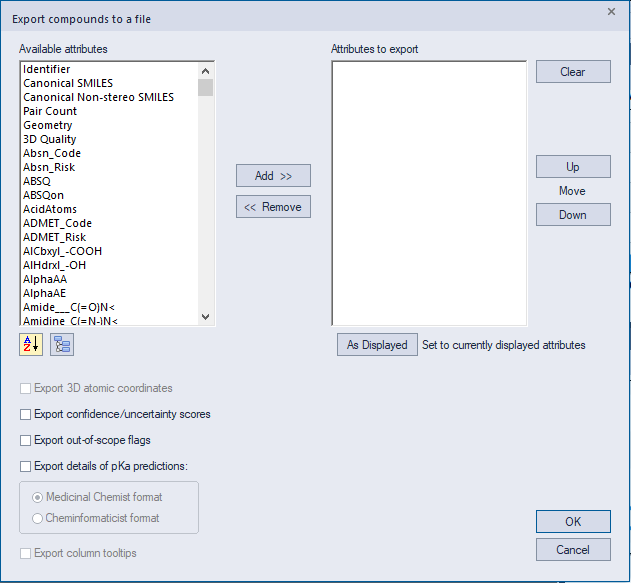
This dialog also provides options to rearrange these attributes by moving them Up or Down. Press OK to save.