

If ADMET Modeler is already open, you will have to close it before you can run this tutorial. Be sure to save your work first if necessary.
-
Launch ADMET Predictor.
-
On the ADMET Predictor main menu click FILE >> Open.
-
Navigate to the [\<AppData>]\Tutorial\Example 1 folder, select Demo2D.qmd file and click Open.
-
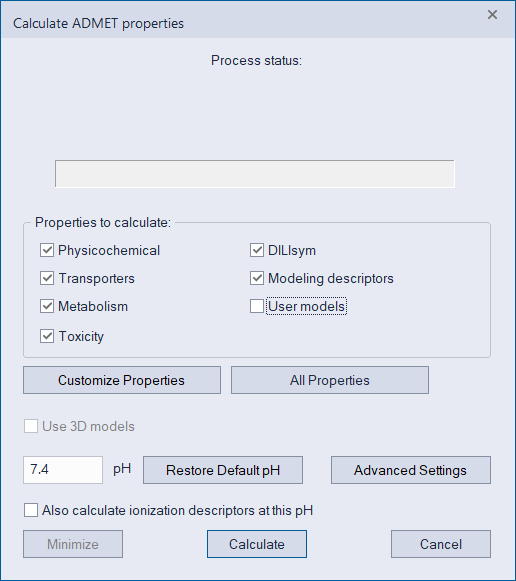
Click on the ADME icon from the toolbar (or use the main menu: DATA >> Calculate ADMET Properties...), accept all defaults and click Calculate.

-
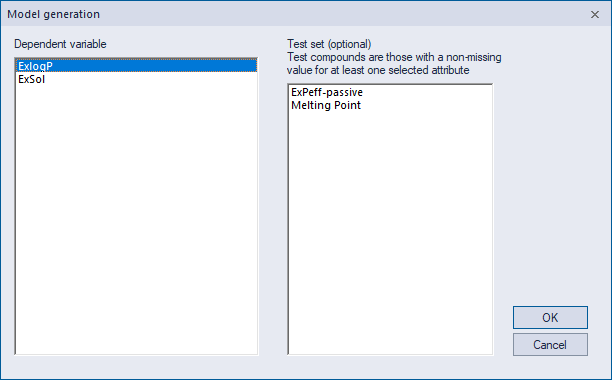
Select

-
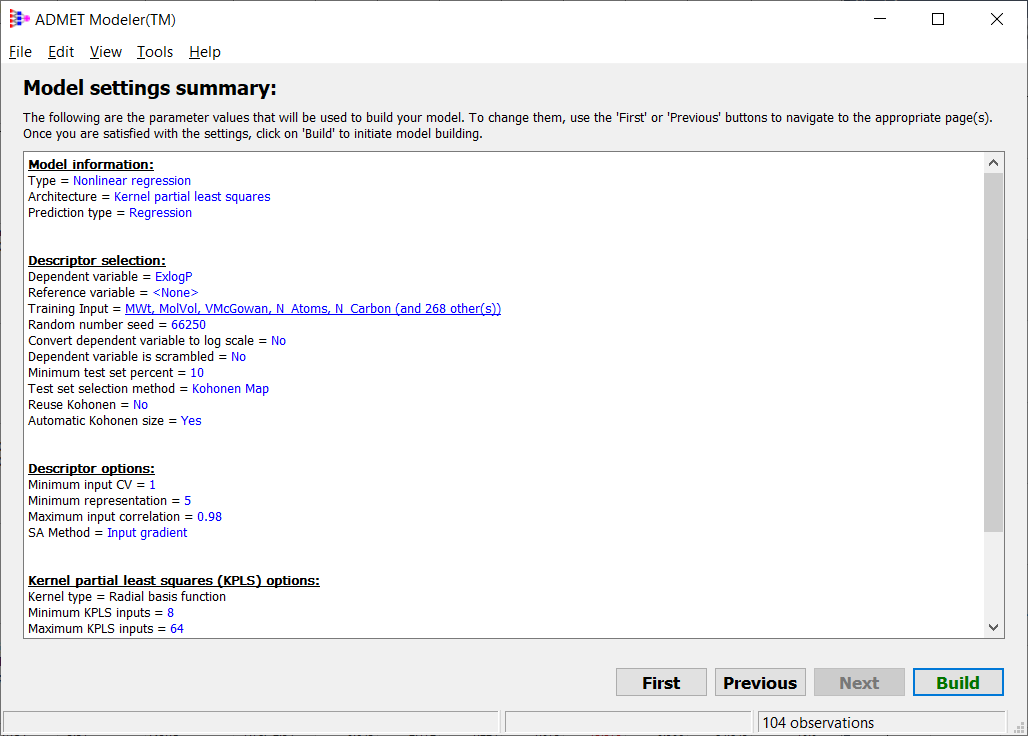
In the first window of ADMET Modeler, ExlogP is displayed as the dependent variable, and all numeric descriptors are automatically listed.
-
A different random seed is generated each time Modeler is launched. If you would like to obtain the same results as described here, type 66250 in the edit box. Click on Next.
-
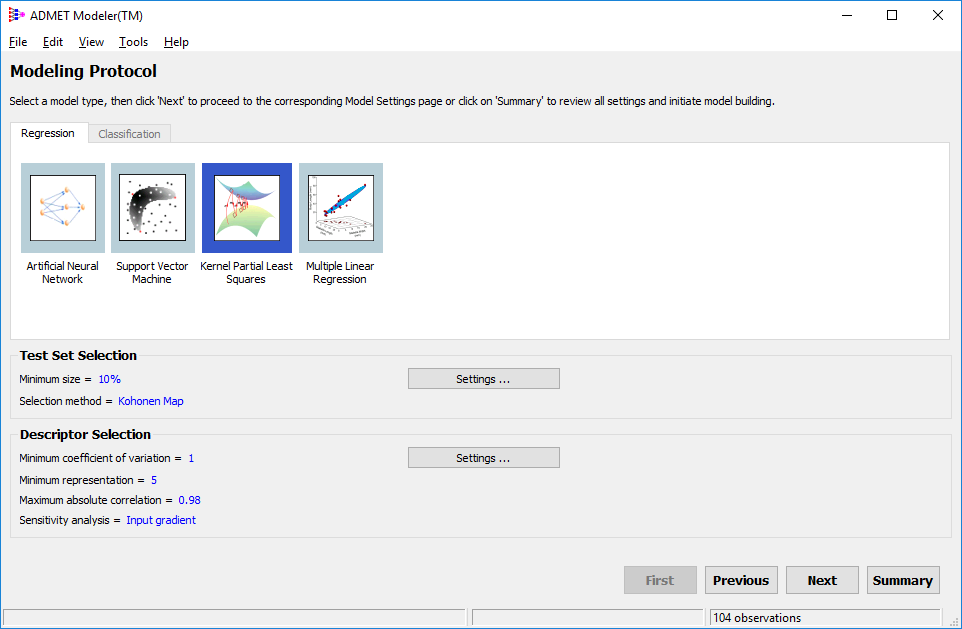
In the second window click on the Kernel Partial Least Squares icon, and in the Descriptor Selection area, click on Settings... to change the Minimum representation to 5 and Sensitivity Analysis to Input Gradient. After accepting those changes, you should see the parameters on the main modeler window as in the figure below
-
Click on Next.
-
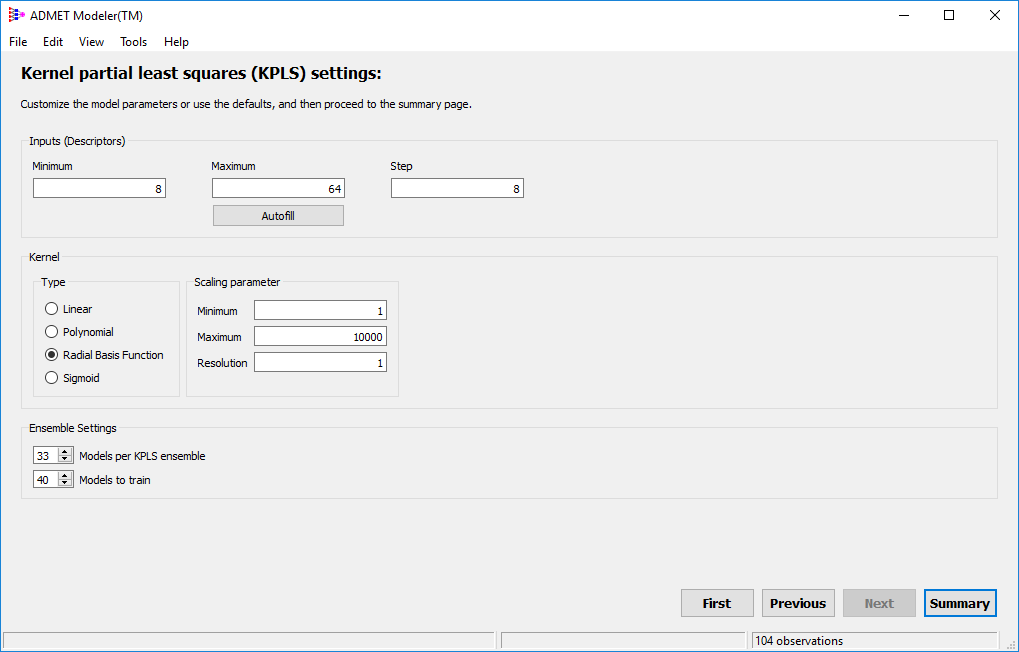
In the Kernel partial least squares (KPLS) settings page, set the number of Inputs (Descriptors) to: Minimum = 8, Maximum = 64, Step = 8.
-
Click on Summary.
-
Click on Build. You will be prompted for a project name. You can accept or modify the default provided, but the remaining parts of this tutorial assume that you accept it by clicking OK and then continue to "Building Models".