

The Query Wizard
The Query Wizard is a graphical interface intended to help users create encoded queries. It can be launched from a variety of different ADMET Predictor dialogs requiring either encoded query strings or query files (*.cqf), as well as by pressing Query Wizard button in the Search using a query dialog, which is launched using EDIT>>Query by Structure/Property.
As discussed previously, a single encoded query consists of one or more query primitives, separated by logical operators. The following is an example of a single query containing two primitives:
NPQ MolWeight >= 300 (primitive 1)
AND
SLQ c1ccccc1 S (primitive 2)
The wizard was developed in order to help users write such queries more efficiently and without the need to consult the user manual. A description of the various dialog controls is provided below.
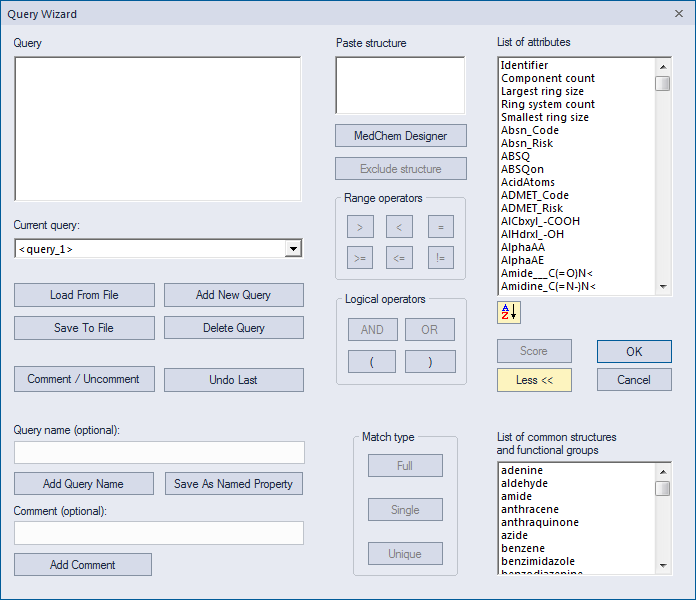
Query displays the currently-active query. The window is not editable: query strings are constructed automatically by ADMET Predictor as you interact with the various dialog controls.
Current query shows the name of the query currently displayed in the main query window. If you have not assigned a name to the query, a default name having the form <query_N> will be displayed, where N is a 1-offset integer index. Users can click inside of this box to navigate through the queries currently loaded in the dialog.
Paste structure lets you paste a structure directly into this window from a sketch application such as ChemDraw or MedChem Designer. Structures are pasted either by pressing Ctrl-V or by choosing Paste from the right-click context menu. The corresponding structure will then be inserted into the query window automatically.
Sketch Tool is used to launch MedChem Designer, an integrated sketch application. Structures drawn using this application can be transferred back to the dialog using the appropriate menu item discussed here.
List of attributes includes internal ADMET Predictor properties, such as molecular weigh, number of rings, number of Hydrogen-bond acceptors, etc., as well as any user-defined molecule attributes loaded into the spreadsheet. Double clicking on a list item will insert the corresponding query into the query window.
Load from file is used to load a query file (*.cqf). Users can navigate through the individual queries in the file using the Current query box just below the main query window. That box will contain query names obtained from the file, if present, or default names otherwise (e.g., <query_1>, <query_2>, etc.). See the section on Query files for more information about this versatile file type. Note that any queries already loaded into the dialog will be deleted once the new queries are loaded from the file.
Save to file is used to save all queries to a query file (*.cqf). Note that any default query names (e.g., <query_1>, <query_2>, etc.) will not be written to the file.
Add new query is used to create a new query. After the button is clicked, the main query window will be erased and a new default query name will appear in the Current query box. All previous queries will still be available and can be selected by navigating using the Current query box.
Delete query deletes the currently displayed query.
Exclude structure can be clicked only immediately after a structure query has been specified, such as by paste from a sketch application. Clicking the button updates the query to indicate that the structure must be absent in order for the query to be satisfied.
Range operators. (Optional). These operators are used to specify range operations, which are described in the previous Encoded queries section. Examples include “= 0” and “>= 5”. Note that after the operator button is pressed, a new dialog will appear allowing you to input the numeric portion of the range operation.
Logical operators. The AND and OR buttons are used to separate individual query primitives. See the discussion in the previous Encoded queries section.
Grouping operators. The open and close parentheses are used to group individual query primitives.
Comment/Uncomment is used to either comment out or uncomment the query, depending on the current query status. If the queries are saved to a file, any queries that are commented out will be ignored once the file is read back into ADMET Predictor for a particular task (e.g., class generation).
Undo last erases the last operation from the current query string, whether it is a range operator, match type, property, structure or logical operator. Note that while this button can be used to erase a query string completely, it cannot be used to delete a query. Query deletion can be performed only using the Delete query button. If a user attempts to save an empty query to a file, ADMET Predictor will display an error indicating that the empty query must be deleted.
Score is used to assign a numeric score to a query primitive.
More/Less can be used to unhide or hide a set of extended options. These options are hidden initially.
Extended Options include:
Query name. (Optional). This box, along with the Add query name button, allows you to provide a name for the current query. See the Query files section for a list of the benefits of naming queries. Note that previously specified names can be deleted by using an empty name string.
Save as Named Property is used to save the current query as a new named-property query. See the section on that query type for additional information.
Comment. (Optional). This box, along with the Add Comment button, allows you to provide a comment for the current query. Comments are always added to the beginning of the query string, but after the query name, if defined. Note that each line of a multi-line comment must be added separately.
Match type. (Optional). These buttons define the search code option for the query; see the Encoded queries section for more information.
List of common structures and functional groups is a fixed list of named structures is identical to the one shown on the standard substructure-search dialog. Double clicking on a list item will insert the corresponding query into the query window.
Note that dialog controls are automatically activated and deactivated as construction of a query progresses. For example, the range operators are initially disabled and remain so until you have entered a structure or property. This is intended to make the wizard easier for beginning users.