

1.8.3. Editing Structures
Once a structure has been loaded into the spreadsheet, you can edit it by launching MedChem Designer from within ADMET Predictor by double-clicking on the structure cell. You can also select one or more rows of interest and use the menubar: VIEW>>Modify Structures>>Modify Using MedChem Designer. The structure(s) will then be displayed in the MedChem Designer window, as shown below
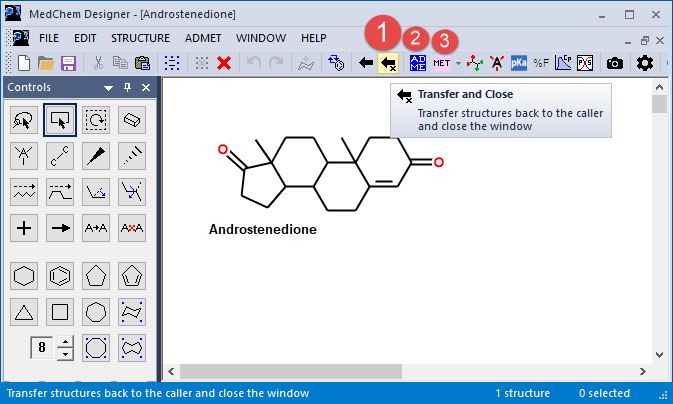
You can then modify atoms and/or bonds in any way you wish. You can also delete the original and draw a structure from scratch, but if you do so you will need to give it the same name as your original structure before transferring it back to ADMET Predictor. This is done by selecting the structure, then right-clicking on it and selecting Modify Name... from the context menu that pops up.
A separate manual is provided for MedChem Designer, but most simple editing is quite intuitive. When ready, the edited structure can be returned to ADMET Predictor by clicking on one of the two arrow buttons (1) in the toolbar. Clicking on the ADME icon (2) will generate ADMET property predictions for the compound, while clicking on the 
After invoking the transfer operation using one of the two solid arrow buttons (1), the Transfer from MedChem Designer dialog will appear.
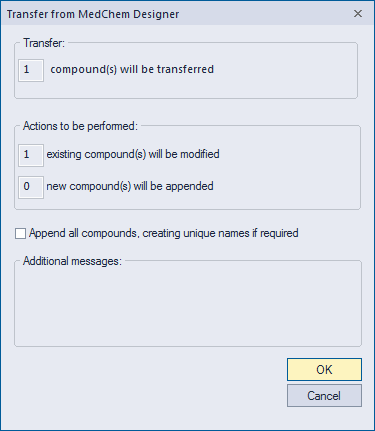
By default the modified structure will replace the one that was originally selected in ADMET Predictor, provided you have not changed its name. If the name matches that of some compound already in the spreadsheet, it will replace the structure in that row. Otherwise - as may occur if you intentionally or inadvertently deleted the original structure - the structure you sketched will be appended as a new compound.
If the change involves adding atoms to or removing them from the original structure, you should probably its formula weight to reflect that. To do so, select the row and click on DATA >> Add Compound Attributes... or use the Ctrl+Alt+A shortcut. Choose Select from list and hit OK, then move Formula Weight from the Available list to the Final list and hit OK. This overwrites the old value.
You can opt to append the compound as a new entity even if it still has the same name by checking the appropriate box, though doing so may cause confusion and is not recommended. If you have generated additional structures after launching MedChem Designer, their names will be checked against what is already present in the ADMET Predictor spreadsheet and you will be presented with similar options.