

1.1. Interface Layouts
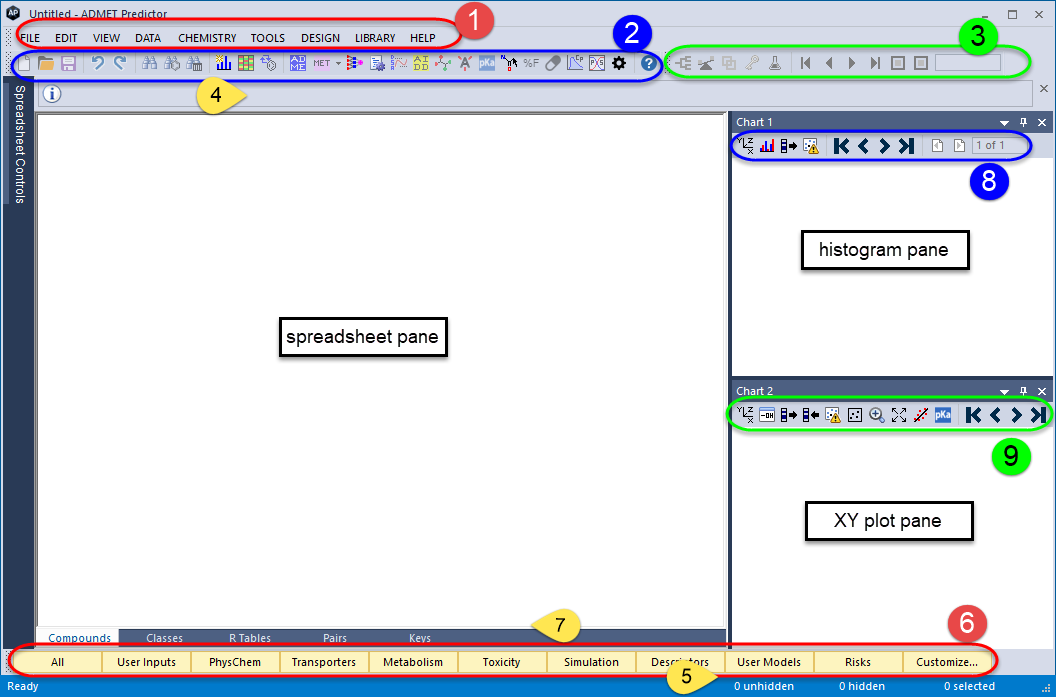
When first launched from the Windows® Taskbar or by double-clicking on its desktop icon, the top section of ADMET Predictor's interface includes a menu bar (1), two toolbars (2 & 3) and an information bar (4) across the top. A status bar (5) runs along the bottom of the window beneath a row of Attribute Group display selection buttons (All, User Inputs, PhysChem, etc.) (6). The space in between is split by default into three panes, one for displaying the molecular spreadsheet and two for displaying charts.
One or more spreadsheet mode tabs (7) run along the bottom of the spreadsheet pane. These control access to the alternative display modes available in the MedChem Studio module. They show compounds grouped by classes, R-tables or molecular pairs, for example.
If your site has a license but you do not routinely use these tools, you can hide the MedChem Studio mode tabs and other interface elements by unchecking the VIEW >> MedChem Features menu item. The left hand image below shows how the interface looks if you have not licensed the MedChem Studio module or have hidden the features. The special toolbar is gone (1) and there is only one spreadsheet mode tab - namely, the Compounds tab (2).
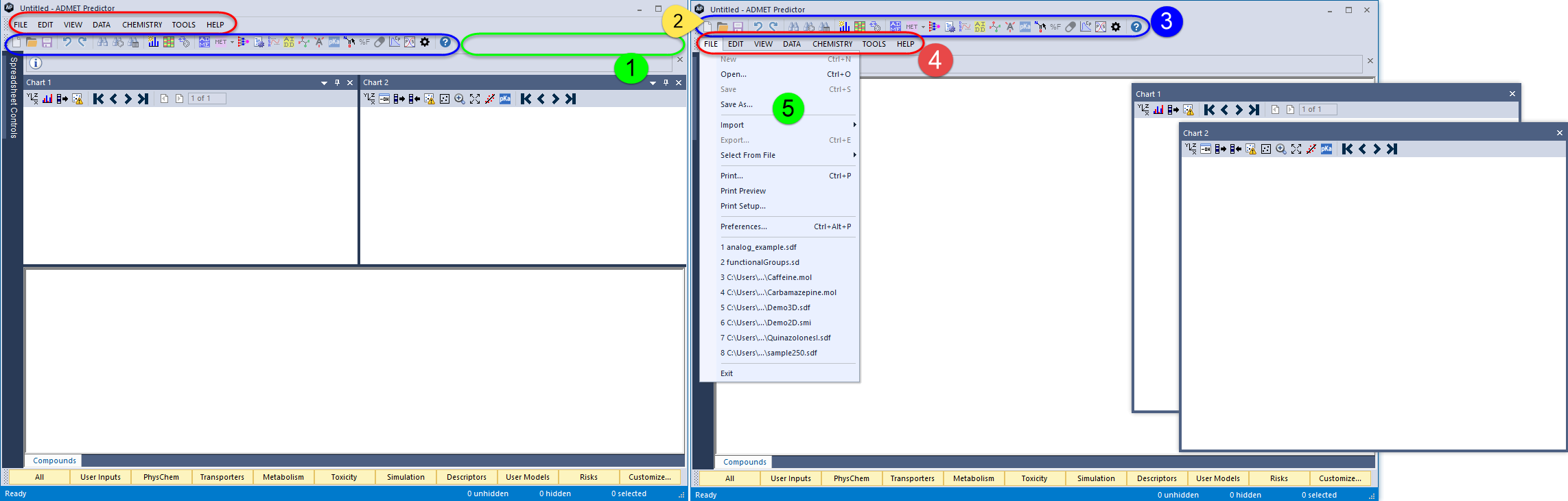
Both images illustrate how the window layout can be reconfigured by undocking and redocking the chart panes. This is accomplished by clicking on their header bars to "grab" them, then dragging the mouse to a new position within the window (left) or outside it (right). VIEW >> Dock Charts in Main Window will restore the default configuration.
The menu bar and toolbars are also dockable, so they can be separated from the main panes or rearranged. In this case, the stippled bars at the left end of a toolbar ((2), above) represent the "handles" that you need to grab and drag. That is how the placement of the toolbar (3) and menubar (4) have been switched. That "trick" has been used at several places in this manual so that an open pull-down menu can be shown without obscuring the toolbar (e.g., 5).
The color scheme for the layout can be modified using VIEW >> Application Theme. Options include Modern Blue, Modern Light and Classic Styles. The application theme used for the illustrations in this manual is Modern Blue.