

1.5. DATA Menu
Calculate ADMET Properties... (Ctrl+R)
ADMET Predictor provides more than 140 ADMET property predictions which are spread across several Attribute Groups: PhysChem, Transporters, Metabolism, Toxicity and Descriptors. To generate these properties, use this menu item or the ADME icon (1) on the spreadsheet toolbar.
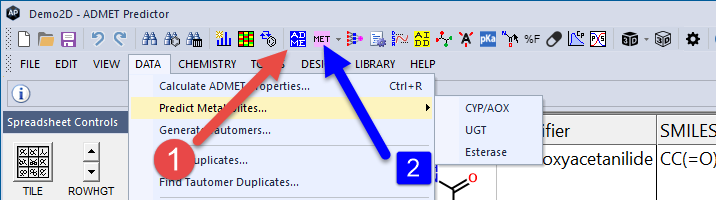
Predict Metabolites...
Generates likely metabolites of the compounds in selected rows. Clicking on the icon 
>> CYP/AOX generates oxidative metabolites.
>> UGT generates UGT metabolites.
>> Esterase generates likely esterase metabolites.
Once metabolites have been generated, a new ADMET Predictor window will open that displays predicted metabolites along with the enzymes responsible for the transformations. See the Predict Metabolites section for options and details.
Generate Tautomers...
Allows you to generate an external file containing reasonable tautomeric forms of compounds from selected rows. Note that there are two available methods for enumerating tautomers; see the Advanced Preferences section for additional information.
After tautomer generation is completed, a new ADMET Predictor window is launched (if tautomers were generated) that displays all the generated tautomers with the parent compound in the first row. There is a column labeled Tautomer_Score that displays the output of the ANNE scoring model for tautomers (as discussed under Tautomer Settings) mapped to the range of 0 to 1. These scores provide a relative comparison of the rankings of the tautomers within a tautomer collection. However, in a similar fashion to the metabolic site scores, they should not be compared between molecules that do not share a common tautomer. For example, the highest ranking tautomer within a collection may receive a very low score, but this carries no significance. This column is always shown regardless of the choices made under Tautomer Settings for Tautomer enumeration or Tautomer standardization.
Find Duplicates...
Identifies rows containing duplicate entries with respect to either chemical structure or attribute (e.g., name). Details can be found here.
Find Tautomer Duplicates...
Identifies cases where the same compound appears in the spreadsheet in different tautomeric forms. For a detailed explanation, see Find Tautomer Duplicates.
Add Compound Attributes... (Ctrl+Alt+A)
Launches the Add compound attributes dialog so you can attach new attributes to the compounds in the spreadsheet. Attributes can be defined from within either the Compounds or Classes tab, and attributes can be added to All spreadsheet rows or to Selected rows only.
Modify Compound Attributes... (Ctrl+Shift+A)
Launches the Compound attributes dialog, which lets you modify existing attribute properties (e.g., name or data type).
Copy Compound Attributes...
Clones an existing set of attributes. You have the choice of retaining or deleting the original attributes and the columns in which they are displayed.
Add Modeling Test Set...
Flags selected rows as belonging to a named test set, which can be useful in model generation. The Using sampling... option launches the Create test set using sampling dialog, which lets you create a set using stratified sampling. The Using selection... option creates a new set from the selected rows.
Add New Chart...
Adds a new chart to the main window. Several chart types are available to choose from.
Restore Original Row Order.. (Ctrl+Alt+R)
Reorders the rows in the spreadsheet as necessary to match the original input order.