

1.10.6. Modifying Attributes
Modifying attributes can involve either modifying individual attribute values or changing the properties of the attribute itself. An example of the former would be changing the logP attribute value for a particular compound from 2.0 to 2.5. An example of the latter would be changing the name of the attribute from "logP" to "Experimental_logP".
The easiest way to change a single attribute value is to double click in its spreadsheet cell and type in a new value. To change values for more than one compound, you can use the Add Compound Attributes dialog, supplying the attribute name whose value you want to change. Doing so will result in the existing values being overwritten in selected rows. Another option is to use the [EDIT>>Search And Replace] menu item. This feature allows you to perform a search-and-replace operation on a single text attribute.
To modify the properties of one or more attributes, rather than the attribute values themselves, use DATA>>Modify Compound Attributes. This launches the "Compound attributes" dialog that will allow you to modify and/or delete individual attributes directly.
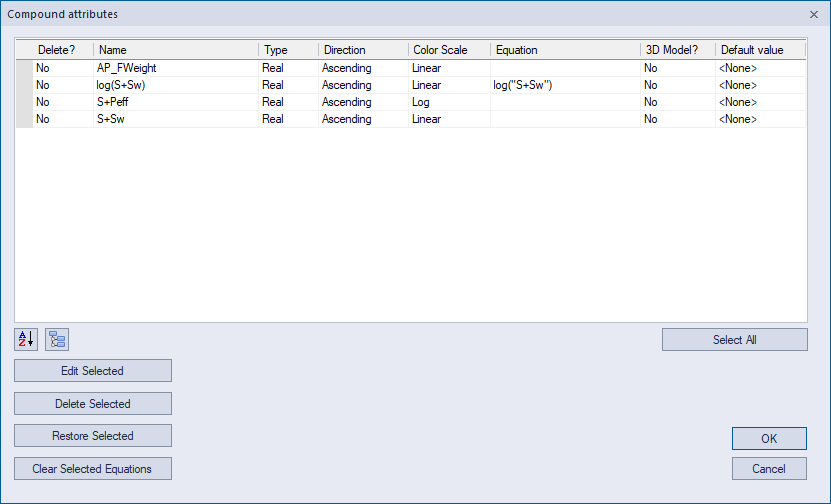
The dialog provides a list of all attributes in the spreadsheet, along with their properties such as name, data type, etc. To change one of these properties, select an attribute and click the Edit Selected button. This dialog can also be used to delete attributes from the spreadsheet altogether.
Note that the column labeled Direction in the above diagram is used to control the color of the attribute in heat map displays. When the value is Ascending, higher values will be colored green and lower ones will be colored red. You can reverse the color gradient by changing this the value of this attribute property to Descending.
The column labeled Color Scale is used to control whether the attribute is placed on a log scale. This setting affects (a) heat-map coloring, (b) histogram columns in the Classes tab and (c) attribute coloring in the R Group Analyzer window.