

1.7. CHEMISTRY Menu
This section describes those items on the CHEMISTRY menu that are available to all ADMET Predictors unless they are running in Viewer mode. Please see the CHEMISTRY Menu chapter in Part 4: MedChem Studio for descriptions of the additional options that appear on this menu when that module is licensed.
AI Drug Design
Launches an AIDD Dialog Wizard for iterative generation of candidate molecules starting with seed molecules from the currently selected rows. The menu command and its associated icon become active when one or more rows are selected in the spreadsheet. An AIDD run generates candidate molecules via SMIRKS transformations from the starting seed molecules in an approach similar to the Combinatorial Transform feature. It differs from Combinatorial Transform by iteratively applying the transforms to the current population while pruning the population using Pareto-based selection against multi-objective criteria for finding the best compounds. It continues to generate new molecules from randomly selected molecules in the current population, gradually improving on the multi-objective criteria of the population as a whole. A detailed description of the method is provided in the Theory section.
Remove Common Fragments
When a compound in the form of salt or hydrate is present, Remove Common Fragments helps to "wash" or "desalt" these compounds to yield the isolated molecular fragment of interest. A list of commonly recognized fragments is provided in the file "CommonFragments.smi" which is distributed along with ADMET Predictor. You can modify this list to add or remove fragments of interest.
Remove Smallest Fragments
Remove smallest fragments (connected components) from a compound, such that only the single fragment having the largest number of atoms is retained. Note that when two or more largest fragments have the same number of atoms, a single fragment is chosen arbitrarily. The default settings of ADMET Predictor performs this operation automatically when structures are imported. This is done because it is generally an essential prelude to generating ADMET Property predictions. This setting should not be changed except by advanced users.
Neutralize
This option converts certain acidic and basic groups from ionized form to neutral form. For example, [O-] is converted to [OH] and [NH+] is converted to [N]. Note that [O-] groups are not neutralized if they are bonded to a positively charged atom (for example, in a nitro functional group). This is not required before generating ADMET Property predictions.
Standardize Functional Groups
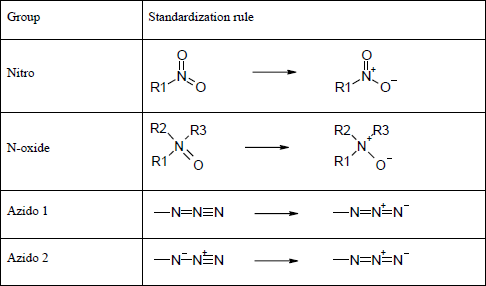
This option converts certain functional groups to a standardized representation. For example, nitro groups with pentavalent Nitrogens (SMILES N(=O)(=O)) are converted to tetravalent ([N+](=O)[O-]). Specifically, the following rules are currently adopted:
Standardize Tautomers
Converts one or more compounds to a standardized tautomeric form. It first generates tautomers for each compound, then chooses the best one using a set of internal rules or the Tautomer scoring model depending on the choice of Tautomer Standardization method in the Tautomer setting dialog box in Advanced Preferences. Note that these rules are not necessarily intended to choose the most stable tautomer, though it usually does choose an energetically reasonable one. Rather, the goal is to standardize tautomeric forms so that ADMET Predictor’s various structure-based features – class generation and model building, for example – will yield useful and consistent results.
A file called TautomerStandardizationQueries.txt, included in the ADMET Predictor installation folder, can be modified to influence the standardization rules. Each line of this file contains a substructure, represented using Daylight SMARTS, that should be either favored or disfavored in the standard tautomer, as indicated by a 1 or 0, respectively, following the SMARTS pattern. Please see the notes at the top of the file for additional information. The use of TautomerStandardizationQueries.txt can be disabled using the Tautomer setting dialog box in Advanced Preferences.