

1.13. Preferences
Once you have become familiar with the default behavior of ADMET Predictor you may want to modify it. The Change application settings dialog used to do this can be launched using FILE>>Preferences or the "gear" (settings) icon on the toolbar:

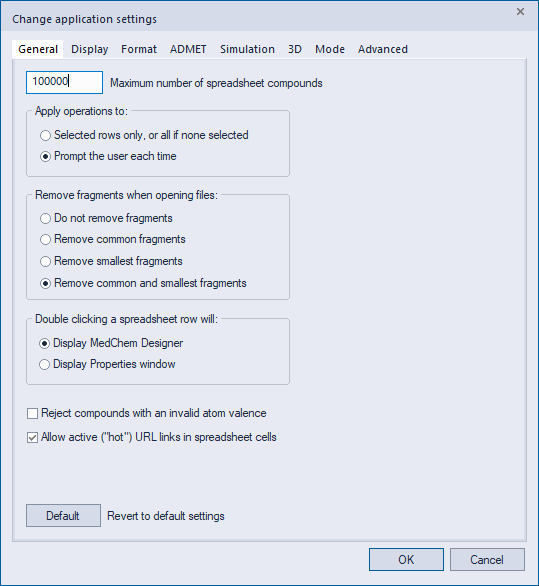
The settings are distributed among eight tabs: General, Display, Format, ADMET, Mode, Simulation, 3D and Advanced. The General tab is shown below.
General Tab
Maximum compounds is used to increase the number of compounds that can be viewed in the spreadsheet; the default is 100,000 and the maximum is 1,000,000. NOTE: only experienced users should raise this setting above the default value, and then only after first ensuring that adequate system resources (e.g., memory) are available to support the altered values.
The Apply operations to options control what occurs when you attempt an operation while one or more spreadsheet rows are selected. If the second option is selected (as it is by default), you will be prompted in such cases whether to apply the operation to All spreadsheet rows or to Selected rows only. If the first option is selected, this prompt will be bypassed, and the operation will always be performed on the selected rows if a selection exists, and on all rows otherwise.
Remove fragments allows you to control which, if any, fragments (connected molecular components) to remove from compound structure entries when an SD or SMILES file is opened. Remove common fragments strips counter ions and salts from the compounds by means of a file of common counterions sorted by frequency of occurrence. The list of recognized fragments is in the file called CommonFragments.smi, which you can modify. For Remove smallest fragments, all but the largest fragment (by atom count) are removed. Any fragments that are removed are saved as the AP_Fragments attribute of the compound. Another column is added which contains a depiction of the original structure; this column is called Previous Structure.
Note: The most recently modified structure can be restored by applying VIEW >> Modify Structures >> Restore previous after selecting the row(s) of interest.
Double clicking on a spreadsheet row determines whether double clicking a spreadsheet row launches the MedChem Designer sketch application or the Compound attributes window. Both options result in the double-clicked compound being sent to the relevant window.
The Reject compounds with an invalid atom valence option controls how molecules with valence errors are handled when encountered in an SD or SMILES file; the default is to retain such molecules for manual review and editing.
Allow active URL links controls whether or not spreadsheet cells are allowed to contain "hot" URL links - i.e., those having the prefix “http://” or “file://”. If this option is checked, such links will become active, and clicking on the cells will open the specified URL.
Display Tab
The Mark double bonds with a defined stereo... option specifies whether double bonds with specified cis/trans configurations will be graphically labeled for easy identification.
The Display...Kekule representations option specifies whether aromatic rings should be displayed as Kekule structures. The alternative is to indicate aromaticity by placing a circle within the ring.
Use bold structure display causes structures to be drawn using thick lines and bold font letters.
Wrap text inside...cells enables or disables text wrapping for attributes when they are longer than the cell is wide.
Right-justify numeric values controls whether numeric attributes are right- or left-justified in spreadsheet cells.
Display confidence estimates in the spreadsheet indicates that any confidence values attached to predictions (e.g., "Yes (50%)") should be displayed. Uncheck this box if you wish to hide confidence values (e.g., "Yes").
Display uncertainty estimates in the spreadsheet indicates lower and upper uncertainty estimates attached to predictions should be displayed. Values will be shown as comma separated pairs such as 50.0 (36.2, 57.3). Note that uncertainty estimates will not be symmetrically displaced from the prediction for models employing an Antilog or Antilogit transform. Also, note that renaming the model column will result in just a single value being shown corresponding to the “raw” uncertainty estimate generated in the model space.
Mark out-of-scope values in the spreadsheet and ...in star plots controls whether out-of-scope predictions are highlighted or not. For text, this is accomplished by underlining and red font. Hatching is used in star plots. It is highly recommended that both remain checked ON.
Create star plots automatically... controls whether star plots are generated automatically each time ADMET properties are generated. The content of the plots is defined using the file AutoStarPlots.star, which you can modify. If this is not checked, star plots can still be generated using VIEW >> Load Star Plot Columns.
Color heteroatoms controls whether heteroatoms will be colored within the spreadsheet. The default convention, where N is blue and O is red, etc., can be customized by clicking the Modify Atom Colors button.
Heteroatom font size controls the sizes of heteroatoms in the spreadsheet compound depictions.
Heat Map Settings is used to modify settings for spreadsheet-cell background coloring. You can specify whether the color progression is red-yellow-green or blue-white-red and whether the color scaling should use all data in the spreadsheet or only the data that is currently unhidden. Note that these settings are also used by the R Group Analyzer window.
Props Window Settings is used to modify settings for the Compound Properties window. You can specify whether the table containing attribute values displays all available attributes or only those that are currently visible in the main spreadsheet.
Text size can be used to modify the size of text in various display windows, including the main spreadsheets, the pKa window, Atomic Properties window, etc.
Set Color under Out-of-scope labels allows you change the color used to display out-of-scope predictions in the spreadsheet.
Format Tab
SMILES export format specifies whether SMILES strings are exported in arbitrary or canonical format, whether to include or suppress stereochemistry and whether to use aromatic or Kekule format.
SD export format controls whether SD files are exported using V2000 (box unchecked) or V3000 format. Note that the File >> Export menu item also provides the option to export a V3000 SD file, so in general it should not be necessary to change this application-wide setting.
Preserve SD wedge bonds specifies that compounds read into ADMET Predictor using SD format will retain up and down wedges even if these are not associated with recognized stereocenters.
Force stereo perception... When this option is checked, tetrahedral stereo configurations will be inferred from 3D coordinates even when stereo parity flags in the SD file are set to zero.
Allow Enter key specifies that the Enter key will add a new line within dialog windows used to input queries and reactions. If the option is not checked, the Enter key is equivalent to clicking the dialog's OK button. In this latter case, a new line can be input by holding down the Control and Q keys simultaneously, then pressing J.
Case sensitive Sorting allows you to use case sensitive sorting in the spreadsheet and in dialog lists.
Alphabetical Sorting allows you to use alphabetical sorting in all dialog attribute lists. If not checked, list order will be similar to spreadsheet column order, with user attributes first, ADMET models second, ADMET descriptors third, etc.
When Attribute Reversal is checked, attributes listed in the file AutoReversalAttributes.txt will be interpreted in inverted order, so that smaller values are "better." The sense in which the selected color progression (Red-Yellow-Green or Blue-White-Red) in the Attribute color selection dialog) is applied is reversed for attributes listed there, i.e., to run large to small rather than small to large. It also reverses the sense of wedges in star plots, making wedges for small attribute values extend further out towards the edge than wedges for larger attribute values do.
Text Attribute Treatment controls the handling of attributes with a mixture of text and numeric values. By default, such attributes are designated as having text format. However, if this option is checked, such attributes can be used in features normally requiring a numeric attribute (charts, for example); in such cases, any text values will simply be treated as missing values.
Decimal count controls the number of decimal places to use for real numbers displayed in the spreadsheet.
Significant figures specifies the minimum number of significant figures to display for numbers less than one. This setting is used only when Auto-format is selected. If at least this number of significant figures cannot be displayed using decimal notation, the value will be displayed using scientific notation.
ADMET Tab
If you enter a new value in the pH field, that value will be presented in the Calculate ADMET properties dialog as the pH at which pH-sensitive models (e.g., logD and solubility at pH point) will be calculated. It will also be the pH at which ionization descriptors will be calculated if the Also calculate ionization descriptors at this pH option in that dialog is checked ON. The entered value must be between 0 and 14. The default value is 7.4.
Secondary Microstate Contribution controls how many microstates are displayed in the pKa Microstate Display window. Microspecies contributing less than the indicated percentage to their macrostate will not be shown. Setting the value to zero will display all microspecies; it is not recommended because it will generally clutter the display unnecessarily.
Min. pKa omits macroscopic pKa’s greater than the specified value from the spreadsheet; it does not affect pKa estimates or what is shown in the pKa Microstate Display. Bear in mind that strong acid pKa's are important in some applications, e.g., in those relating to dissolution in the stomach.
Max. pKa omits macroscopic pKa’s less than the specified value from the spreadsheet; it does not affect pKa estimates or what is shown in the pKa Microstate Display.
If the number of ionizable groups in a molecule exceeds Max groups, molecule will not be submitted to microstate analysis. This option is ignored if its value is set to 0. Note that skipped structures will appear in the error log.
Ignore aliphatic OH neglects the acidity of aliphatic hydroxyl groups when pKa microstate analysis is done. Including such groups slows property calculations substantially and does not have a large effect on most property predictions. We neglect them when we build our own models.
Ignore aliphatic amide neglects the acidity of aliphatic amides when pKa microstate analysis is done. Including such groups slows property calculations substantially and does not have a large effect on most property predictions. We neglect them when we build our own models.
Ignore carbon protonation neglects the basicity of carbons in some pi-excessive rings (pyrroles, indoles, etc.) when pKa microstate analysis is done. Including such groups slows property calculations substantially and does not have a large effect on most property predictions. We neglect them when we build our own models.
Out-of-scope factor for risk models causes the result associated with a Risk rule to be multiplied by the Out-of-scope factor if one or more of the models employed by the rule is out-of-scope and changing the result of that model could affect the evaluation of the rule. Details can be found elsewhere.
Simulation Tab
The Selected species box allows you to specify which species will be initially displayed on the HTPK simulation dialog. This is merely a convenience feature, since it is easy to switch between species manually.
The Dose interval box controls whether the Simulation fraction absorbed... dialog displays an option to specify the number of dose intervals. Ordinarily this value can only be modified via the NumDoseIntervals parameter in the relevant HIA file.
The Add star plots box controls whether summary star plots are added to the spreadsheet following PSA calculations. See the HTPK section for more information.
Enable archive controls whether summary information is saved to disk following HTPK simulations. See the HTPK section for more information.
The Prompt option, related to the above, allows users to provide a short summary for insertion into saved log files.
Archive folder, related to the above, allows users to specify the folder for saving HTPK summary files.
3D Tab
Generate conformers. This option specifies that multiple conformers will be generated for each input compound. Only the lowest-energy conformer is saved in memory within the session; however, if you generate conformers for just a single compound, all the conformers are saved automatically to a temporary file called CB3D.sdf in the ADMET Predictor support folder. If you wish to generate and save multiple conformers for more than one compound, you must use the command-line version of ADMET Predictor. Please see the 3D Conformers section for additional information.
Maximum number of final conformers. Maximum number of generated conformers for each input compound.
Minimum RMSD between conformer pairs. Minimum root-mean-square deviation (Angstroms) among all pairs of final conformers.
Maximum energy range among all conformers. Maximum energy difference in kcal/mol among all pairs of final conformers. Energies are calculated using the MMFF94s force field. A value of zero indicates that conformers will be evaluated using simple collision checks rather than energies.
Maximize conformer diversity. This option specifies that higher structural diversity among the conformers will be prioritized. If this option is unchecked, lower energy conformation will be prioritized. Note that prioritizing diversity generally results in longer run times.
Conformer search depth. This option controls the depth of the conformer search, with larger values indicating a more thorough (and slower) search. Please see the 3D Conformers section for additional information.
Always use distance geometry. When this option is checked, ring system coordinates are always generated using distance geometry. If it is not checked, distance geometry is used only when the default approach fails, which generally occurs for macrocycles and complex bridged fusions. Checking this option can be useful when generating multiple conformers, since distance geometry often generates a larger number of unique geometries for a given ring system.
Distance geometry search level. This option controls the number of distance geometry trials, with larger numbers indicating more trials.
Random seed. Random seed used by the distance geometry algorithm.
Minimization level. This option controls the level of minimization applied to each final structure, with larger values indicating a more thorough (and slower) minimization. A value of zero indicates no minimization. If multiple conformers are requested, minimization will be performed on only the lowest-energy conformer; in that case the minimized structure, if structurally unique, will be prepended to the list of conformers and will be the conformer that is saved within the current ADMET Predictor session.
3D Viewer. Full path to external application used for visualizing 3D structures. Any required parameters can be included. Note that you can also provide the full path to user defined script.
Launch 3D viewer automatically. When this option is checked, the 3D viewer will be launched automatically after generating 3D coordinates for a single compound, whether a single conformer or multiple conformers. If 3D coordinates are generated for multiple compounds, the 3D viewer must be launched manually for each individual compound.
Advanced. Clicking on this button opens a dialog box which provides a few more options related to force fields and template in 3D coordinate generations.
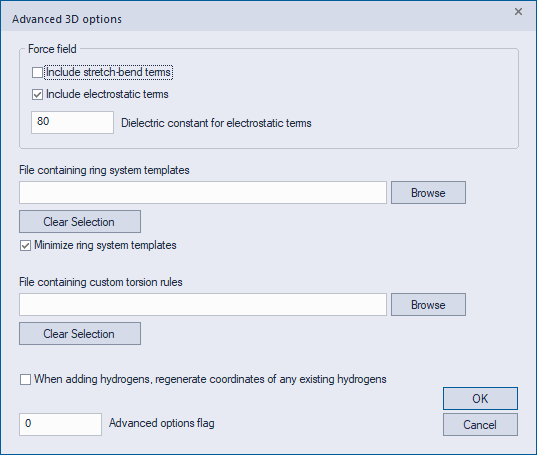
Stretch bend terms. When this option is checked, MMFF94s energy calculations will include stretch-bend terms. These terms generally have only a small effect on 3D coordinates.
Electrostatic terms. When this option is checked, MMFF94s energy calculations will include electrostatic terms.
Dielectric constant. Dielectric constant used with MMFF94s electrostatic terms. It is recommended that you use caution when lowering this value, as this can sometimes lead to unrealistic geometries.
File containing ring system templates. Optional file containing predefined 3D coordinates of specific ring systems. This file can be created using the command-line version of ADMET Predictor. Please see the script-file workflow ms_create_3dtemplates.txt for additional information.
Minimize ring system templates. When this option is checked, minimization will be applied when utilizing predefined ring system templates. Minimization can sometimes alter the predefined geometries, but is useful for resolving collisions caused by ring-system substituents.
File containing custom torsion rules. Optional file containing custom torsion rules to influence 3D conformer generation. The ADMET Predictor distribution includes a sample file called TorsionRules.txt that illustrates the required syntax.
Advanced options flag. This option should be modified only if specifically instructed to do so by Simulations Plus.
Mode Tab
The Viewer/Full button switches the application from Full to Viewer mode and vice versa. The difference between the two is that no operations licensed to a specific module - property prediction, model building, class generation, etc. - can be carried out in Viewer mode. Switching to Full functionality requires that a license for some Module is available. The mode can also be switched back and forth from the License status dialog, which can be launched using HELP >> View License Status...
View license status displays a list of the current license status.
Viewer startup specifies whether or not ADMET Predictor starts up in Viewer mode by default.
Advanced Tab
When Default window layout is activated, the window layout - menus, toolbars, charts, etc. - will be in the default configuration when ADMET Predictor session starts regardless of how the last session was ended or the configuration was saved. Otherwise an XTK file will open with the layout it had when it was saved.
The Hidden Items Alert indicator is in the lower-right corner (on status bar) of the main ADMET Predictor window and is highlighted in red color when any spreadsheet rows are hidden. It can be useful when performing operations that skip hidden rows.
Add auxiliary properties automatically. This option is used to add user-defined auxiliary attributes to spreadsheet each time ADMET properties are calculated. The auxiliary attributes, defined in the file called AutoADMETAttributes.cqf in the application directory of ADMET Predictor, are generally defined as equations dependent on one or more ADMET properties: a simple example would be the log of aqueous solubility, while a more complex one would be liver plasma clearance, which depends on fraction unbound in plasma (hum_fup%), the ratio of blood to plasma (RBP), intrinsic HLM clearance (CYP_HLM_CLint) and a number of constants. The file called AttributeExamples.cqf, also included in the application directory, provides numerous examples of attributes that you can consider adding to the AutoADMETAttributes.cqf file. Note that a separate option exists to add attributes after HTPK simulations.
Rename attributes automatically. When this option is activated, ADMET attributes upon export will be renamed according to the mapping contained in the tab-delimited text file AutoRenameAttributes.txt, which is included in the application directory of ADMET Predictor. This option provides a convenient way to resolve problems that certain names might present for downstream software applications. Note that this feature is not supported for export to Excel files (*.xls).
Maximum processors specifies the maximum number of computer processors to be used during operations including ADMET and HTPK Calculations and AIDD runs that are able to utilize more than one processor at once. The default value is one minus the total processor count but no less than one.
Maximum number of undoable operations limits the number of operations that can be undone using Edit >> Undo. Lowering this value saves computer memory.
Advanced options flag. This option should be modified only if specifically instructed to do so by Simulations Plus.
Clicking on the Show warnings button restores warning messages that you have opted to suppress by checking a Do not show this message again box in that message.
Clicking on the Clear Undo button clears all the undoable operations, which reduces memory demands from the program.
Recognize ADMET Attributes finds all attributes having the same name as an internal ADMET model and mark them as having been generated by ADMET Predictor. This is useful for avoiding warning messages in cases where the attributes were imported from an SD or SMILES file.
Tautomer Settings is used to modify settings related to tautomers. Starting in ADMET Predictor 10.3, user can switch between two methods of tautomer enumeration.
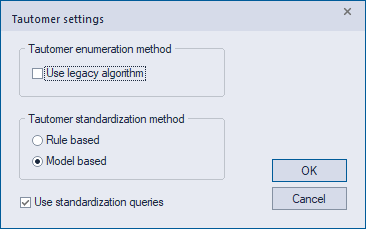
The first option controls the method used for tautomer enumeration, and therefore affects the results of the Generate Tautomers, Standardize Tautomers and Find Tautomer Duplicates features. If this box is checked, the enumeration algorithm will be the one used in versions of ADMET Predictor 8.0 and 10.2, inclusive. Otherwise, the algorithm is the one used in ADMET Predictor version 7.2 and earlier. Both algorithms are based on proprietary rules, but they differ in ways that are difficult to characterize, so interested users are encouraged to experiment with both. Note that when using the AP 7.2 algorithm, molecules are always neutralized (e.g., protonated nitrogens are always deprotonated and deprotonated oxygens are always protonated) before enumerating tautomers. This is not the case when applying the legacy algorithm. Future development will focus on the latter (non-legacy) algorithm, which is why the former is described as legacy.
The second group of options determines the method used for tautomer standardization. If Rule based is selected, standardization is performed by ranking tautomers using a set of heuristic rules. If Model based is selected, standardization is performed by ranking candidate tautomers using scores from an artificial neural network ensemble model trained on experimental data.
The final option controls whether the file TautomerStandardizationQueries.txt should be used to influence standardization. See the Standardize Tautomers section for additional information.