

6.1. Absorption & Bioavailability
The HTPK Simulation Module lets you use our proprietary ACATTM model to carry out simulations for human, rat, mouse, dog and monkey physiologies and to estimate the fraction absorbed (%Fa) as well as the fraction bioavailable (%Fb) of compounds using only properties predicted from their molecular structure. Either or both attributes can be generated using the Simulate... dialog that is launched via TOOLS >> PK Simulations >> %Fa And %Fb or by clicking on the %F icon on the main ADMET Predictor toolbar:

You can only run simulations for one Species at a time: you must choose Mouse, Rat, Monkey, Dog or Human. Most of the dialog options are dependent on which species you select; the default settings shown below are for Human.
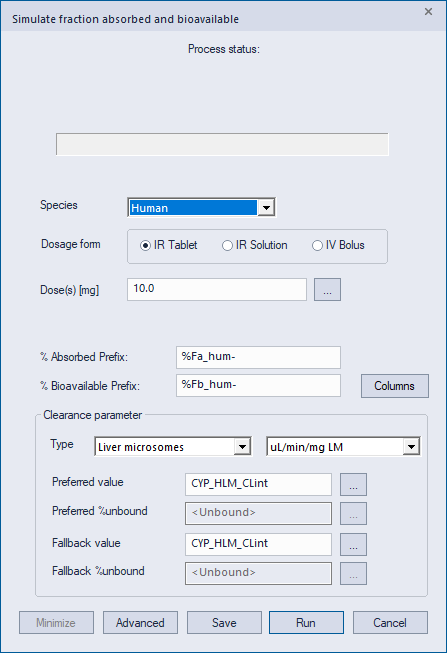
The Dosage form can be either IR Tablet (immediate release tablet), IR Solution or IV Bolus.
You can set Dose(s) to a single value, as shown above, or to a semicolon-separated list of values (e.g., 1.0;10.0;100.0). You can also choose a pre-defined attribute (column) such as Dose, in which case the dose used will be the value of that attribute for the corresponding compound. Clicking the ellipsis button (…) will bring up a dialog box to select the attribute to use. The column type is required to be integer or real so one cannot use a semicolon-separated list of values.
The names of the attributes that will be produced are constructed by appending the specified Dose values to the Prefix provided for %Absorbed and %Bioavailable. In the example shown above the simulation will generate two primary attributes, each of which will be displayed in its own spreadsheet column: %Fa_hum-10.0 and %Fb_hum-10.0. Note that if you choose to specify an attribute that you have defined yourself - say, MyDose - in the Dose(s) field, the attribute name will be appended to the Prefix to form the name of the output attribute, e.g., %Fa_hum-MyDose. In addition to the columns for fraction absorbed and fraction bioavailable, several additional ones are also provided, as described below. If you wish to omit one or more of these columns, you can do so by clicking the Columns button and selecting the ones you would like to save and display. If you choose to modify the prefix values, we strongly recommend that you retain the "%Fa_xyz" portion at the beginning (where xyz denotes the species). For example, you could use "%Fa_hum_run1-" by inserting "_run1" just before the terminal hyphen. This format will ensure that all result properties have consistent naming. It is also recommended that "% Absorbed Prefix" and "% Bioavailable Prefix" be modified in a consistent manner.
The Clearance Parameter section includes a number of related options. A Clearance Type - Liver microsomes, Hepatocytes or Systemic - must be specified. Note that the units of clearance are different for the three Types: μl/min/mg LM for Liver microsomes, μL/min/106 cells for Hepatocytes, and L/h/kg body weight for Systemic. Choosing Liver microsomes or Hepatocytes means that a default rate of renal clearance (fraction unbound in plasma times glomerular filtration rate, or fup×GFR) will be applied to the central compartment that represents the circulation and peripheral tissues. If a Systemic clearance is specified, the hepatic clearance will be set to zero and the value provided will be presumed to represent the total clearance rate for the Central compartment, including the renal clearance. First pass extraction is computed by dividing System clearance by liver blood flow.
You can set the Preferred value to use for hepatic clearance to be a number or an attribute. The default is CYP_XLM_CLint, where XLM depends on your Species selection (e.g., HLM for human). You can also specify an attribute that you have defined - e.g., a measured RLM clearance - provided it already exists in the spreadsheet. An ADMET Predictor model like CYP_RLM_CLint can be used even when it has yet to be calculated for any compound in the spreadsheet.
As noted above, you can specify the name of an experimentally determined clearance as your Preferred value, but if you do so rows that have yet to be assayed – or, perhaps, have yet to be synthesized – will have missing values. A Fallback value is provided to handle such situations. When the Preferred value for a compound is missing, the program will use the value or attribute specified in the Fallback value field instead. These Fallback values are specified in HIA files. For example:
<RefClearance>HLM_CLint|CYP_HLM_CLint</RefClearance>
will use the value in the HLM_CLint cell unless it is blank, in which case it will use CYP_HLM_CLint.
The %unbound option should be set to <Unbound> if the associated clearance has been corrected for non-specific binding in the in vitro assay system (e.g., microsomal membrane binding in the case of Liver microsomes). A value of <Mechanistic> indicates that the clearance is uncorrected and triggers an internal correction based on the fumic_hum model for liver microsomes (assuming human species) and the S+fuhep model for hepatocytes; see the Intrinsic Clearance section for details on the correction. Note that for the case of liver microsomes or hepatocytes, the fumic_hum or S+fuhep models can be replaced by a user-defined quantity via the RefFumic or RefFuhep parameter in the relevant HIA file. You can also specify your own %unbound value, either as a number or as a column name. In that case, the input clearance is simply divided by the specified value. When using an ADMET Predictor clearance model (CYP_XLM_CLint or HEP_xCLint), %unbound is set to <Unbound> and is disabled, as these models were built using unbound CLint values corrected for membrane binding by application of fumic_hum or S+fuhep. The %unbound option is not available if you select Systemic as the Clearance Type.
Clicking on the Save button will write your current settings into the appropriate settings file (SimRIA.hia, SimHIA.hia, SimMIA.hia, SimDIA or SimMKYIA.hia depending on whether Species is set to Rat, Human, Mouse, Dog or Monkey). By default the settings will be saved in your application data directory (AppData/Local), making them available each time you start ADMET Predictor. Note that the analogous files in the ProgramData folder will not be modified by a save operation, so these files can be used to restore default settings if you make a mistake.
ACAT calculations depend upon various physicochemical properties such as LogD and solubility that are not "exposed" in the first HTPK dialog box (the Simulate fraction absorbed and bioavailable dialog box). However, several of these can be accessed by clicking on the Advanced button, which launches the Advanced simulation Parameters dialog.
Tweaking parameter values for a single compound
When you launch the Simulate... dialog with a single row in the spreadsheet is selected, two extra buttons will appear to the right of the Species selection field; these are highlighted in red on the left side of the illustration below. Clicking on the left button imports the specified attributes from the selected row into the dialog. The Dose(s) and Preferred value field for the Clearance parameter (Dose and CYP_HLM_CLint, here) will be filled in with the predicted value for the selected compound - provided they are available in the spreadsheet.
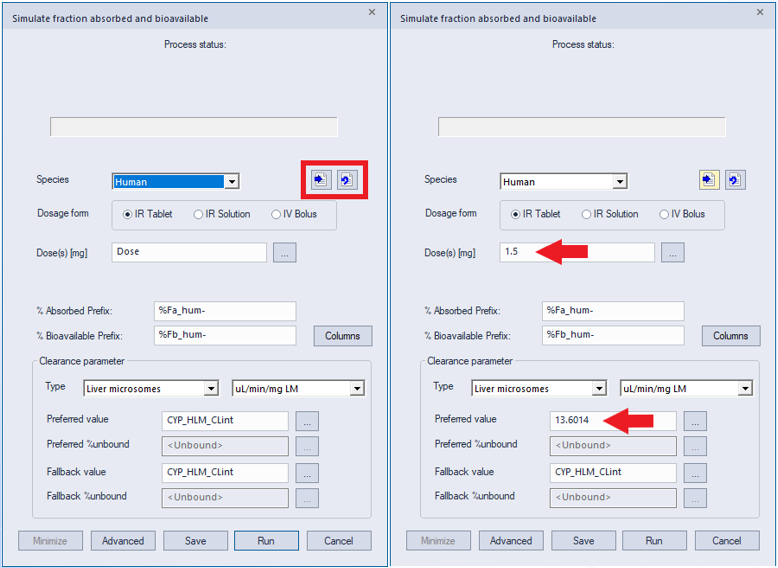
You can then modify these values to see what the effect of changing them is on the predicted %Fa or %Fb. Clicking on the right-hand button undoes the changes produced by the button at the left, restoring the replaced attribute names (Dose and CYP_HLM_CLint, above). A similar but independent pair of buttons appears in the Advanced simulation Parameters dialog when a single row is selected.
After running the simulation, several new columns will be added to the ADMET Predictor spreadsheet. In addition to the %Fa and %Fb attributes already described, a number of additional ones will be generated, as follows. For brevity, species and dose suffixes have been removed. If you wish to omit one or more of these columns, you can do so by clicking the Columns button and selecting the ones you would like to save and display.
Cmin. Minimum plasma concentration (ng/mL) reached in selected species at specified dose level.
Cmax. Maximum plasma concentration (ng/mL) reached in selected species at specified dose level.
Tmax. Time (hr) relative to the last administered dose at which maximum plasma concentration is reached in selected species at specified dose level.
AUC. Area under the concentration-time curve (ng-hr/mL) for the final administered dose in selected species at specified dose level.
AUCinf. Estimated AUC (ng-hr/mL) from time zero to infinity (based on the first dosing interval) in selected species at specified dose level. A blank cell indicates that the value could not be estimated; this occurs when the Cmax is not reached by the end of the first dose interval.
CL. Estimated total clearance (L/hr) in selected species at specified dose level, calculated as bioavailability times dose divided by AUCinf. A blank cell usually indicates that AUCinf could not be estimated.
THalf. Estimated half life (hr) in selected species at specified dose level, calculated from the ratio of volume of distribution to clearance. A blank cell usually indicates that AUCinf, and hence CL, could not be estimated.
CLp_H. Estimated hepatic clearance (L/hr) in plasma. This is calculated using the hepatic clearance formula provided in the theory section.
CLp_HR. Estimated hepatic plus renal clearance (L/hr) in plasma. This is the sum of CLp_H and the passive renal clearance (GFR*fup).
S+Vd_PBPK. Estimate of the volume of distribution in L/kg using the Lukacova extension (Lukacova 2008) of the Rodgers approach (Rodger 2005a, Rodger 2005b).
fup_adj%. Lipid-adjusted percent unbound to plasma proteins.
Kp_[tis]. Partition coefficient for the specified tissue/organ ([tis]) relative to plasma at equilibrium.
N_OutInp. The number of out-of-scope predictions used as inputs to the simulation.
OutInp. List of out-of-scope predictions used as inputs to the simulation.
Note that several of the above attributes refer to dosing interval. The number of dose intervals is set to one by default and cannot be modified in the user interface unless you activate a special advanced setting on the Simulation page of the main Preferences dialog. It can also be changed by manually editing the relevant HIA file (e.g., SimHIA.hia); see the parameter called NumDoseIntervals.