The ADMET Predictor HTPK simulation module expects input permeability values to be passive human jejunum permeabilities, typically of the order 10-4 cm/s. Starting with ADMET Predictor version 14.0, a Permeability Converter tool is provided to create correlation functions to generate human Peff values from user-supplied in-vitro permeabilities in any medium (Caco-2, MDCK, etc.). This tool is similar to the one provided in the GastroPlus® software.
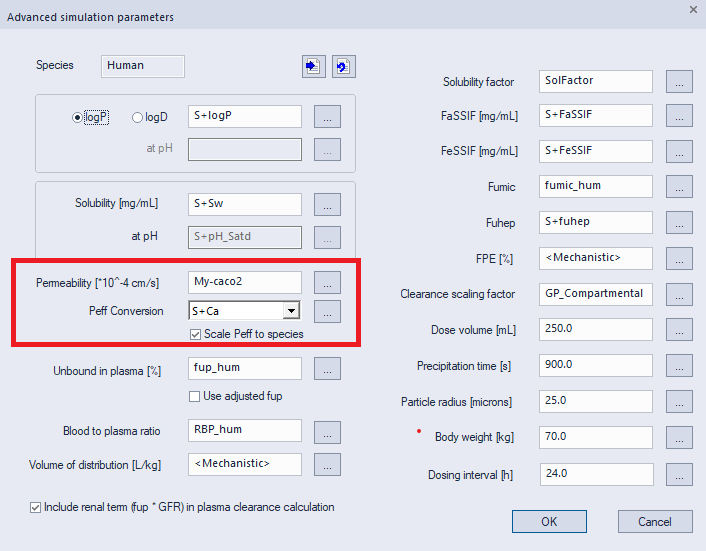
The Permeability Converter is launched using the menu item “TOOLS >> PK Simulation >> Peff Conversion…” or from the dialog box used to set up HTPK simulations (Advanced dialog box, the ellipsis to the right of “Permeability [*10^-4 cm/s]”). The tool interface appears as follows:
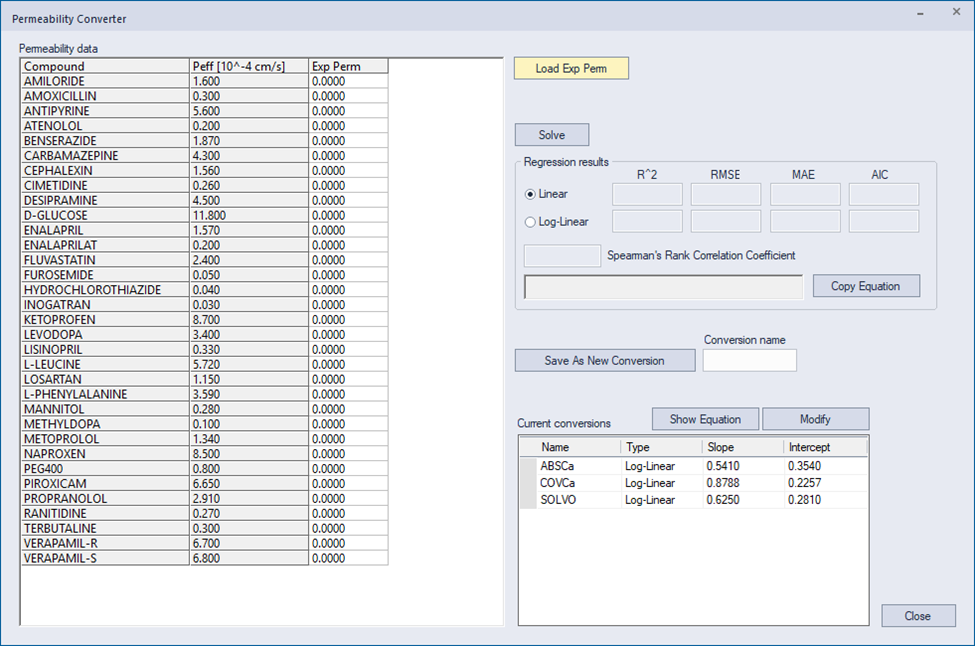
The grid on the left contains 33 compounds for which experimental human Peff values are available (Lennernas 1998). Run a representative sample from this list through your permeability experiment, preferably at least 8–10 compounds spanning a range of low to high permeabilities. Only one type of experimental data should be used: do not mix different types of experiments (e.g., Caco-2 and MDCK). Also, do not mix the same kind of permeabilities obtained in different labs, or under different methods in the same lab. Note that you can leave off the exponent in your measured values as long as you leave off the same exponent from all measurements. For example, if your measurements are a mix of values with powers of 10-6 and 10-7, first convert them all to the same exponent, and then leave off the exponent (e.g., 5 x 10⁻⁶ would be entered as 5, and 5 x 10⁻⁷ would be entered as 0.5). Once the in vitro data is generated, it can be entered into the Permeability Converter manually or loaded from a tab-delimited text file by clicking the “Load Exp Perm” button. If using a file, compound names should be in the first column and permeability values in the second. The experimental permeability values will be displayed in the “Exp Perm” column.
To generate a correlation, click the Solve button. Both linear and log-linear correlation will be generated. Usually, the model with the lowest value for the Akaike Information Criterion (AIC) will be the preferred model, and ADMET Predictor will select this model automatically. To visualize the correlation graphically in ADMET Predictor, see the instructions below.
Once the correlation is satisfactory, it can save it for future use. Provide a short name for the conversion using the "Conversion name" box, then click the “Save As New Conversion” button. The new conversion will then be visible in the "Current conversions" table at the bottom of the tool, and it will be available from the HTPK simulation dialog.
All saved conversions are contained in a file called PeffConversions.txt, distributed with the ADMET Predictor software. The file is saved in the user’s AppData directory, e.g., C:\Users\username\AppData\Local\Simulations Plus, Inc.\ADMET_Predictor14.0. The file includes some default correlations, including ABSCa for Absorption Systems' Caco2 assay, COVCa for Covance's (now Fortrea) Caco2 assay and SOLVO for SOLVO's (now a Charles River company) PAMPA assay. ADMET Predictor reads from and writes to this file, so do not modify it while ADMET Predictor is open.
Graphically visualizing the correlation
The predicted Peff, from the correlation, can be plotted against experimental Peff using ADMET Predictor. The software installation includes a file called PeffConversions.smi (in the user’s AppData directory) containing the structures of the 33 compounds described above, along with the experimental Peff values.
-
Open PeffConversions.smi in ADMET Predictor
-
Import your in-vitro permeabilities
-
It is more convenient if the in-vitro permeability attribute has the name "ExpPerm", but this is not required
-
-
Open the Permeability Converter tool
-
If the desired conversion is available in the "Regression results" section, click the "Copy Equation" button to place the equation in the clipboard
-
If your conversion is not available but has been saved, select the conversion name in the table at the bottom, then click Show Equation, and finally click the Copy button for the "Standard query format" box
-
-
Back in ADMET Predictor, add a new Query attribute (DATA >> Add Compound Attributes >> Query)
-
Paste the copied equation into the dialog window.
-
Adjust the attribute name "ExpPerm" if required to match your attribute name from the ADMET Predictor spreadsheet.
-
Click OK
A new attribute will appear in the spreadsheet representing predicted Peff using your conversion equation. One can then plot this attribute against experimental Peff in the scatter plot.
Using user in vitro permeabilities in HTPK simulations
The “Advanced” dialog box for HTPK simulations contain fields to specify the in vitro permeability column and the correlation to use to convert the values to Peff values. In the dialog box below, My-caco2 is a column in the spreadsheet containing in vitro permeability values and “S+Ca” is the name of a user defined correlation. The values in the column will be converted to Peff and then used as the input permeability for the simulations.