

4.1. CHEMISTRY Menu
AI Drug Design
Launches an AIDD Dialog Wizard for iterative generation of candidate molecules starting with seed molecules from the currently selected rows.The menu command and its associated icon become active when one or more rows are selected in the spreadsheet.An AIDD run generates candidate molecules via SMIRKS transformations from the starting seed molecules in an approach similar to the Combinatorial Transform feature. It differs from Combinatorial Transform by iteratively applying the transforms to the current population while pruning the population using Pareto-based selection against multi-objective criteria for finding the best compounds.It continues to generate new molecules from randomly selected molecules in the current population, gradually improving on the multi-objective criteria of the population as a whole.A detailed description of the method is provided in the Theory section.
Remove Common Fragments
When a compound in the form of a salt or hydrate is present, Remove Common Fragments helps to "wash" or "desalt" it to yield a single molecule of interest. A list of commonly recognized fragments is provided in the file "CommonFragments.smi" which is distributed along with ADMET Predictor. You can modify this list to add or remove fragments. The default settings of ADMET Predictor removes these fragments automatically when structures are imported. Hence this menu item is most appropriate for advanced users who have modified the settings.
Remove Smallest Fragments
Remove smallest fragments (connected components) from a compound, such that only the single fragment having the largest number of atoms is retained. Note that when two or more largest fragments have the same number of atoms, a single fragment is chosen arbitrarily. The default settings of ADMET Predictor performs this operation automatically when structures are imported. Hence this menu item is most appropriate for advanced users who have modified the settings.
Neutralize
Converts certain acidic and basic groups from ionized form to neutral form. For example, [O-] is converted to [OH], and [NH+] is converted to [N]. Note that [O-] groups are not neutralized if they are bonded to a positively charged atom (for example, in a nitro functional group).
Standardize Functional Groups
Converts certain functional groups to a standardized representation. For example, nitro groups with pentavalent Nitrogens (SMILES N(=O)(=O)) are converted to tetravalent ([N+](=O)[O-]). Specifically, the following rules are currently adopted:
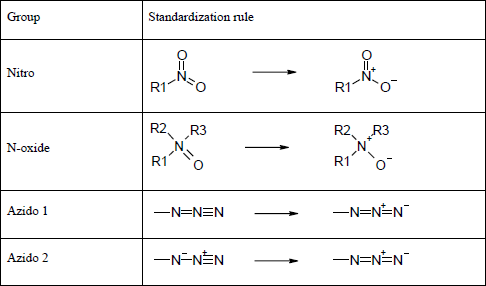
Standardize Tautomers
Converts one or more compounds to a standardized tautomeric form. It first generates tautomers for each compound, then chooses the best one using a set of internal rules or an artificial neural network scoring model. The choice is based on the setting in Tautomer Settings under Advanced Preferences. Note that these rules are not necessarily intended to choose the most stable tautomer, though it usually does choose an energetically reasonable one. Rather, the goal is to standardize tautomeric forms so that ADMET Predictor’s various structure-based features – class generation and model building, for example – will yield useful and consistent results.
User Defined Transform
You can transform compounds “in-place” in the Compounds tab. On the subsequent options dialog you can specify your own transformation rule either in SMIRKS format, by loading an MDL rxnfile or by drawing a transformation using MedChem Designer. A separate dialog option allows exporting the products to a file rather than modifying the spreadsheet; this mechanism is preferable for transforms that can yield multiple products for a single input compound.
Generate Classes
Allows you to generate classes: that is, to organize compounds into structural families based on shared scaffolds. The details of this menu item are discussed in the Generate Classes section.
Create Class Using Query
Allows you to append a single new class to the current set of classes (if any) using an arbitrary query. All compounds that match the query will be contained in the newly added class. The query is usually a specific scaffold, but is allowed to be any arbitrary query based on structure and/or property. Queries are discussed in several sections of this manual.
Create Class Using Selection
Allows you to add a single new class comprised of the currently selected compounds. The new class will be appended to the set of existing classes, if any.
Filter Spreadsheet Into Classes
Adds spreadsheet compounds to current classes using scaffold matching. This menu item is particularly useful when you have generated classes manually or combined multiple classes to generate a single class.
Remove Compounds From Class
Used to remove selected compounds from a single class. For details, please see Removing molecules from a class.
Find Similar Compounds...
Allows you to find compounds that are structurally similar to a selected one. For details, please see Similarity Screening.
Find Diverse Compounds
Selects a structurally diverse set of compounds from the currently selected ones. This feature uses an adaptation of the k-means clustering algorithm to perform the selections, returning the molecules nearest the centroids of the final k clusters. Molecular descriptors are proprietary fingerprint keys (small sub-structural fragments based on the MDL MACCS keys), and similarity calculations are based on the Euclidean distance metric.
Generate Pairs (Activity Cliffs)
Allows you to identify pairs of compounds that have a high degree of structural similarity. You can control the similarity requirements and can specify a numeric property (biological activity, for example) and a difference threshold, such that two compounds will be displayed as a pair only if their similarity is sufficiently high and their difference in property value is greater than the difference threshold. The details of the methodology can be found elsewhere.
Delete Pairs...
Allows you to delete one or more sets of pairs.
Generate Keys...
Launches a dialog that lets you choose which kind of keys you want to generate, e.g., circular fingerprints (ECFP).
Delete Keys
Clears previously generated keys.