

5.4. Combinatorial Transform
ADMET Predictor lets you generate structural analogs of one or more starting chemical structures by combinatorial application of multiple transformation instructions contained in a user-customizable file. Example transformations could include, for example, the bioisosteric replacement of one functional group for a similar one. In this way, a you can generate a list of analog structures that can suggest new ideas for evolving a lead to a more suitable scaffold or an improved property profile.
The ADMET Predictor distribution includes one or more files containing sample reaction transformations. These files have names beginning with moleculeTransforms and have the CRF file extension. For example, the file moleculeTransforms.crf contains approximately 150 reactions developed in collaboration with medicinal chemists to capture the types of chemical differences commonly observed within sets of structurally related bioactive molecules. You can modify these files or provide your own file containing customized transformation instructions.
You need to specify the transforms file and other parameters in the Create new compounds by applying transforms combinatorially dialog which is opened by using the menu
DESIGN >>Combinatorial Transform.
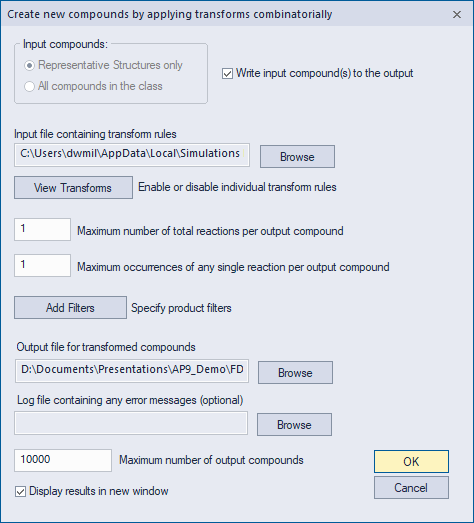
Following the Input file... field is a View Transforms button that allows you to view the reaction transforms contained in the specified file and to disable one or more of them if desired. Note that the dialog launched via View Transforms allows you to save your list of disabled transforms to a text file so that it can easily be reused in subsequent sessions if desired.
Following this button are two options that control the combinatorial search through the transforms contained in the file.
-
Maximum number of total reactions... allows you to specify the maximum number of total reaction transforms applied to any output molecule (the minimum number is fixed at one). Increasing this value increases the number of output molecules and their structural diversity, but also increases the required processing time.
-
Maximum occurrences of any single reaction... allows you to specify the maximum number of times that any single reaction transform can be applied to one output molecule. This number must be between one and the value specified in the previous step.
These options are illustrated in the following diagram, which assume that the transforms file you chose contains four transforms labeled as A, B, C and D, the maximum number of total reactions is set to 2, and the maximum occurrences of any single reactions is set to 1.
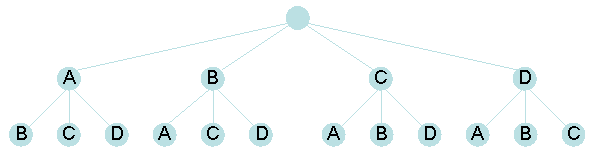
Note that in this scenario, a reaction such as BA may yield a different product than AB does. This would be the case if reaction A is affected by the application of reaction B: for example, if reaction B creates an amide functional group and reaction A converts an amide functional group to a thioamide.
Note also that in the above example, it has been assumed that each node of the tree yields only a single product. In fact, it is possible for a single node to yield multiple products if the particular reactant has more than one reactive site upon which the reaction can operate. You have the ability to control the number of generated products by using the special encoded reaction syntax to define the transform instructions. See the Reaction Formats section of this guide for information about controlling product generation using encoded syntax.
The Add Filters button on the dialog can be used to specify a number of options related to filtering the analog structures. The options dialog for filters will appear similar to the image below. Some of the important options are described here; see the dialog tooltips for additional information.
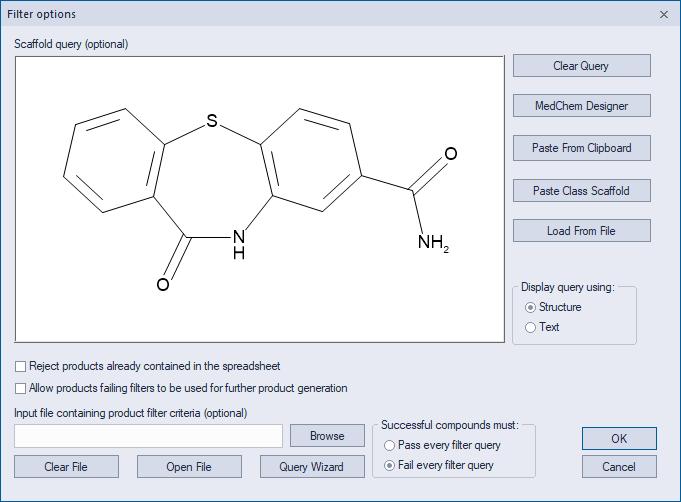
The top section can be used to specify a scaffold query. If specified, the scaffold must be present in all generated analogs. Scaffolds can be drawn using MedChem Designer, pasted from another sketch application such as ChemDraw, or loaded from a file. By changing the Display query using option to Text, you can manually type a scaffold query using Daylight SMARTS format.
Reject products already contained in the spreadsheet. This option causes analogs to be rejected if they are already present in the spreadsheet.
Allow products failing filters to be used for further product generation. When this option is selected, a product compound that fails the filter criteria will be retained in the hope that it might itself yield analogs that pass the filter criteria. Using this option generally results in much longer run times.
Input file containing product filter criteria. This allows you to specify a query file (*.cqf) containing filters against which each transformed output compound will be tested. If specified, compounds will be written to the output only if they either pass or fail all of the filters, the choice of pass/fail being determined by the Pass/Fail option on this same dialog (see below). The filter rules can be structure or property based.
Successful compounds must. When Pass is selected, a compound must pass each filter query in order to be selected for output. This option should be selected if the filter queries are, for example, of the form "SLQ [N+](=O)[O-] = 0". This query, used to exclude nitro groups, will be satisfied only if a compound has zero nitro groups, because the query includes the special "= 0". The more traditional approach would be to write the query as "SLQ [N+](=O)[O-]", without the trailing "= 0". In that case, you would use the Fail option instead of Pass. The ADMET Predictor distribution includes a file called DrugLikeFilters.cqf, which can be used with analog generation features such as Combinatorial Transform and AIDD. When that file is used, the Fail option should be used. See the section on query files for additional information about query syntax.