

5.7. Replace Scaffolds or R Groups
The MedChem Studio module provides a way to generate new molecules by replacing designated portions of starting molecules - scaffolds or R groups - with individual fragments or combinations of fragments. The process starts with selecting a single compound or single class for which a scaffold has been defined. To apply either replacement procedure to a compound belonging to more than one class, the relevant class must also be selected in the Classes tab; you can consult the Class List attribute to see which classes a compound belongs to.
If launched from the Classes tab, the replacement process will only be applied to the representative molecule for the selected class. A workflow commonly employed is to select a singleton class, then to define a scaffold using the mouse lasso tool within the Classes tab and initiate fragment assembly.
The list of candidate fragments used must be contained in a CTK file generated using the fragment-generation procedure described in the previous section. Two such CTK files - drugFragments_skeletons.ctk and drugFragments_chemSpecific.ctk - are provided as part of the ADMET Predictor installation. Details of their origin are provided below.
The process of fragment assembly is closely related to that of fragment generation, in that it depends on the fragmentation reactions that were used to produce the set of candidate fragments. The CTK file in which candidate fragments are stored retains information about these fragmentation reactions, and a given pair of fragments from the file can be re-connected to one another only if both of them were generated using an identical reaction. This is in keeping with the original RECAP methodology (Lewell 1998), ensuring that newly assembled molecules maintain a chemistry that is similar to that of the molecules originally undergoing fragmentation.
Replacing a scaffold
Clicking on DESIGN >> Replace Scaffold Using Fragments... launches the Perform scaffold replacement dialog, which provides places to specify which file of fragments to use (1) and where to put the new molecules created (2). It also displays the scaffold with its R group pattern (3), which in this case is somewhat different from that depicted in the Classes tab for the selected row (see below for details): the class scaffold generated using the Frameworks option lacked the two chlorines circled in green and the carbonyl circled in red.
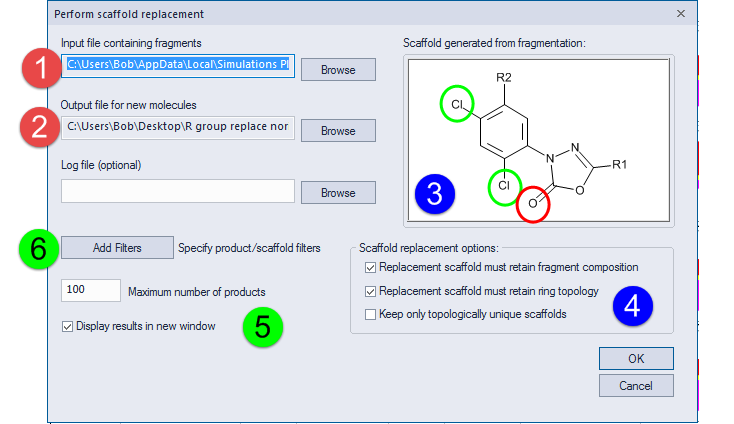
Bond distances between attachment points in each replacement scaffold will always match those in the scaffold shown. The Perform scaffold replacement dialog contains several options to direct other aspects the replacement process.
Three of these options are controlled by the check boxes on the right side of the dialog (4):
Replacement scaffold must retain fragment composition
Checking this box indicates that the replacement scaffold must be comprised of the same number and types of fragments as the original scaffold. This puts a significant constraint on replacement scaffolds, and tends to speed up the assembly process significantly. However, it also tends to generate a much smaller number of new molecules.
Replacement scaffold must retain ring topology
Specifies that within the replacement scaffold the shortest paths of bonds between attachment points must have the identical ring-versus-chain status as those of the original scaffold. Checking this option speeds up the process significantly, generating fewer analogs and ensuring that analogs are more similar to the original structure.
Keep only topologically unique scaffolds
Specifies that replacement scaffolds will be retained only if the paths just described are unique. Checking this option greatly reduces the number of generated analogs by avoiding those determined to be topologically redundant.
You can also adjust the maximum number of analogs replacement products and whether they are only saved to the specified output file or are also immediately displayed in a new window (5).
Pressing the Add Filters button (6) will launch the Filter options dialog.
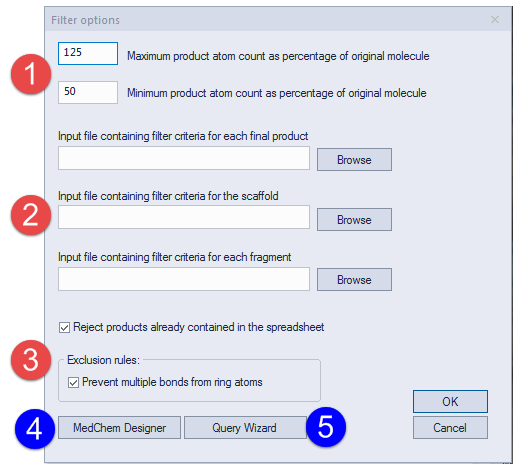
There are two filters (1) that control the size of the product molecules by imposing upper and lower bounds on product atom count as percentages of the original molecule’s atom count. The three options below them allow you to input of filter files that will be applied to products, scaffolds and fragments, respectively (2). As in many other ADMET Predictor features, filters are specified using query files (CQF), and every query in the file must be satisfied in order for a molecule (including scaffolds and fragments in this case) to pass the filter.
The next set of options (3) determines whether or not product molecules are rejected if they are contained in the original spreadsheet and whether or not multiple bonds from ring atoms are allowed in the products.
The MedChem Designer and Query Wizard buttons at the bottom of the dialog (4 and 5, respectively) are provided to so you can easily generate filter criteria to use in the middle section (2) of the Filter options dialog.
Note: The SLQ query syntax has been extended to make queries used in the above filter files more useful. The atom primitive [~Rn] can be used to designate the attachment atom of the n’th R group, where n corresponds to the label used in the dialog’s scaffold depiction. This primitive is only recognized when filtering complete product molecules, not scaffolds or fragments. The atom primitive [~Sn] can be used to designate the scaffold atom to which the just-described R-group atom is attached. This primitive can be used when filtering either complete product molecules or scaffolds. Thus an SLQ query such as “[R1][S1][O,S]” could be used during scaffold replacement to ensure that the scaffold atom adjacent to the connection site for R1 is either Oxygen or Sulfur. These special atom primitives can also be incorporated into ISIS/Draw queries by entering “Sn” or “Rn” into the atom Value field.
You should be aware that because replacement scaffolds are constrained by the reactions used to generate the candidate fragments, certain filters might be inconsistent with those constraints and thus prevent any product molecules from being produced.
Replacing R groups
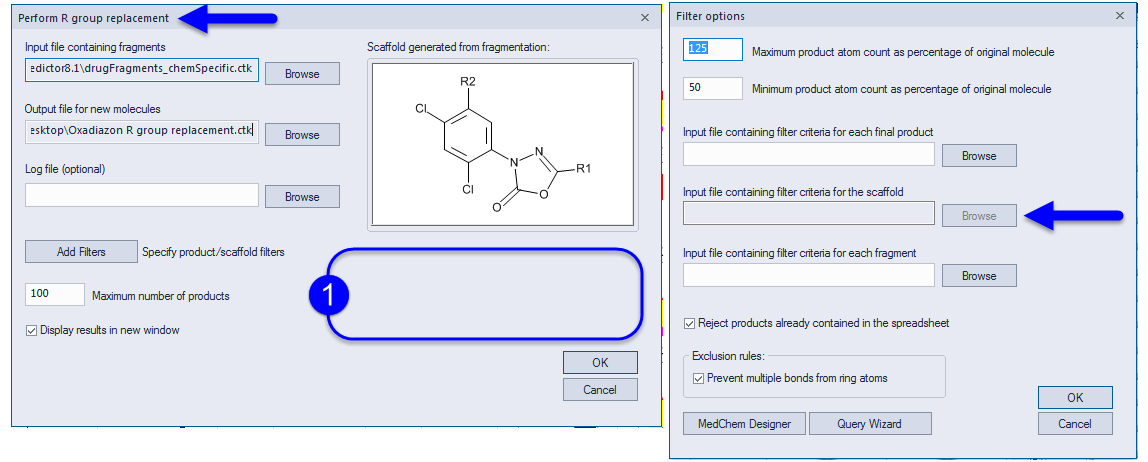
Clicking on DESIGN >> Replace R Groups Using Fragments... launches the Perform R group replacement dialog. Here, each product retains the scaffold but its R groups will be replaced using combinations of fragments. The dialog is identical to that for replacing scaffolds except for its name and the lack of Scaffold replacement options (1).
Scaffold filtering options are disabled in the Filter options dialog when it is launched from the Perform R group replacement dialog.
Details
Why might the fragmentation scaffold differ from the Class scaffold?
The Scaffold generated from fragmentation may or may not be the same as the one depicted in the Classes tab for the selected row. The two can differ because the first step of fragment replacement is to split the original molecule using the fragmentation reactions read from the CTK file storing the fragments. A scaffold is then constructed by assembling all fragments that overlap with the selected Class scaffold. Some of these fragments may contain extra atoms and bonds not contained in the original scaffold, so the new scaffold may be somewhat larger than the original one. You can avoid this by defining a new set of fragmentation reactions and using them to generate a new list of candidate fragments. If the fragmentation reactions cannot produce any fragments from the original molecule, no new molecules can be assembled and an error message is displayed.
Where did Simulations Plus get the fragment files they provide?
ADMET Predictor provides two default files. Each can be viewed by opening it using ADMET Predictor; sites of fragmentation are designated using a special ‘#’ symbol.
The default fragment file is drugFragments_chemSpecific.ctk, which can be found in your Application data folder. It was generated by fragmenting a set of marketed drug molecules using the program's default list of fragmentation reactions; those default reactions, discussed in the Generate Fragments section, are contained in the file fragments_chemSpecific.crf. The file contains approximately 6000 fragments.
An additional file - drugFragments_skeletons.ctk - was also generated using marketed drugs, but using only a single generic reaction capable of cleaving any non-ring single bond. All resulting fragments were converted to all carbon atoms, so the file contains just 40 fragments. It is particularly useful for quickly exploring different carbon “backbones” that could replace an existing scaffold. It may also be useful when analog generation using the default file produces undesirable results due to the use of the chemically-constrained, RECAP-like reactions in fragments_chemSpecific.crf.