

1.8.4. MedChem Designer™
MedChem Designer is an advanced molecular design tool that combines an intuitive sketch interface with fast and accurate "on the fly" ADMET property predictions. Please note that the full documentation for MedChem Designer can be found in the PDF document entitled MedChem_Designer_Manual.pdf, which located in the main ADMET Predictor installation folder.
In addition to being a powerful application in its own right, MedChem Designer can be launched directly from ADMET Predictor so that you can dynamically edit structures, add new ones, import queries and reactions, etc. To launch it, use TOOL>>MedChem Designer, click on the corresponding toolbar icon (see below), or use the keyboard shortcut (Shift+D).
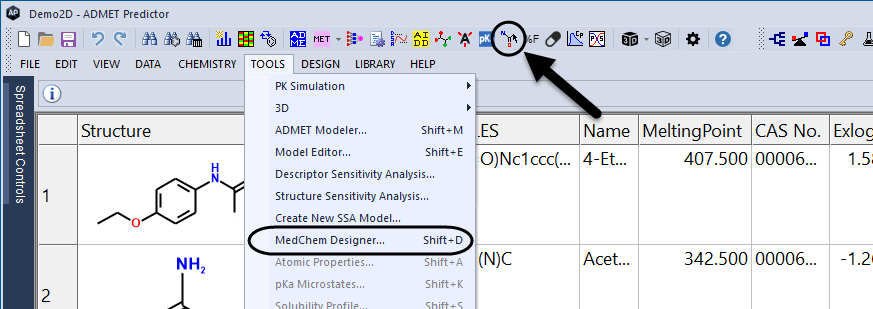
If no structure is currently selected, MedChem Designer will open a blank worksheet. Otherwise, the window will be populated with the structures of the selected compounds, as illustrated below.
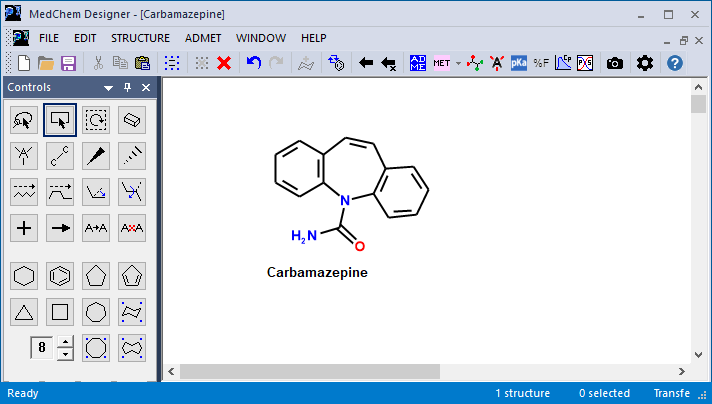
The compound name is visible here because the Name Display option (1) on the Format tab in MedChem Designer's Change settings dialog has been set to Always. That dialog can be launched from the toolbar using the gear icon (2) or using Edit >> Change Settings...
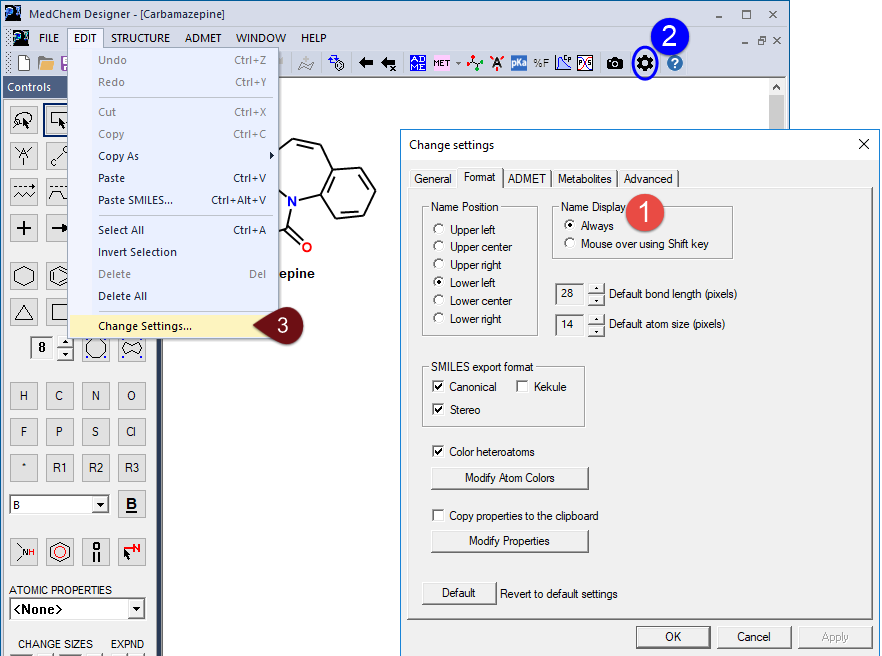
The compound name is used to determine which row to associate a returned structure with, so it is a good idea to have the Name Display set to Always when you are modifying structures sent over from the ADMET Predictor spreadsheet. If the name is not displayed, you can pop it up by passing the mouse over the structure while holding down the Shift key. The name will also pop up if you select the structure and move the mouse over it. You can use the Modify Name... option from the right-click context menu to change it if you wish to do so.
At this point you can edit the structure and transfer it back to ADMET Predictor, as described elsewhere. If you change a molecule's name to one not already present in the spreadsheet before transferring it back, it will be appended as a new row. If you delete the original structure and redraw it from scratch, for example, it will be given the name "Molecule 1."
Predicting properties on the fly
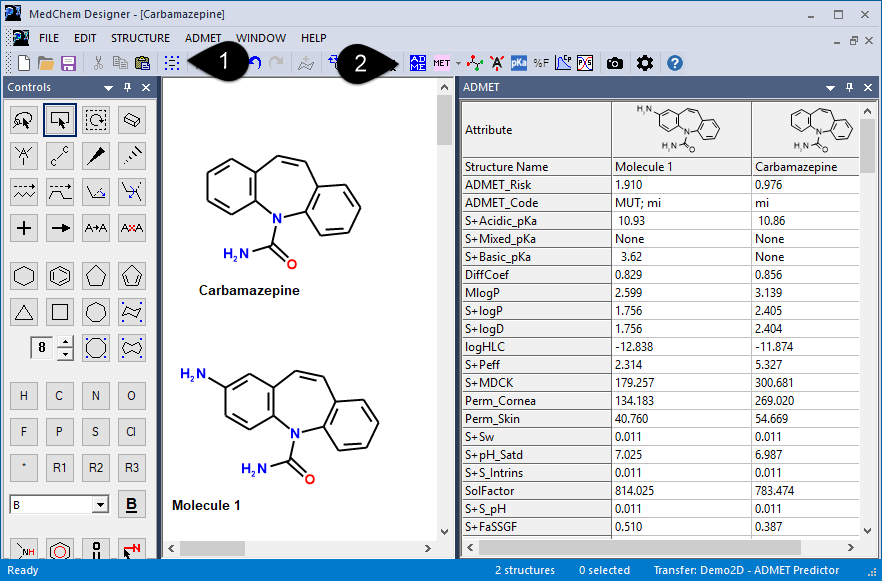
You can also predict the ADMET properties of compounds within MedChem Designer to explore how they vary as you change the structure. In the example below, the original structure was selected (1), then cloned by copying and pasting it back into the worksheet. An amino group was then added to one ring of the copied structure. Clicking on the ADMET Properties icon (2) in the toolbar results in a display similar to the following.
To expand the range of templates available in MedChem Designer, start by sketching new template structures. You can then save them by selecting them and clicking on Structure >> Add As New Templates. Structure >> Modify Templates... allows you to delete some or all of the templates you have added. Templates you add are stored in a Custom_Templates.sd file. This file can be found in your ADMET Predictor applications directory.
Creating query (CQF) files
As discussed in the File Formats section, ADMET Predictor uses query files to store lists of structure and property queries. Each query contained in such a file must conform to a particular format similar to Daylight SMARTS, which makes construction of these files difficult for users unfamiliar with the SMARTS syntax.
A new option for creating these files is to sketch the query structures using MedChem Designer. The File>>Export menu item lets you export the structures as a single file having CQF format. Please consult the MedChem Designer manual for additional information.