

1.10.5. Viewing Atomic Properties
Atomic properties are accessed through the Atomic Properties Display, which can be launched in several different ways.
-
TOOLS>>Atomic Properties
-
Via the keyboard shortcut Shift+A
-
By selecting a structure and choosing "Display in Atomic Properties Window" from the right click menu.
-
Using the "A" toolbar icon.

The first selected row will appear in the display when it starts up. Note that, in general, properties can only be calculated for individual molecules. More complex compounds will return an error message until all fragments but one have been removed.
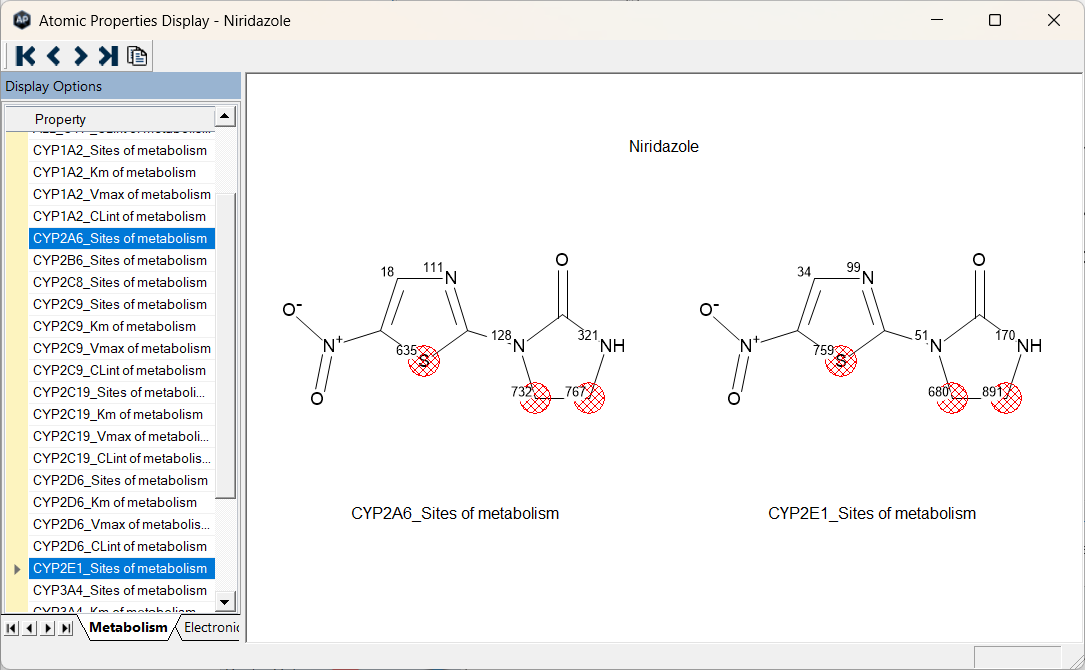
Properties are grouped into those relating to Metabolism and those relating to Electronic properties for convenience, and the tabs at bottom of the "Display Options" panel on the left side of the dialog allow you to toggle between them. The Metabolism properties tab lets you see atom numbers, symmetry flags, whether the atom in question is a site of CYP metabolism, estimated kinetic parameters if it is (Km and Vmax and CLint), etc. Each selected property is displayed on its own copy of the structure.
The figure below shows the selected metabolism sites for Niridazole along with the scores. The scores range from 0-1000 with higher scores indicating a greater propensity of being a metabolic site.
Available electronic properties include pK50, averaged site protonation at user-specified pH, electrotopological states, partial atomic charges, Fukui indices, polarizabilities and others. The following figure shows a sample of the electronic properties available.
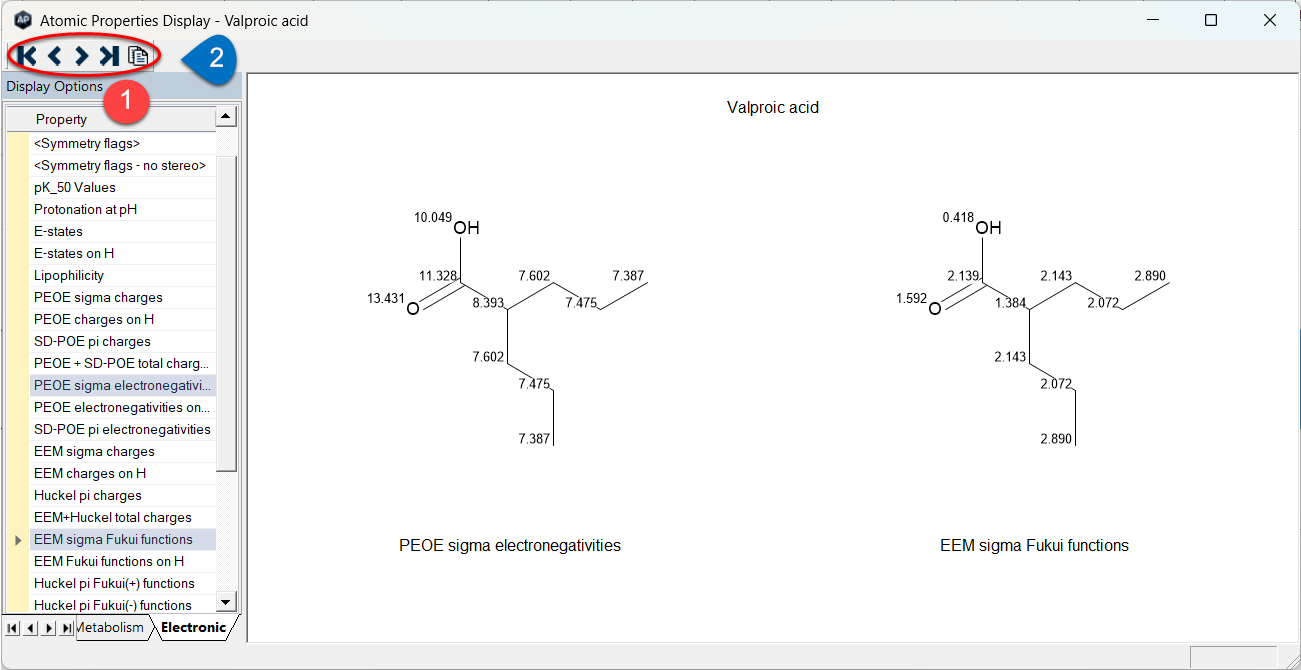
The navigation arrows at the left of the toolbar (1) provide an easy way to step through rows in the spreadsheet. The left arrow (<) moves to the molecule from the unhidden row immediately above that currently displayed and the right arrow (>) moves to the molecule from the unhidden row immediately below that currently displayed. The leftmost arrow takes you to the first row in the spreadsheet, whereas the rightmost arrow takes you to the last row. The current row selection only affects which molecule appears when the dialog is initially launched.
The pages icon at the right of the toolbar (2) copies the image to the clipboard for pasting into reports, slide presentations, etc.