

1.9.1. Search by Query
Selecting a structure/property search from EDIT>>Query By Structure/Property, proceeds through the Search using a query dialog, which allows you to enter queries of various types and to control the manner in which the search is performed.
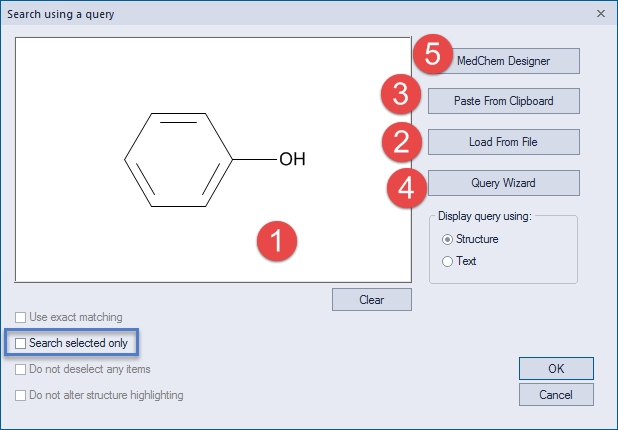
The large Query box (1) at the upper left corner of the dialog is used for entering the specific query that will be used in the search. Five options are available for query entry. You can:
-
Select Text mode in the lower-right portion of the dialog, then manually enter a query from the keyboard into the Query box (1). Note that the typed query must have Encoded Query syntax.
-
Load a query (2) from a query file (*.cqf) or MDL [molfile ] (*.mol). In this case the first query record in the file will be loaded and placed in the Query box.
-
Paste a query directly (3) from a sketch tool such as MedChem Designer or ChemDraw.
-
Click on the Query Wizard button (4) to display an easy-to-use graphical interface used for query generation; this dialog is discussed in the Query Wizard section.
-
Click on the MedChem Designer button (5) to launch MedChem Designer. In this case the drawn query must be transferred back to the dialog using one of the Transfer buttons on the Designer toolbar; see the relevant section on MedChem Designer, or the MedChem Designer manual, for more information.
The dialog offers a number of additional options. These are reasonably self explanatory, but details are provided in their tooltips.