7.3.2. Numerical Data
-
Open the Demo2D.smi file from the ADMET Predictor application directory file and generate the ADMET Predictor predictions as described in the tutorial Interactive Input: SMILES.
-
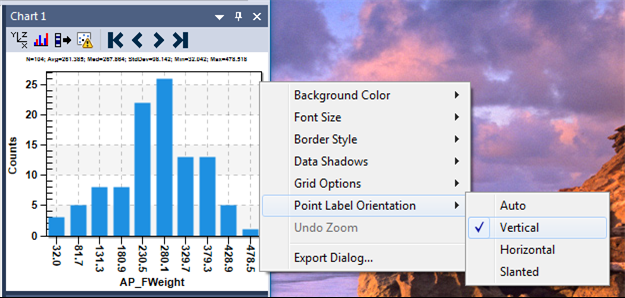
On the right hand side there are two panes, one with a histogram (top pane), and one with a 2D scatter plot (bottom pane). In the top pane (histogram) right click in the plot area to display the context menu. Select Point Label Orientation >> Vertical.
-
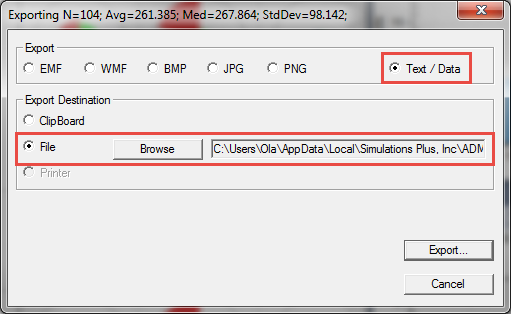
To export numerical data from a plot on the Exporting dialog select Text/Data in the Export area and File in the Export Destination. Browse to the folder where you want the file to be saved and type the name of the file. In this tutorial it is MyHistogramData.dat. Click Export....
-
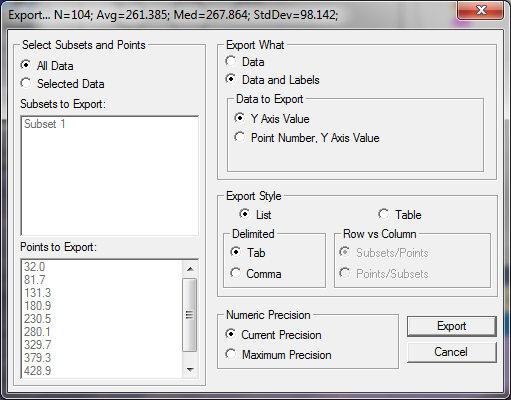
The Export... dialog should opens, which allows you to specify more options like the data subset, export style, etc. In this tutorial accept the defaults and click Export.
-
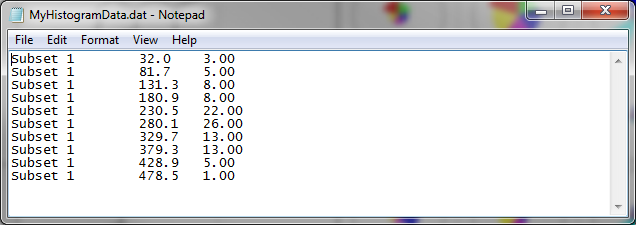
The exported file containing histogram data information can be viewed in any text file viewer.