

Loading Data and Configuring Settings
If ADMET Modeler is already open, you will have to close it before you can run this tutorial. Be sure to save your work first if necessary.
-
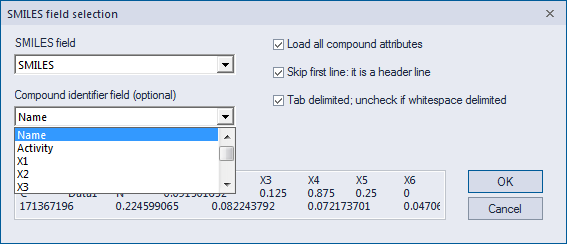
On the ADMET Predictor main menu, click FILE>>Open and navigate to [\<AppData>]\Tutorial\Example4 folder. Open file Example4.smi. On the SMILES field selection dialog choose Name as the Compound identifier field, then click OK.
-
Select

-
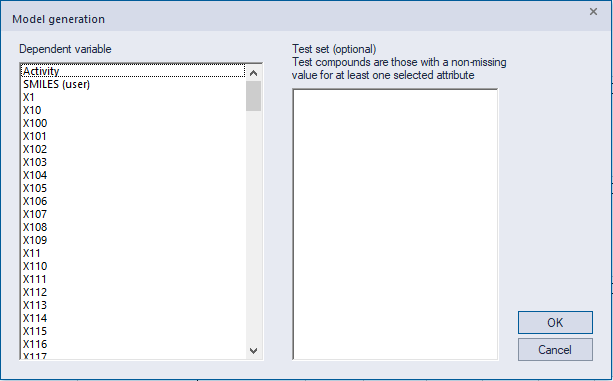
Select Activity as a dependent variable and click OK
-
In the Modeler window, optionally, set the value of the random seed to 42718.
-
In the Available descriptors (left) pane, select all the descriptors that begin with "X", and then click on the right arrow button to move them to the Descriptors selected for training (right) pane, then click Next
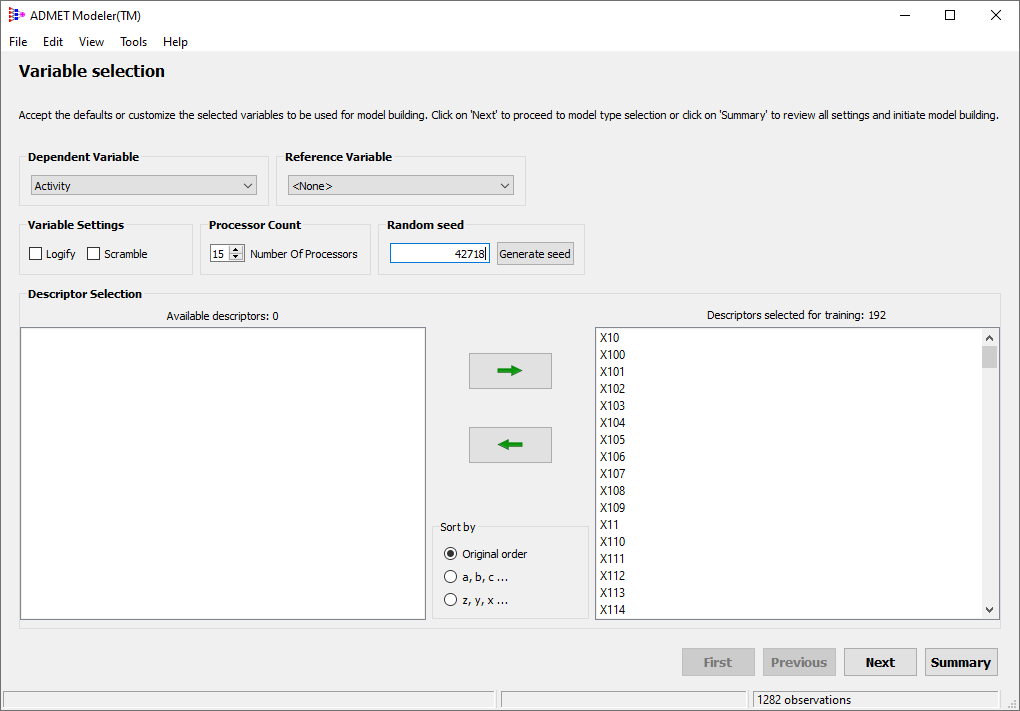
NOTE: ADMET Modeler can accept any descriptors/inputs that are entered record by record as numeric values. All descriptors in this data set are selected and normalized ADMET Predictor descriptors with names replaced by "X\<nn>".
-
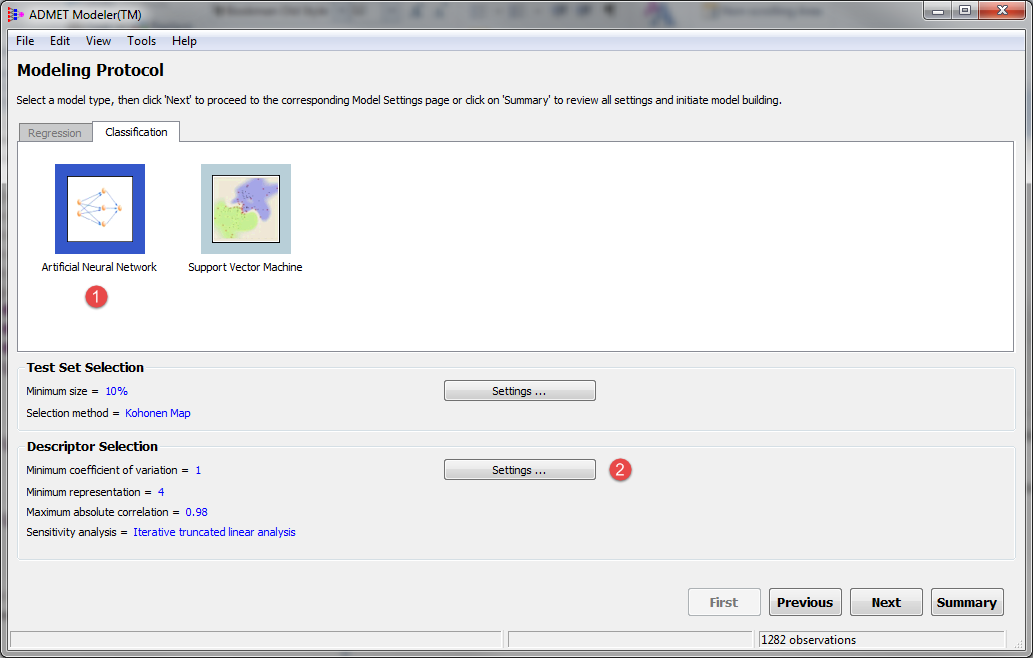
In the next window, make sure Artificial Neural Network is selected (1).
-
Change the method for Sensitivity Analysis to Iterative truncated linear analysis, by clicking on Settings... in the Descriptor Selection area (2), and click OK.
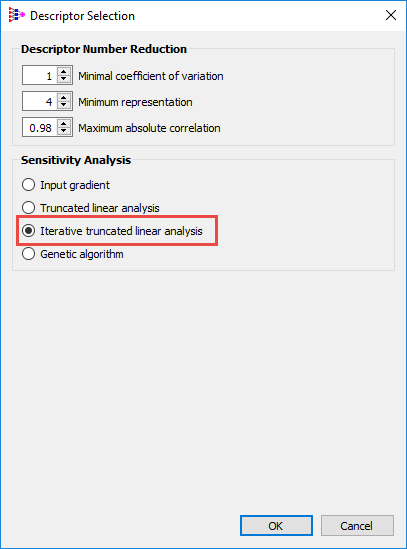
-
Click on Next.
-
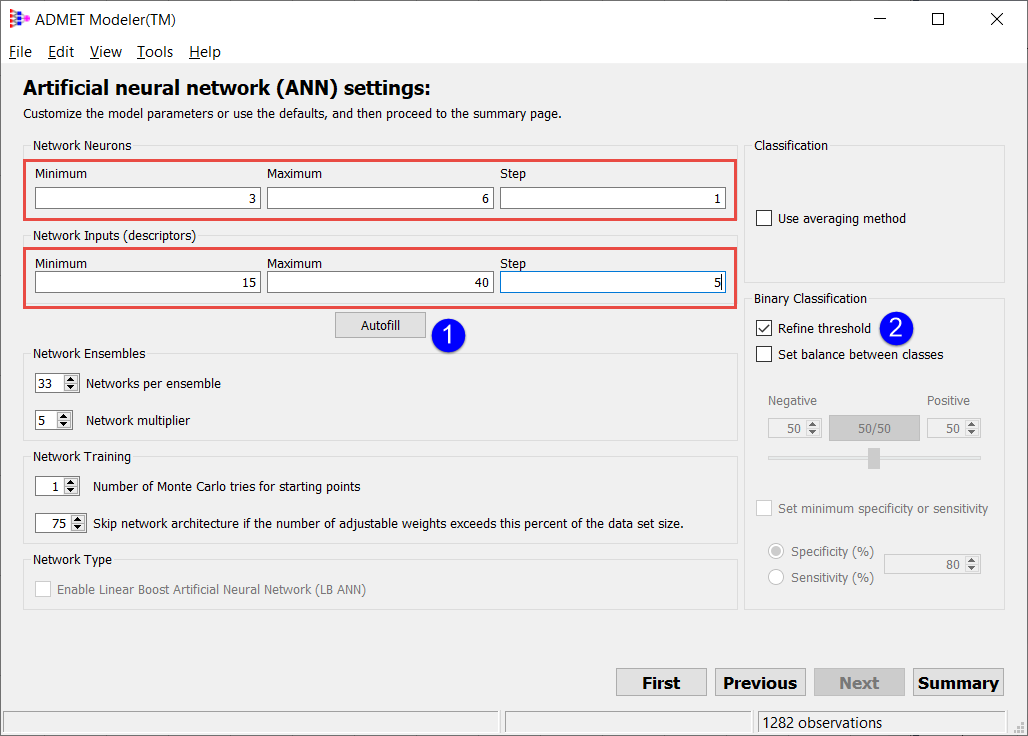
On the Settings page, do the following:
-
click Autofill (1)
-
in the Network Neurons fields enter 3, 6 and 1 for the Minimum, Maximum, and Step (respectively) if different numbers are displayed in these fields
-
in the Network Inputs (descriptors) fields enter 15, 40 and 5 for the Minimum, Maximum, and Step, respectively if different numbers are displayed in these fields
-
Make sure that Refine threshold box is checked (2).
-
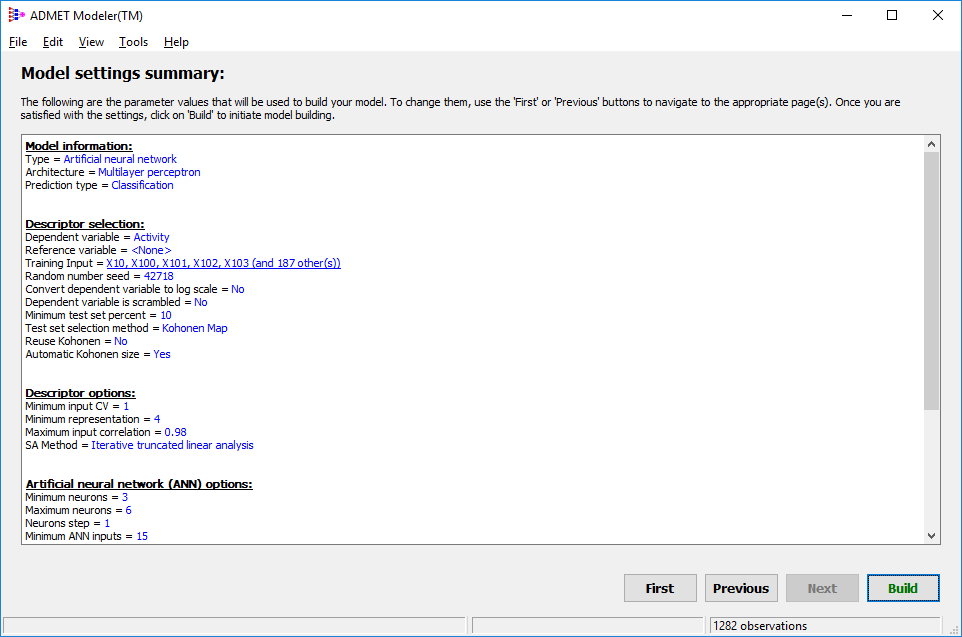
Click on Summary
-
Clicking on Build will launch a request for a project name. You can accept or modify the default provided, but the remaining parts of this tutorial assume that you accept it by clicking OK and then continue to "Building Models".