If ADMET Modeler is already open, you will have to close it before you can run this tutorial. Be sure to save your work first if necessary.
-
On the ADMET Predictor main menu, click FILE>>Open and navigate to the Tutorial\Example3 folder in your application directory. Open file Example3.smi. The spreadsheet will contain an Activity column (positives and negatives) along with 171 descriptors.
-
Click on the ADMET Modeler icon (

-
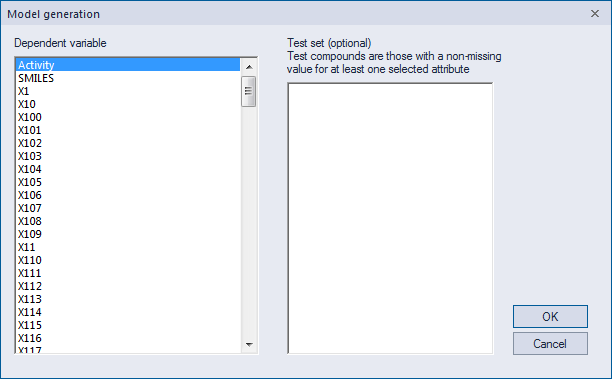
Select Activity as a dependent variable and click OK.
-
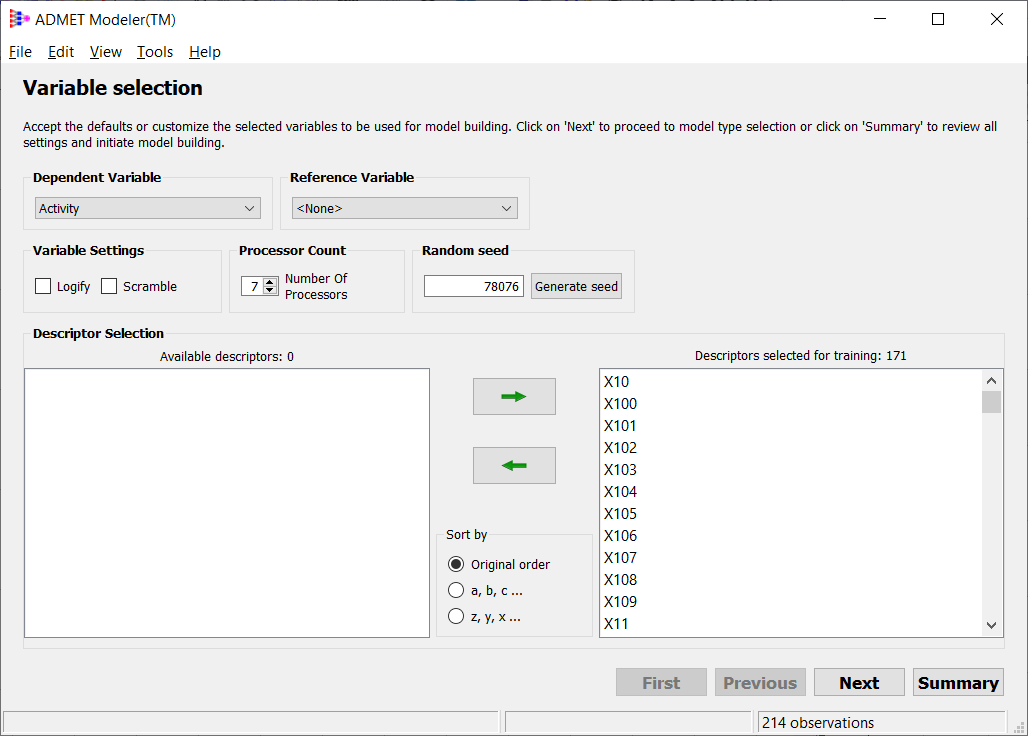
On the modeler window, optionally, set the value of the random seed to 78076.
NOTE:
To demonstrate the concepts in this tutorial and ensure that the results are consistent and as expected throughout this tutorial, Simulations Plus sets the random seed to a fixed value, 78076. Specifying this particular value so that you can reproduce results exactly is recommended for this tutorial. In general, we recommend letting the program choose the random seed for you which is done based on the computer’s system clock. Doing so provides greater diversity and reduces bias during model building. The main time you want to specify a particular seed is if you want to reproduce earlier results exactly. In that case the random number seed should be set to the value of the run which you wish to reproduce.
-
In the Available descriptors (left) pane, select all the descriptors that start with "X", and then click on the right arrow button to move them to the Descriptors selected for training (right) pane, then click on Next.
NOTE:
ADMET Modeler can accept any descriptors / inputs that are placed record by record as numeric values. All descriptors in this data set are selected and normalized ADMET Predictor descriptors with names replaced by "X\<nn>". Those which are the same for all observations being sent to Modeler are filtered out; that includes AP_FWeight in this case, because all of the observations have the same structure (methane).
-
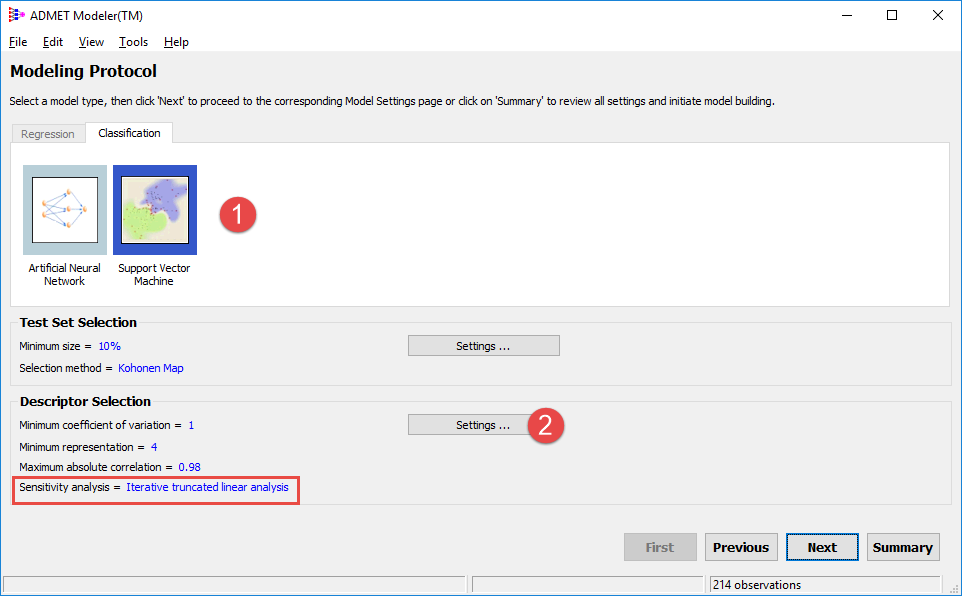
In the next window click on the Support Vector Machine icon button (1).
-
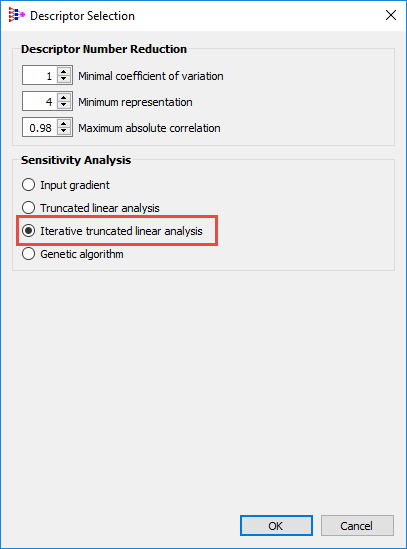
Change the method for Sensitivity Analysis to Iterative truncated linear analysis by clicking on Settings... in Descriptor Selection area (2).
-
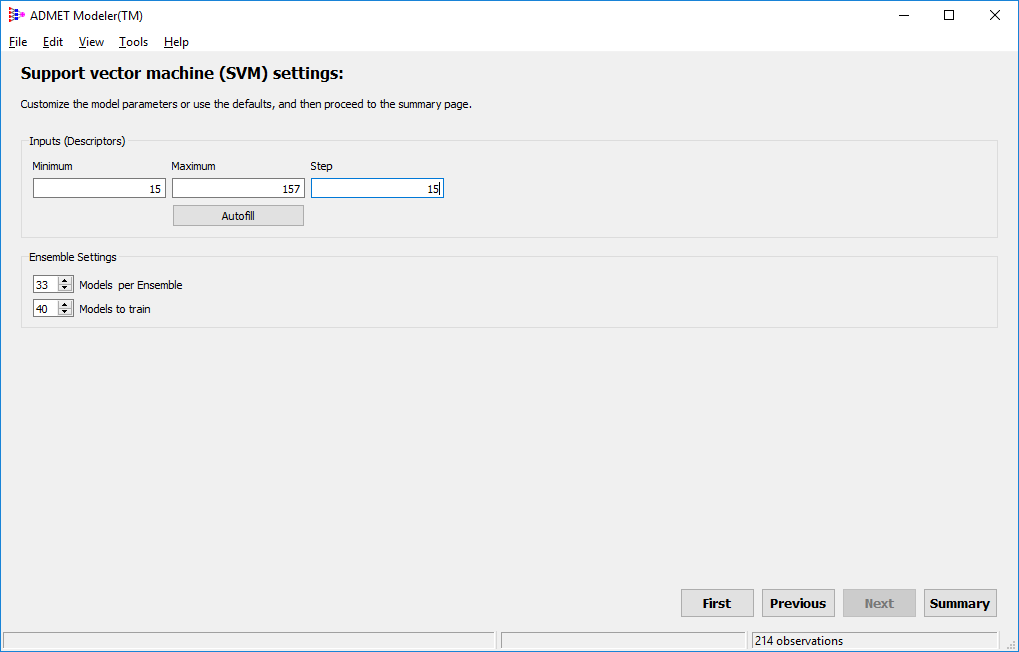
Click OK, then click Next on the Modeling Protocol page. On the Settings page, enter 15, 157 and 15 for the Minimum, Maximum, and Step, respectively, and click on Summary.
-
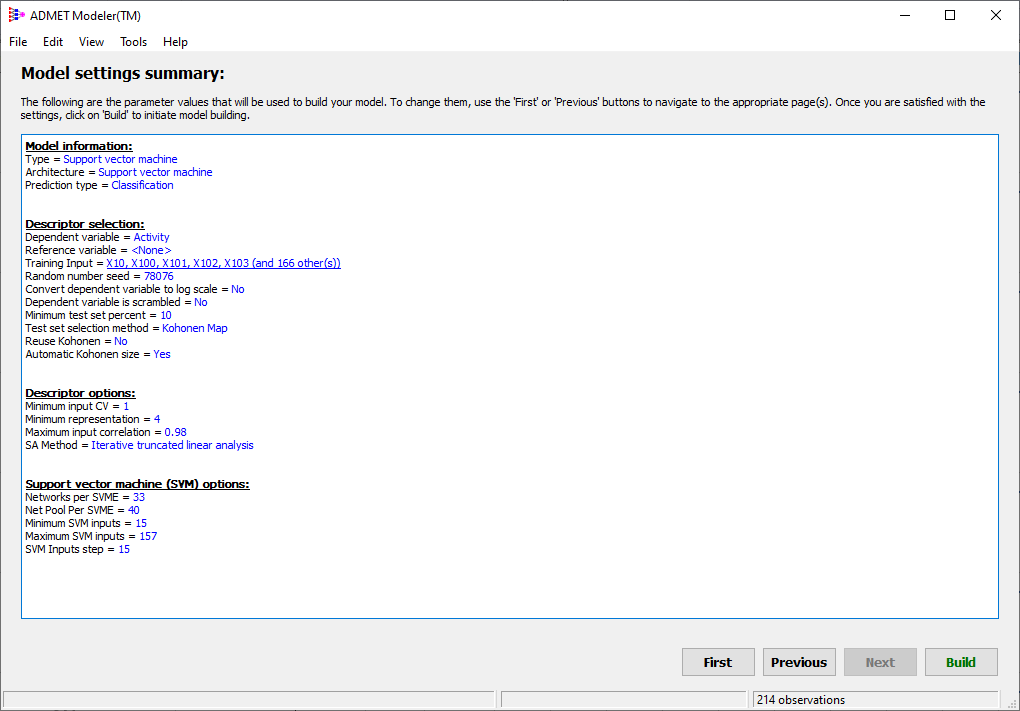
You will see the summary page containing all parameters:
-
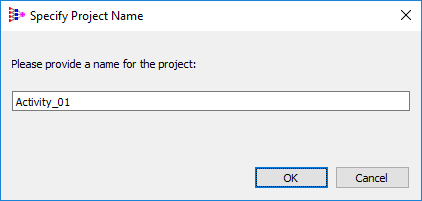
Proceed to Build. Provide a name "Activity_01" for the project in the pop-up window and press OK.