7.7.3. Building a Local CLint Model
The global model GLB_RLM_CLint exhibited an RMSE of 0.42 for this data set. It will be interesting to see how a local model for unbound RLM CLint compares. In this step you will build a local clearance model and apply it to predict RLM CLint for this particular chemical series.
-
Launch ADMET Modeler using the shortcut key Shift+M or the menu via TOOLS>>ADMET Modeler. Respond to any pop-up warning about spaces in names that appears by clicking OK.
-
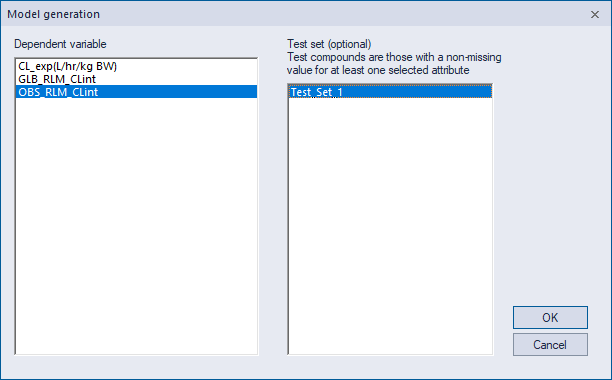
In the Model generation dialog, select OBS_RLM_CLint as the Dependent variable and Test_Set_1 as your Test set. Using a predefined test set makes it easy to be sure all models see the same training pool and test set, which is important for making unbiased comparisons between their performance.
-
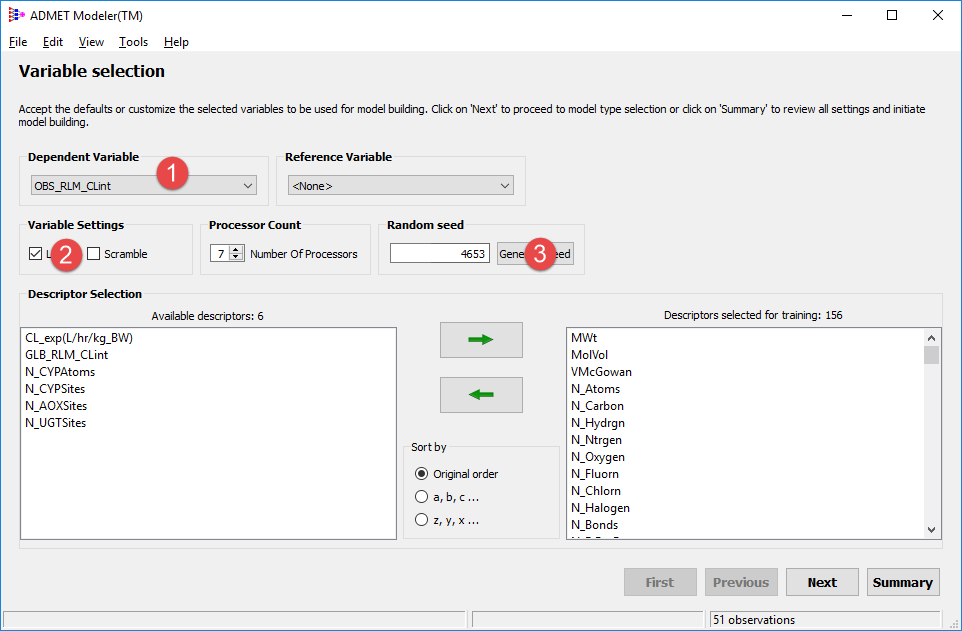
Follow the steps described in the primary ADMET Modeler tutorial. OBS_RLM_CLint should already be selected as the Dependent Variable (1) but you will need to turn on the Log (2) option; no Reference Variable is specified when building a local model. Be sure to use 4653 as a Random seed (3) or your results will not match the ones shown below.
-
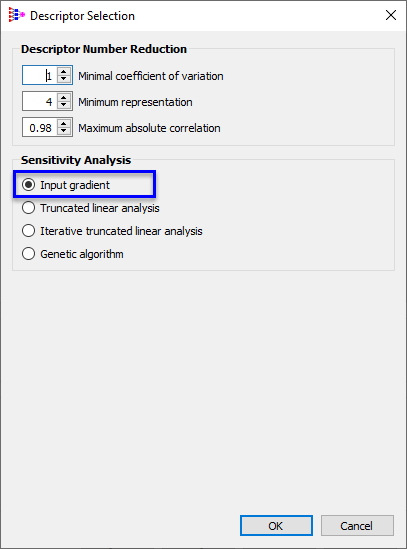
In next Modeling Protocol window, click on Settings... in Descriptor Selection area, select Input gradient in Sensitivity Analysis. Click OK.
-
Leave default settings in place for other options, then click on Summary to proceed to the Model Settings Summary page. The Test Set selection method should be Manual and the Descriptor selection method should be Input gradient.
-
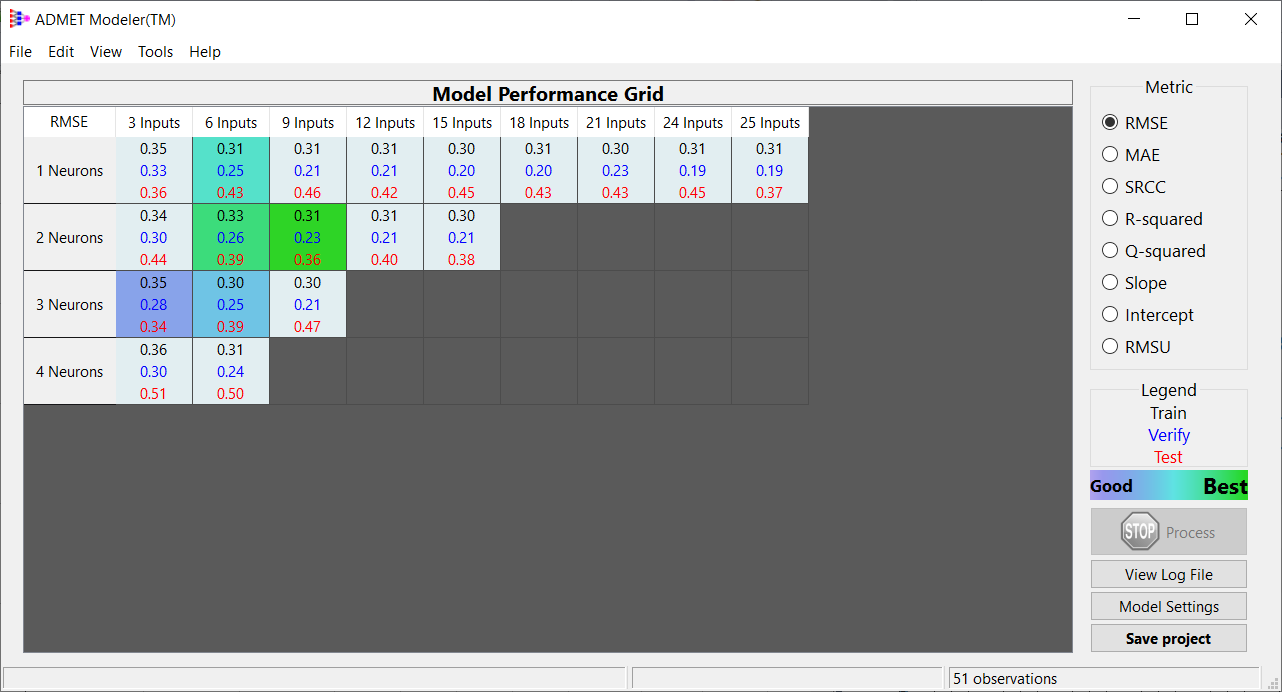
Click on Summary and Build to initiate construction of a ANNE regression model. When asked to specify a project name, enter Local_CLint and click on OK. The model run should finish in few seconds. Once it is complete, the best five models will be highlighted, ranging from the green (best of the best) to blue (least good of the best).
-
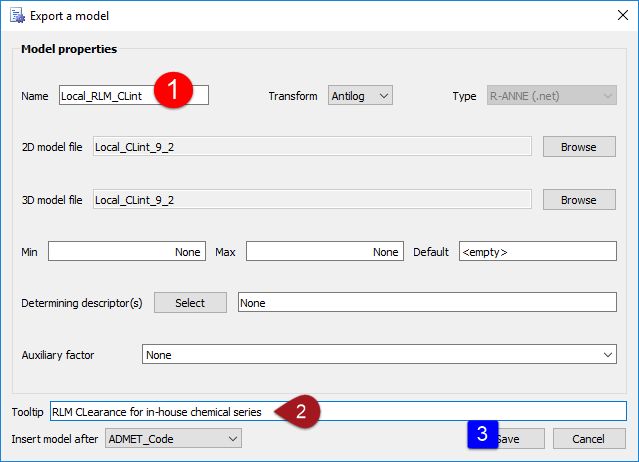
The best model - the one with 9 inputs and 2 neurons - has outperformed GLB_RLM_CLint on this data set. Export it as described in Exporting a Model. Enter Local_RLM_CLint in the Name field (1) and add a Tooltip (2). ADMET Modeler and the Model Editor both allow you to add a model at any point in the list, so insert your local model after the existing ADMET_Code and click on Save (3).
-
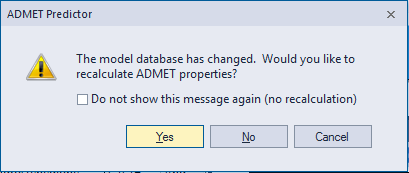
Close ADMET Modeler without saving the project. When you do, ADMET Predictor will ask you if you want to recalculate ADMET Properties immediately. You will calculate all of the various RLM CLint predictions at the end of the tutorial anyway, so click on No now.