

-
Click on Build. You will be prompted for a project name. You can accept or modify the default provided, but the remaining parts of this tutorial assume that you accept it by clicking OK.
-
Before starting the training process, ADMET Modeler pops up a window asking for the project name. The default project name suggested is constructed from the specified dependent variable, the date, and the number of builds already initiated within the modeler session. Click OK to accept the default.
-
Doing so should bring up a Windows Explorer Open window where you can select the Kohonen map previously built, which will be reused. Navigate to the \Tutorial\Example 1 folder in your applications data directory and find the folder created as part of the first Modeler tutorial. If you followed the instructions in the last section of that tutorial, it will be named ExlogP_20xx-xx-xx_02.
-
Open that project folder, select ExlogP_20xx-xx-xx_01.som and click Open to load the Kohonen map. The model building process will then begin.
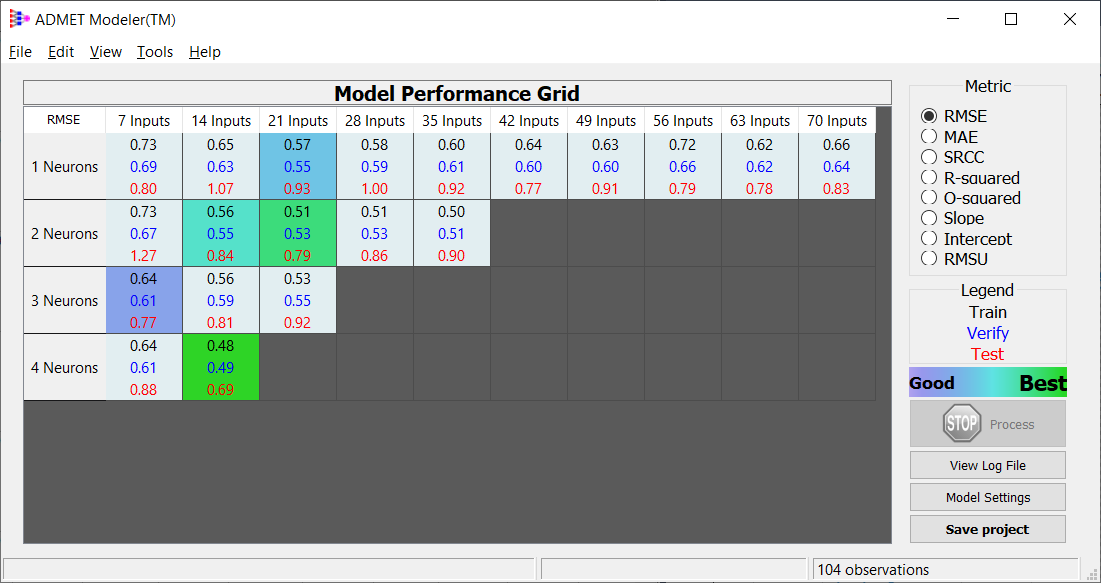
NOTE: A genetic algorithm run is carried out for each cell in the grid.
-
The final model grid should look like this:
-
To examine model performance plots, see the next topic: Model Performance.