

Cleaning the Data
The stage removes duplicate and redundant tautomeric pairs from the spreadsheet.
-
DATA>>Find Duplicates… opens the Find duplicates dialog, which provides multiple ways to specify what constitutes a "duplicate." The figure shown below shows the default settings; make sure that your settings match these and click OK.
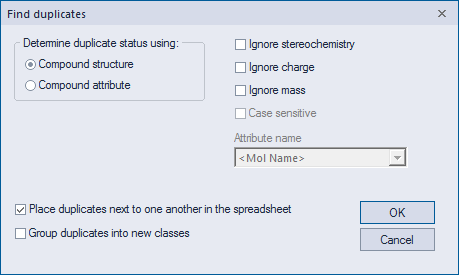
This selects 71 duplicated compounds in the spreadsheet and places each next to its "match" at the top of the spreadsheet. Delete the duplicates using EDIT>>Delete or the keyboard shortcut Del. Click on Yes if a warning pops up. A total of 884 compounds remain.
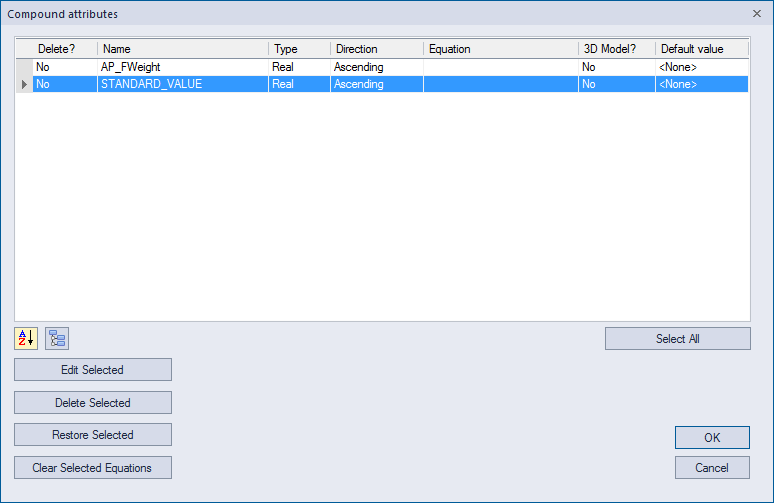
2. The spreadsheet contains nine user-supplied columns and two ADMET Predictor generated columns that are of no particular use. Use DATA>>Modify Compound Attributes… to remove them.
In the Compound attributes dialog that gets launched, click on the Select All button to select all of the attributes, then click on the Delete Selected button. The status of all attributes in the Delete? column of the Compound attributes dialog will change to "Yes". Please note that these attributes will not be deleted until you click on button OK.
Of the selected all attributes, we will retain AP_FWeight (the formula weight for the compound) and STANDARD_VALUE. Simply double click on these two rows in the dialog box Compound attributes, which will change the "Delete" column status back to No.
Click OK to delete all columns from the spreadsheet except the two you selected above.
-
STANDARD_VALUE is a rather uninformative name. Change it to BACE1_IC50_nM by right clicking on column header and select “Modify Attribute…” from the context menu that pops up.
The dialog box Compound attributes will reappear with the STANDARD_VALUE attribute already selected.** **
Click on the Edit Selected button to launch the Modify a compound attribute, then replace the STANDARD_VALUE entry in the Attribute name field with BACE1_IC50_nM.
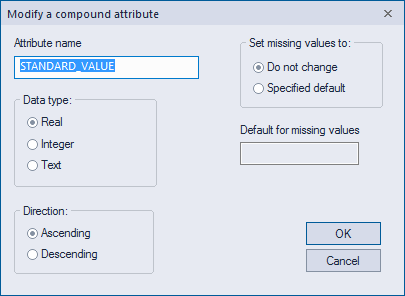
Click OK.
-
If you intend to use this data for building a QSAR model, it is a good idea to convert the activity data into a logarithmic scale first. To do so, use DATA>>Add Compound Attributes…, choose Equation from methods presented to you, then click OK.
Now use the Add attributes... Equation Editor to define your new attribute. Start by BACE_pIC50 in the New attribute name field (1), then enter the equation -log("BACE1_IC50_nM"*1e-9) using the log, +/- , double click BACE1_IC50_nM in the Existing attributes list, "*", E, 9, +/- and ")" buttons along on the numbers pad.
Hint: you need to click on log next (2), then use the change sign key (+/-) (3) to convert the entry from log to -log, etc. ((4)-(10) below) Double-clicking on an attribute adds it to the equation. When you are done, click OK and a new column "BACE_pIC50" will be added to the spreadsheet.
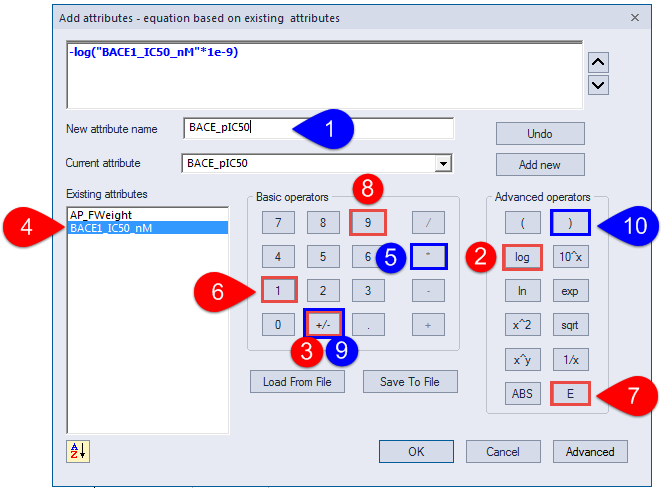
(The image has been modified slightly to better illustrate the process.)
The equation 9-log("BACE1_IC50_nM") is less intuitive but works equally well. You can also load the equation by clicking on the Load From File button and navigating to the Tutorial folder in the application data directory for ADMET Predictor. Select bace1_pIC50_equation.cqf and click Open.
Click OK after you are returned to the Modify a compound attribute dialog and a new column "BACE_pIC50" will be added to the spreadsheet.