

Scaffold-Based Compound Filtering
This stage will show you how to identify compounds containing particular scaffolds of interest - here, ones that include an amidine group - and delete those that lack such a scaffold.
1. Select the compounds containing the specific functional group of interest using EDIT>>Query By Structure/Property or the keyboard shortcut Ctrl+Q. This will launch the Search using a query dialog, which is been discussed in detail elsewhere. If you have been working through this tutorial in stages, it will still contain your compound filtering query. If that is the case, you can Clear the query window if you wish, but doing so is not necessary.
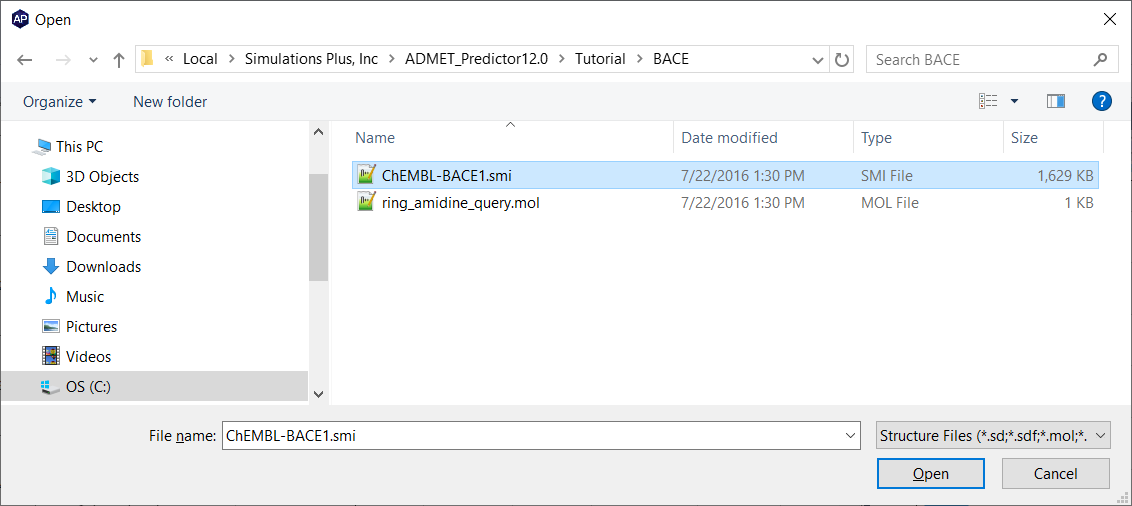
You can enter the structure by sketching it by clicking on the Medchem Designer button or you can click on the Load From File button. In the latter case, the program pops up the Windows Open dialog. Navigate to the Tutorial folder in your ADMET Predictor applications data directory, select ring_amidine_query.mol and click Open.
When opened, the Search using a query shows the scaffold shown in figure below. Please consult the MedChem Designer manual for details of query formats.
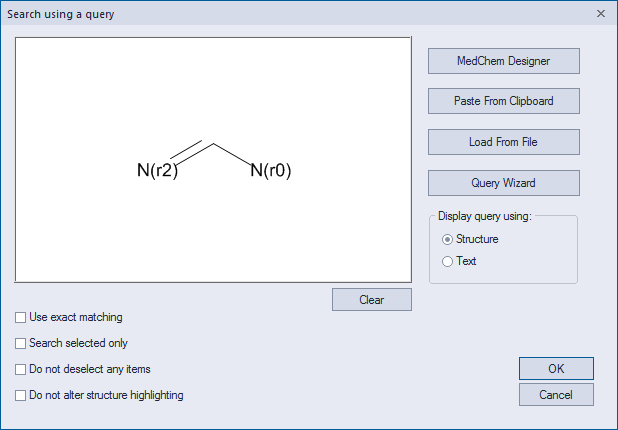
Clicking on OK will return you to the spreadsheet, where 395 rows will be selected.
-
Invert the selection and remove the 489 compounds that do not contain an amidine group using EDIT>>Invert Selection followed by EDIT>>Delete.
The amidine groups in the remaining compounds will be highlighted (here, in red):
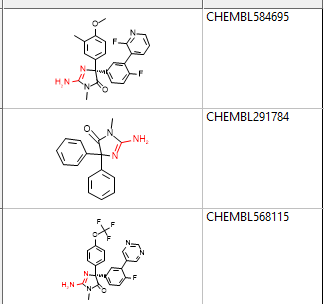
You can remove the query-based highlighting using VIEW>>Structure Highlighting>>Clear Query Highlighting.
-
Your data set preparation task is complete; it is now ready for predictive model building, molecular pairs analysis, etc. Happy modeling!