

7.8.4. Setting AIDD Parameters
Keeping just row 16 selected, click on the AIDD icon to launch the Compound optimization dialog.

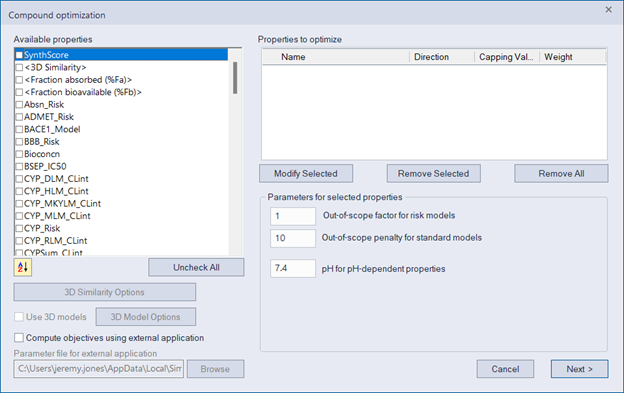
Select SynthScore, <Fraction bioavailable (%Fb)>, ADMET_Risk, BACE1-Model, and BBB_Risk from the Available properties list. The dialog should then appear as follows:
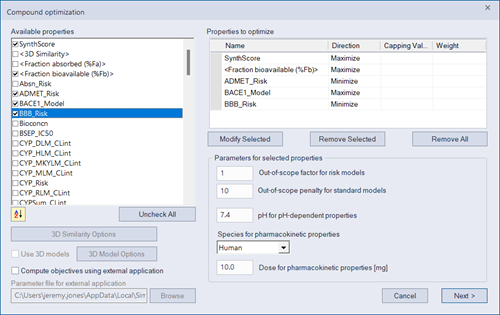
The new options that appear at the lower right of the dialog relate to Fraction bioavailable (%Fb). The default values provided are fine for our purposes and should not be changed, but you need to provide some more information about the properties you have chosen to optimize before launching your AIDD run.
Select “BACE1_Model” and then click on Modify Selected. A new dialog window appears allowing you to set a Capping Value for this property. Enter 10 in the field provided and then click OK.
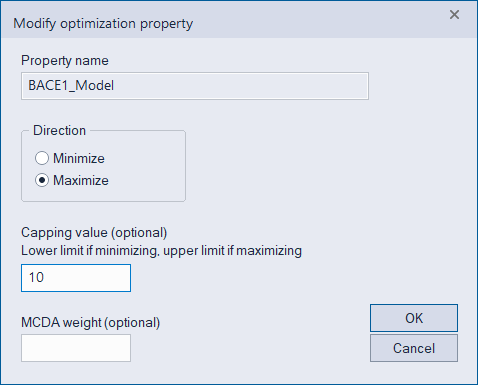
The Compound optimization dialog will be updated to show the assigned Capping Value for BACE1_Model. Any molecule for which the value of a property being minimized falls below the corresponding capping value will be assigned the capping value for that property. Conversely, capping values for properties being maximized set a maximum attainable value for that property. Capping it in this way allows the Pareto or MCDA optimization to focus on optimizing other properties once compounds have been found that are “good enough” in this particular regard. You may wish to experiment with alternative values to see how they affect the outcome of subsequent AIDD runs. Please consult the AIDD Theory section for further details.
A capping value of 10 for the BACE1_Model corresponding to 0.1 nM IC50 is “good enough” for demonstration purposes, and we wish the algorithm to focus on improving the other objectives rather than any further improvement in IC50. Proceed to set its capping value accordingly, and assign capping values of 1.2 to SynthScore, 90 to Fraction bioavailable and 0.9 to ADMET_Risk. The dialog should appear as shown below when you are done.
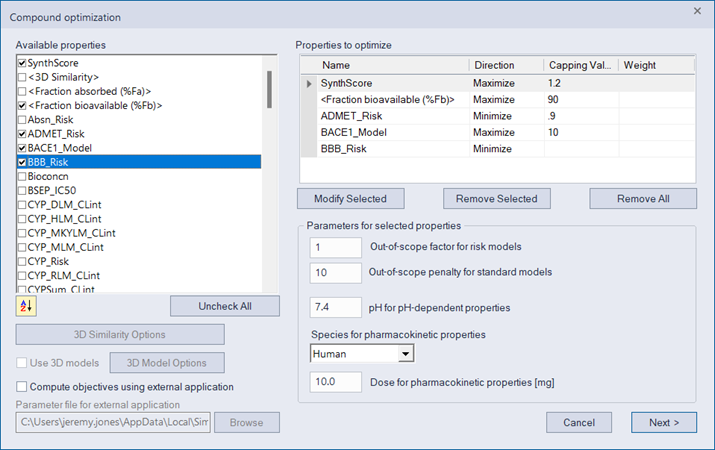
Note the default values of 1 and 10 for the Out-of-scope factor for risk models and Out-of-scope penalty for standard models. The value of 1 is greater than the default Risk Factor of 0.5 otherwise used when assessing Risk models as part of ADMET calculations. See the discussion on the Out of Scope Factor for further explanation. Refer to the AIDD manual section for explanation of the out-of-scope penalty for standard models. Leave the “Compute objectives using external application” box unchecked.
Click Next to advance to the Filter rules dialog.
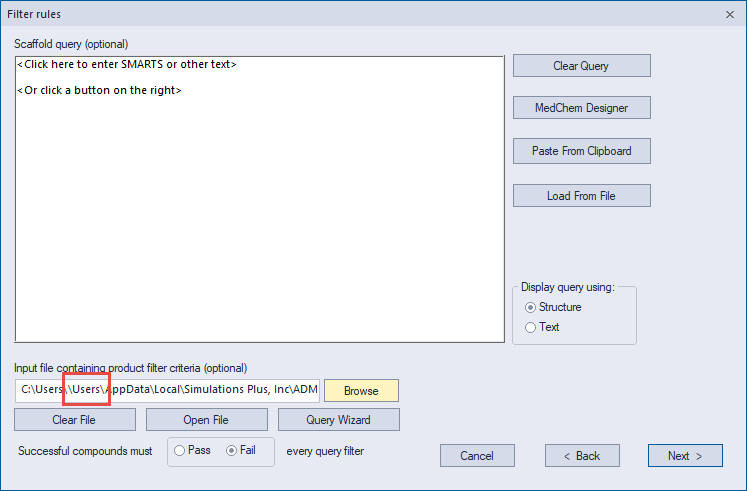
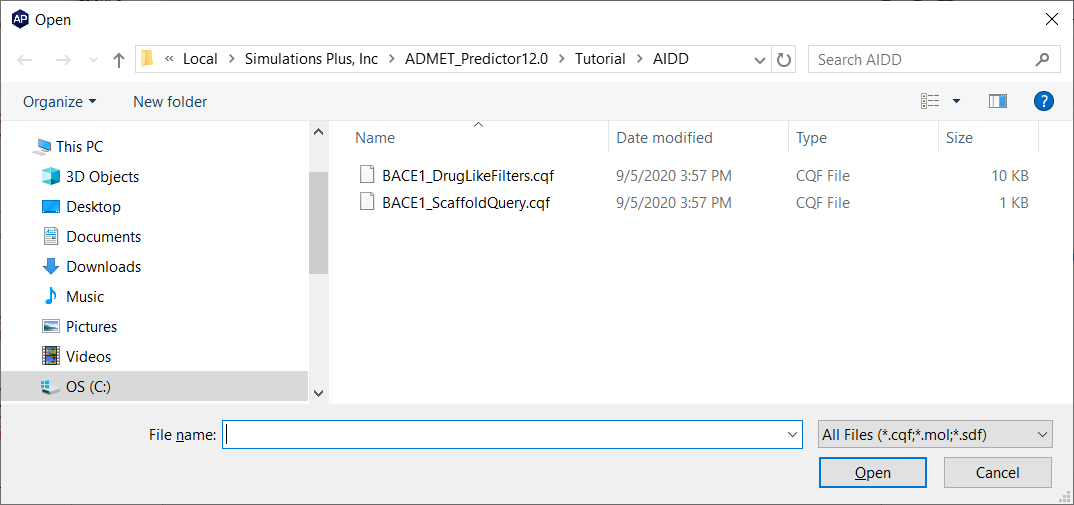
Click on Load From File to load the scaffold query. It is the same query you used to select 17 molecules from the BACE1 inhibitor set. Browse to the Tutorial/AIDD folder, select BACE1_ScaffoldQuery.cqf and click Open.
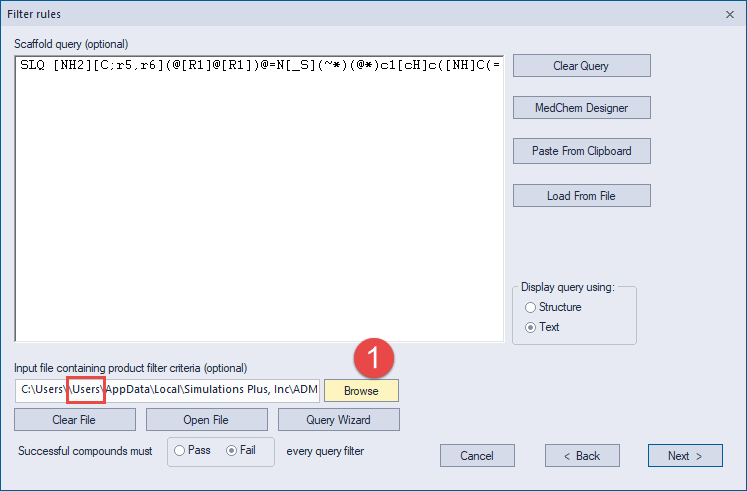
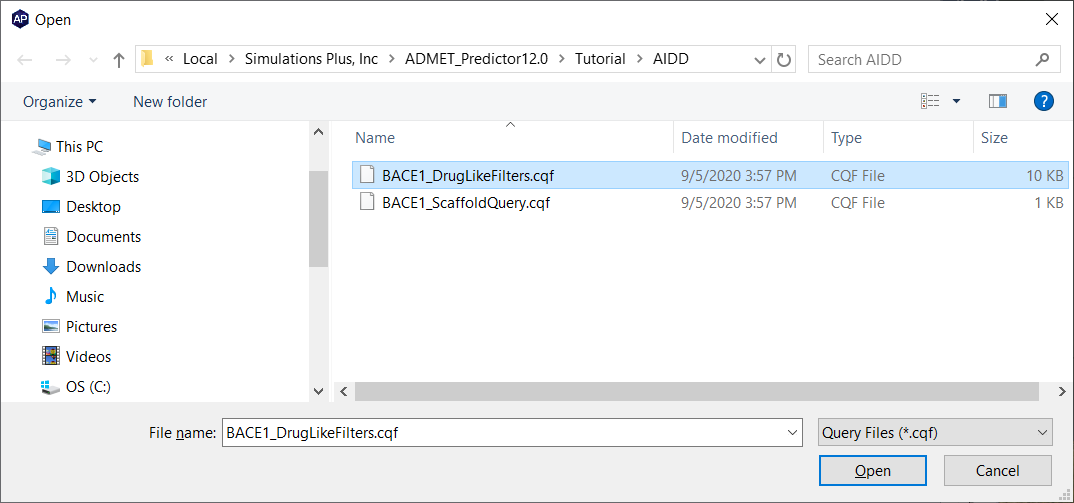
The query will appear in the Filter rules dialog as a SMARTS query. Now select Browse (1) to change the filter criteria file. Navigate to the Tutorial/AIDD folder, select BACE1_DrugLikeFilters.cqf and click Open.
This input filter file differs from the default file supplied in the application data directory in several ways. Rules involving rings have been modified to accommodate the specified scaffold and rules have been added to help restrict the length of any ring side chains. In particular, the following 2 queries appear at the end of this file:
QUERYNAME Aliphatic_chain
SLQ [A;r]!@*!@*!@* S SCORE 1
QUERYNAME Aromatic_chain
SLQ a!@[_D3,D2!$(*~[D1])] U >= 4 SCORE 1
The Aliphatic_chain query limits the amidine ring scaffold to a side chain length of at most 2 heavy atoms. Substitutions around the aromatic rings are similarly limited. As stated above, this is to avoid steric clashes with the binding pocket. Note that the U >= 4 (no more than 3 such groups) component of the Aromatic_chain query accommodates the 3 groups already in the scaffold - the two substituents on the A ring and the single substituent on the B ring. See the section on Query Format for a general explanation of query syntax.
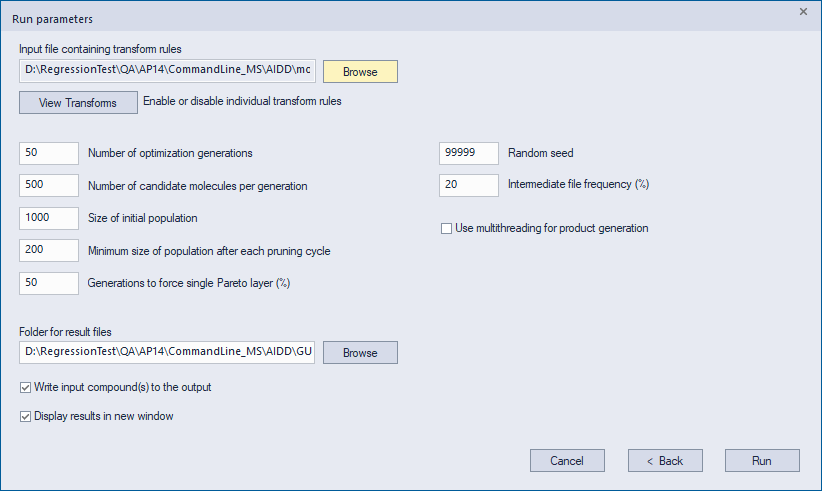
Click on Next in the Filter rules dialog to advance to the Run parameters dialog. Change the settings so that they match exactly the values in the graphic below. Make sure to uncheck the box for Use multithreading for product generation. This is critical; doing so will slow the run by about a factor of two, but it is necessary if you wish to exactly reproduce the results of this tutorial. The dialog should now appear as shown below, though the folder names will reflect your own login ID rather than the generic "Users" placeholder.
Click on View Transforms (3) to open the Transforms view dialog.
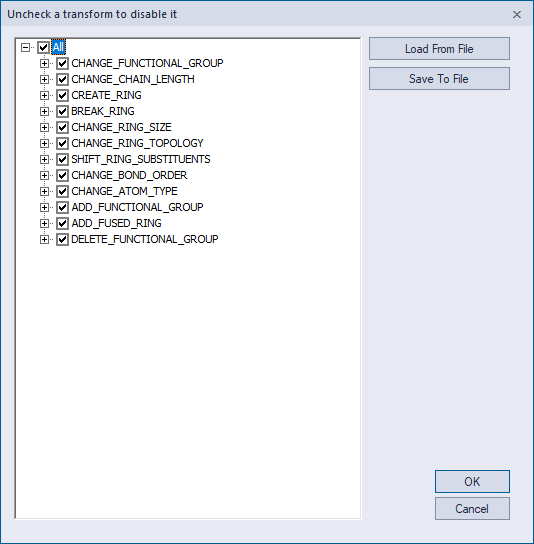
Click on the Load From File button to load a file which disables a number of the transforms. Browse to the Tutorial/AIDD folder and select BACE1_disabledTransforms.txt.
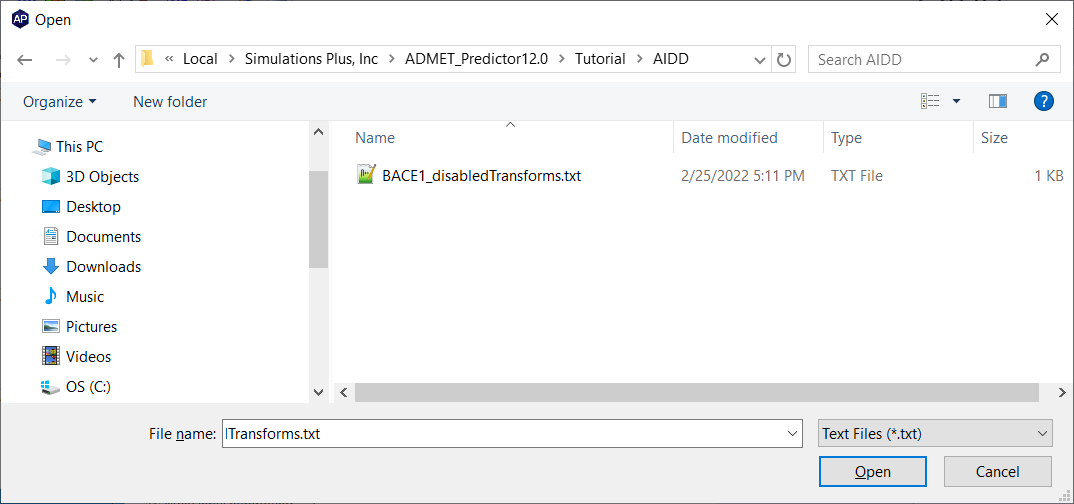
This disables transforms that add rings or other large groups to a molecule as well as some undesirable functional substituents such as nitro groups or iodine. The rings and other large groups would likely be blocked by the filter criteria anyway, but disabling them in the transforms speeds up the run by preventing them from being considered as options. Click on Open. The Transforms view should now appear as shown here:
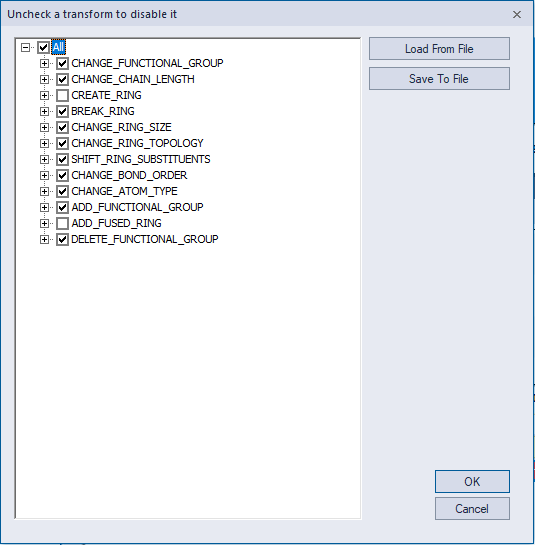
Roughly 100 transforms are still enabled, and opening any branch of the tree will allow you to examine the individual transforms. Click OK to dismiss the dialog and accept the changes.
Finally, we need to specify a folder where the results of the run will be stored. This may be the default folder <Application Data Folder>/AIDD or any other folder you wish to specify. For example, you may create/specify a folder in the Tutorial/AIDD folder called Results, if desired. Use the Browse button under the Folder for result files to browse to or create the desired folder, or you can leave the Applications Data default in place.
We are now ready to launch AIDD by clicking on Run.
On a modern i7 8-core laptop with the Maximum number of processors (on the Advanced tab under File>>Preferences… ) set to 7, this run will take about 10 minutes. Times will vary depending on your hardware as well as the setting for Maximum number of processors. After the run completes, a new instance of ADMET Predictor will open with a spreadsheet that contains the results of the run. In the next section, you will see how to analyze the results.