

Adding a New Rule Based on Molal Volume
This is the continuation of the previous exercises:
-
In the ID box, enter MV for the two-letter identifier, leave the weight set to the default value of 1.0, and then click Create.
The new rule is displayed as the last rule in the list of rules in the bottom pane of the window. You may need to scroll down to make it visible or to expand the window vertically.
The Rule logic field is empty.
-
Do the following to select a descriptor and set its parameters for the new rule:
• In the Descriptors/Properties list, scroll to and select the MolVol descriptor.
• In the Range operators are, select the Less Than (\<) operator.
• In the Threshold area, Lower field enter 100 leaving the Upper field empty.
-
Click Add value(s).
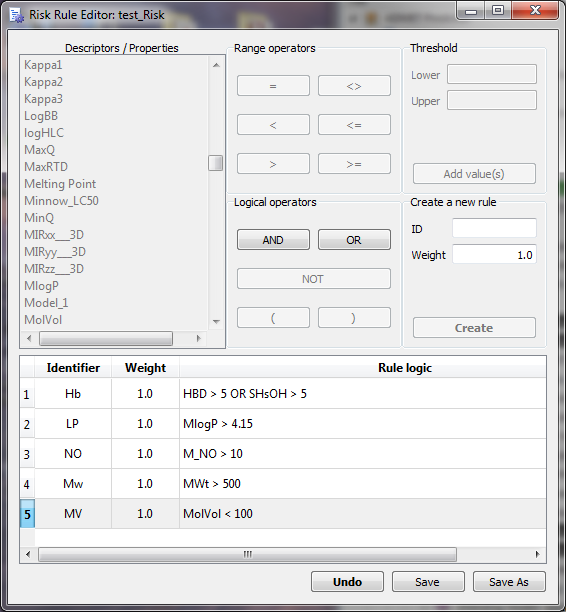
The new MV rule is updated with this descriptor in the bottom pane of the Risk Rule Editor: test_Risk window. The rule is automatically selected. The bottom pane of the Risk Rule Editor: test_Risk window should now appear as shown below.
-
On the Risk Rule Editor: test_Risk window, click Save. The test_Risk and test_Code models will be updated and contain 5 rules.
Continue to “Adding new ADMET Risk rule models”.
Optionally:
-
On the Risk Rule Editor: test_Risk window, click Save as.
The Save Risk rule set box opens.
-
Type a new file name: test2, and then click Save.
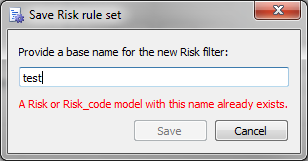
If you chose the same name, test, a message will appear stating that the file already exists:
"A Risk or Risk_code model with this name already exists."
-
On the Risk Rule Editor: test2_Risk window click the x in the top right corner.
The Risk Rule Editor: test2_Risk window closes. You return to the Model Editor window. The new test2_Risk and test2_Code models are appended to the end of the model list.
-
Continue to “Adding new ADMET Risk rule models”.