

Adding New ADMET Risk Rule Models
This is the continuation of "Adding a new rule based on molal volume".
-
On the Model Editor window find a row with test_Risk and right click to bring up the context menu. Select Edit model option.
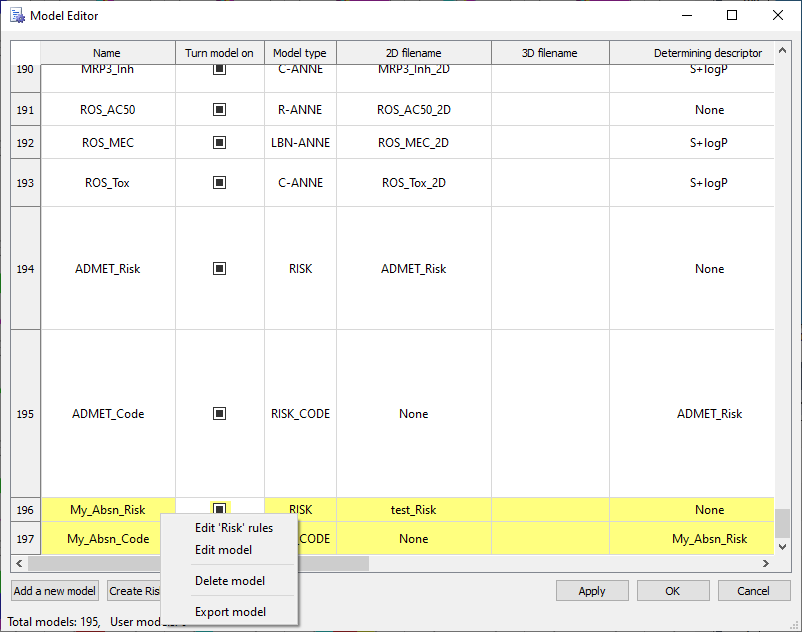
An Editing the model... dialog should appear.
NOTE: The dialog title will specify row: 196 if this is your first user model. The row number will be different otherwise.
-
Do the following to name and identify the new test_Risk model:
• In the Name field, enter My_Absn_Risk.
• In the Tooltip field, enter Rule of 5 with modified Hb rule and a new MV rule.
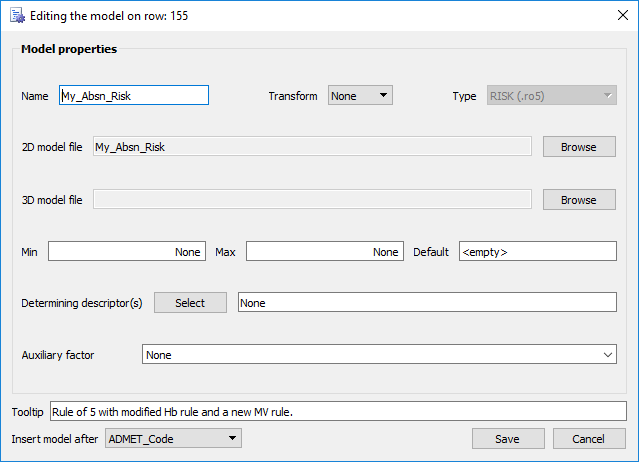
-
Click Save.
-
On the Model Editor window find a row with My_Absn_Code and right click to bring up the context menu. Select Edit model option.
-
Do the following to name and identify the new My_Absn_Code model:
• In the Tooltip field, enter Codes as in RuleOf5_Code plus a new rule MV=molal volume.
Notice many options are already set and disabled for editing. The name is associated with the risk rule, in this case My_Absn_Risk.
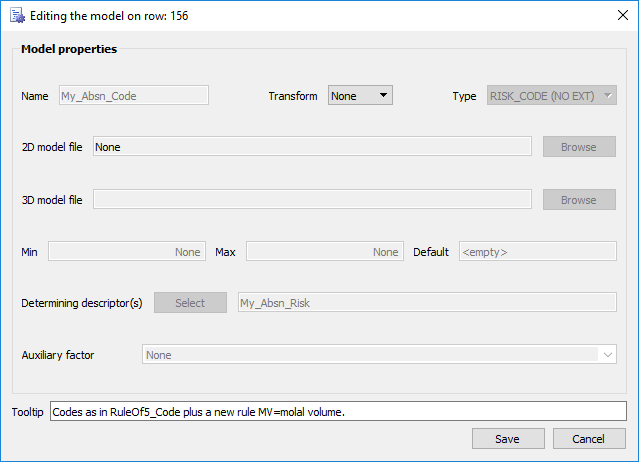
-
Click Save.
The Editing the model... dialog box closes and the Model Editor window is updated with the new models.
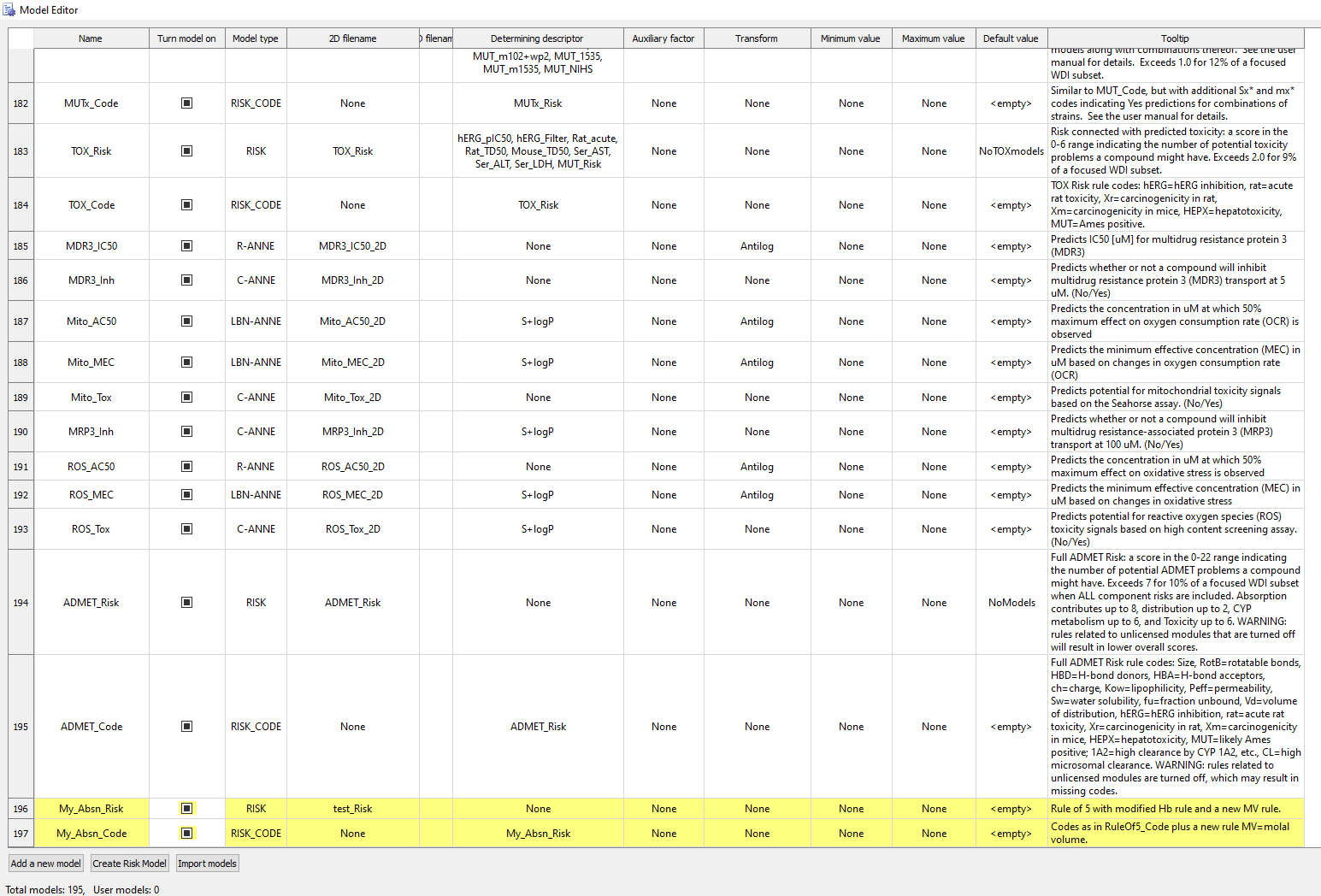
-
Click Apply and OK.
A message opens on top of the ADMET Predictor window indicating that the content of the Model Editor has changed, and asking you if you want to save these changes.
-
Click Yes to close the message and recalculate ADMET Properties.
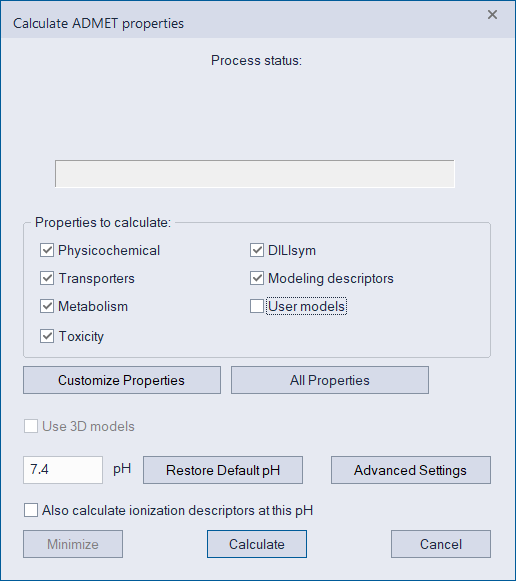
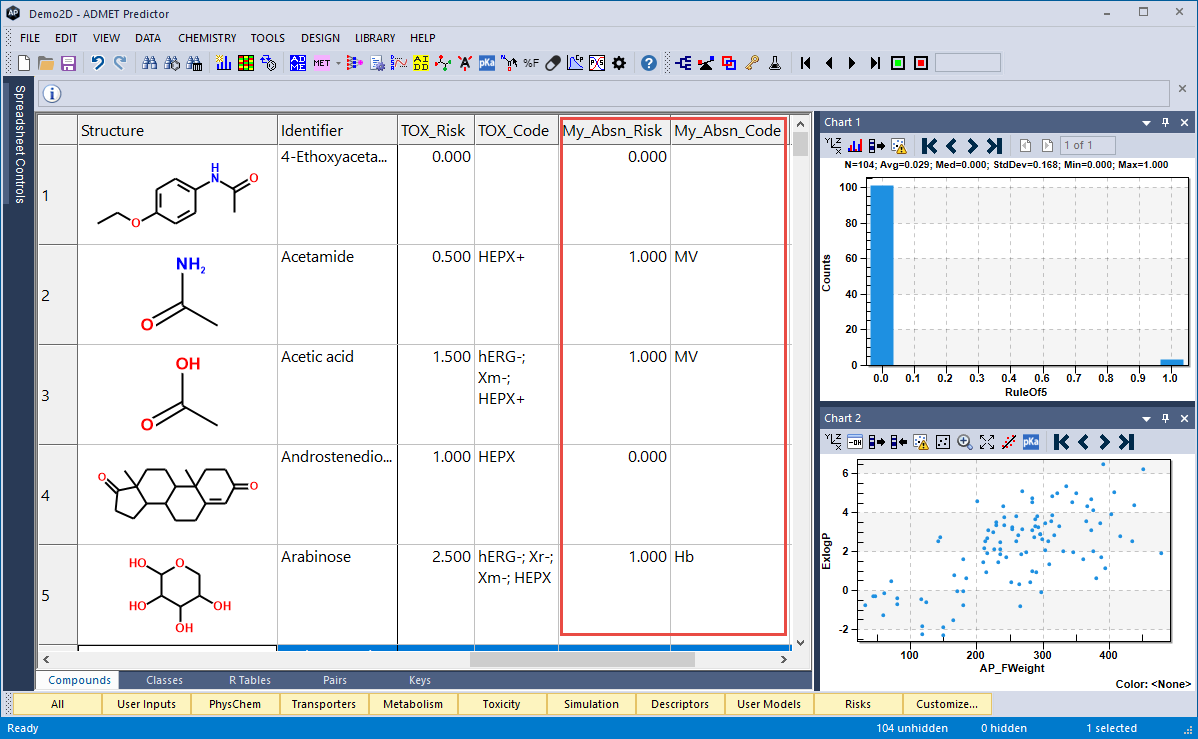
After recalculating properties, click on the Risks button and scroll to the right to see two new columns with My_Absn_Risk and My_Absn_Code values.
-
Continue to “Applying and examining the new ADMET Risk rules”, in the next section.