

Applying and Examining the New ADMET Risk Rules
-
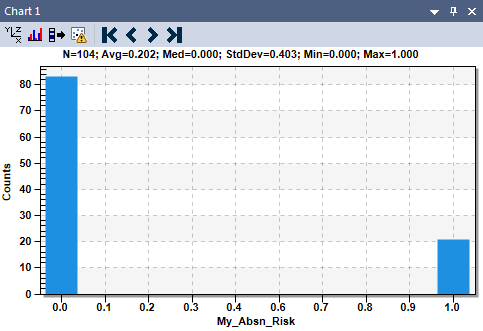
On the Histogram chart (right top pane), change the attribute to the new My_Absn_Risk categorical variable, and examine the distribution of your new ADMET Risk rule set.
(See the section on histograms)
-
Optionally, do one or more of the following:
-
Compare this histogram to the histogram that is generated for the default RuleOf5.
-
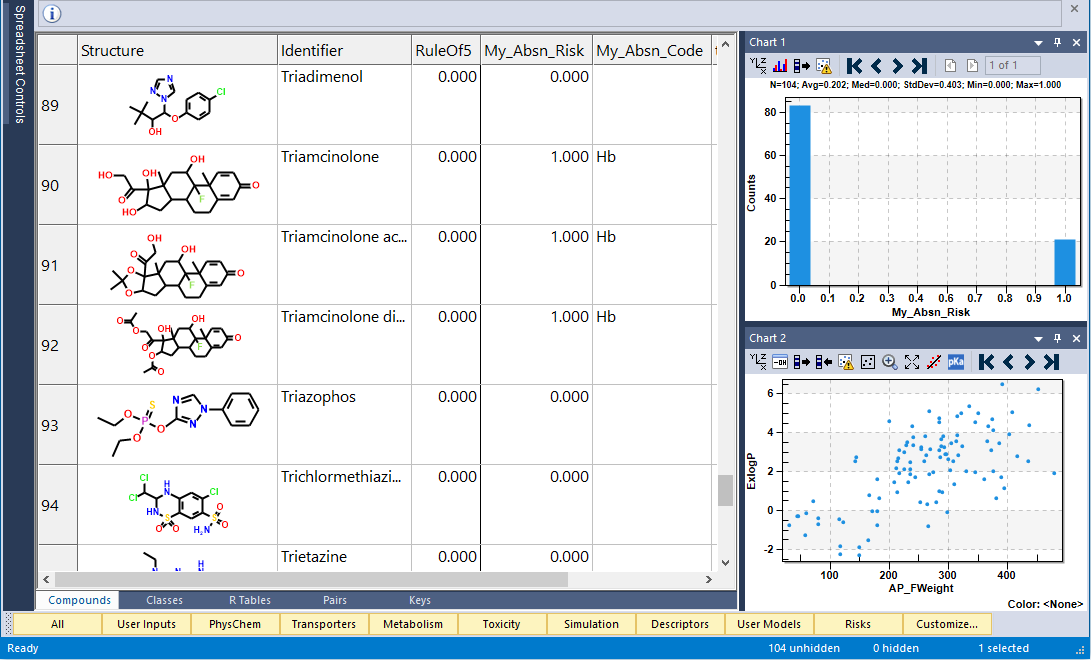
Click on Risks button on the bottom of the spreadsheet, locate the My_Absn_Code column, and try to find compounds that violate the new MV rule.
-
Move RuleOf5 and My_Absn columns next to each other (you can simply drag and drop columns), and compare the default RulesOf5 scores/codes to the My_Absn_Risk and My_Absn_Code scores and codes.
-
Click the My_Absn_Risk column header to sort the column contents.
-
Open the Model Editor window, and scroll to the newly added My_Absn_Risk and My_Absn_Code models.
The models are the last two models in the list and are highlighted in yellow.
-
Select My_Absn_Risk, right click anywhere within that row and then click Delete model.
A Remove a Model dialog box opens asking you if you are sure that you want to delete the selected model. An option is also available to delete the model files; select it.
-
Select Delete model and file.
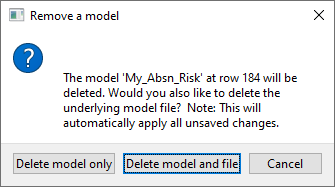
The model and its associated files (My_Absn_Code) are deleted from the model database.
-
Follow similar steps to delete test2_Risk model, as well.
-
Click OK on the Model Editor window.
The Model Editor window closes. A message opens on top of the ADMET Predictor main window indicating that the content of the Model Editor has changed, and asking you if you want to save these changes.
-
Click No to close the message, restart ADMET Predictor and calculate ADMET Properties.
The models you added and deleted in this tutorial will not be there.