

2.12. Using the Model Editor
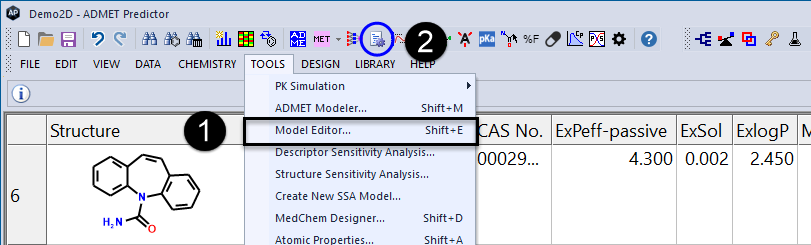
The Model Editor lets you modify various aspects of how the models in ADMET Predictor are handled, whether they are ones provided by Simulations Plus or are models you have built for yourself using ADMET Modeler. It can be launched via its keyboard shortcut (Shift+E), from the menu bar TOOLS >> Model Editor...; (1) or from the toolbar icon (2) located between the one for ADMET Modeler and the one for Descriptor Sensitivity Analysis.
The Model Editor window displays a table in which each row generally corresponds to one model. Risk models are unique in that they come in pairs, one with a _Risk suffix and one with a _Code suffix. The columns in the table show the twelve settings stored for each model. User models are highlighted in yellow; they can be deleted or edited by right-clicking on a model Name and selecting the corresponding item. Editing makes use of the same dialog as exporting a model from ADMET Modeler, though the interplay between fields in the dialog differs somewhat.
The properties of models provided by Simulations Plus (shown in white) cannot be edited or deleted in the Model Editor. They can be rearranged, however, by clicking on the row number at the far left of the table, then dragging and dropping it to the desired location. Any model can be moved in this manner regardless of dependencies of one model on another. The only exception is that a Risk Code model must always follow its corresponding Risk model, a constraint that the Model Editor handles automatically.
User models can also be moved using the Edit Model dialog launched by right-clicking on a cell in the grid and launching the Edit Model dialog from the look-aside menu that comes up. The Insert model after item in that dialog determines where the edited model will be placed in the list.
Clicking on the Apply button at the bottom right of the dialog (8) saves the current state of the Model Editor to disk, where it will direct model evaluation for ADMET Predictor and other programs. The OK button saves the state and closes the dialog, whereas Cancel closes the dialog without saving its current state. Note that Cancel does not undo the effect of clicking on Apply.
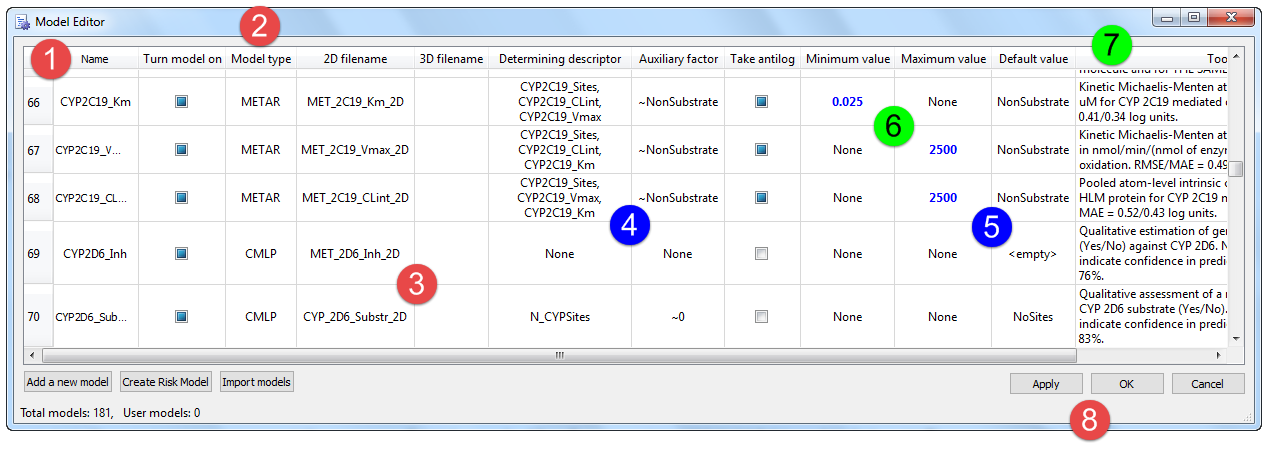
The Name of the model (1) is assigned to the attribute when it is calculated and reflects the label for the model that is used in the Calculate ADMET Properties dialog. It will also be the column header entry when the attribute is initially displayed in Predictor, though you are free to change it after it has been calculated. The check box to its right controls whether the model is turned on or not. Models for which the box is unchecked are not evaluated when properties are calculated.
Model Type (2) indicates what kind of definition file Predictor should expect to find associated with the model. There are 17 model types supported in ADMET Predictor:
|
Model Type |
Description |
File Extension |
|---|---|---|
|
CMLP |
Artificial neural network ensemble for classification |
.net |
|
COMB |
Linear combinations of regression models of other types (e.g., RMLP, RLBN, RXGB, etc.) |
.cmb |
|
CSVM |
Support vector machine for classification |
.svm |
|
CXGB |
XGBoost model for classification |
.xgb |
|
FILTER |
ADMET Risk filter scores |
.ro5 |
|
FILTER_CODE |
ADMET Risk filter codes |
.ro5 |
|
KPLS |
Kernel partial least squares |
.kpl |
|
LOGDPH |
logD – pH profile function |
.lph |
|
Native pH function |
N/A |
|
|
PLS |
General linear/nonlinear regression |
.pls |
|
RMLP |
Artificial neural network ensemble for regression |
.net |
|
RLBN |
Artificial neural network with linear boost ensemble for regression |
.net |
|
RSVM |
Support vector machine for regression |
.svm |
|
RXGB |
XGBoost model for regression |
.xgb |
|
SOLPH |
Solubility – pH profile function |
.sph |
|
PKA, PKANN, PKACP |
Special types for proprietary pKa models |
.pka |
|
METAB |
Special type for proprietary metabolic site models |
N/A |
|
METAR |
Special type for proprietary metabolic kinetics models |
.mtb |
The 2D and 3D File Names (3) point to definition files stored in your Applications Directory. The latter is used when you have provided 3D structures to ADMET Predictor and checked the Use 3D models box in the Calculate ADMET properties dialog. The absence of a 3D file entry means that the 2D file will be used in all cases.
Entries in the Determining descriptor column (4) indicate other models or descriptors upon which the model in question depends. If values for any of the attributes specified are absent, the model will return the Default value (5). The Transform column (6) is an on-off toggle and the Minimum value and Maximum value column entries (6) provide floor and ceiling values for the model; "None" indicates that the outputs are unbound at the respective extreme.
The last column (7) contains the model's Tooltip - the text that pops up when a user hovers the mouse over a column heading in the Predictor spreadsheet. This is a good place to indicate the nature of the endpoint, the units it is expressed in and the aggregate confidence in the model's prediction, typically RMSE and MAE for regression models. Sensitivity and specificity are usually provided here for classification models.
Special Cases
Within ADMET Predictor's Model Editor, native pH models are assigned the NATPH Model Type and do not use model files. In this case, the Determining Descriptor is the name of the native solubility model from which it is derived (e.g., S+S_Intrins); if that model is missing or its output is equal to 0, the Default value will be returned. The Auxiliary Factor, which (usually but not always) multiplies the model output, is molecular weight. This provides a way to interconvert molar and mass units.
Intrinsic solubilities and solubility factors are assigned the SOLPH Model Type and the files that define them have an “.sph” extension. Contained in these files is the plain text list of source models. Intrinsic solubility models are distinct in having “-1” as the Default Descriptor. Similarly to native pH, Determining Descriptor column contains the source model of native solubility; it must agree with the one listed in the corresponding .sph file(s). Finally, solubility factor models are regular PLS types.