

3.2. Running ADMET Modeler™
ADMET Modeler must have descriptors and endpoint data to work from. The latter typically originate as part of a structure file or are imported from a text file, but descriptors are typically generated as part of the ADMET calculation process. Once that is done, all of the information needed to build a model is stored in the saved .xtk file, and can be accessed by reopening that file. The necessary information can also be retrieved from a Project File generated during a previous Modeler session.
You can launch ADMET Modeler in several different ways if the endpoint data and descriptors are present in the current ADMET Predictor spreadsheet:
-
From the main menu bar: TOOLS >> ADMET Modeler...
-
Via the keyboard shortcut Shift+M.
-
By clicking on the artificial neural net (ANN) icon in the main ADMET Predictor toolbar.

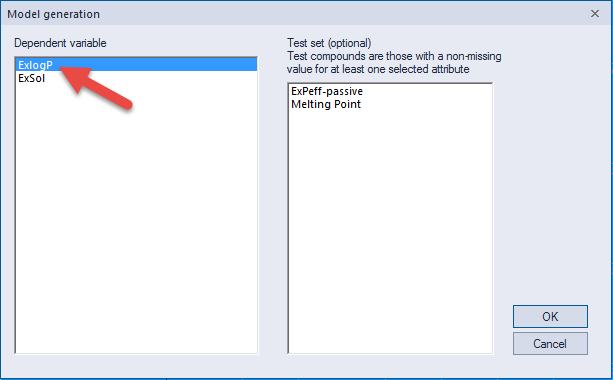
When launched in any of these ways, the Model generation window is posted and you are asked to select an entry from the Dependent variable list (e.g., ExlogP in the Demo2D data set). You can also specify a set to send to ADMET Modeler to use as a test set. If ADMET Predictor's standard complement of descriptors are not yet present in the spreadsheet, you will be asked if you wish to calculate them before proceeding.
To retrieve data saved in an earlier Modeler session rather than using what is in the current ADMET Predictor session, hold down the Ctrl key while clicking on the Modeler icon. Doing so will bypass the Model Generation dialog, instead, launching the Open Project dialog so you can navigate to and select the parameter file (.prm) in the Project folder of interest. The same thing will happen if you click on the Modeler icon or use TOOLS >> ADMET Modeler when the Predictor spreadsheet is empty. Because this route loads parameters and data in a single step, it is a convenient way to resume work on an ADMET Modeler Project.