

4.3.4. Finding Subsets Using R-Groups
This feature is used to discover interesting groups (subsets) of compounds by requiring that certain R positions have specific substituents. For example, if an R table has five R groups (variable positions), there might exist a subset of compounds for which three of these groups have fixed substituents (e.g., R1 = CH3, R4 = H, R5 = Cl), with only two groups being variable. Creating a new R table using just this compound subset can greatly facilitate subsequent analysis, since the new R table will have only two R groups instead of five. Using this feature, it is not uncommon to discover a small subset of compounds that nevertheless retains most of the active compounds in the full class. This offers a fast way to effectively "eliminate" many of the variable R positions that provide relatively little information.
To use this feature, select the menu item RTABLES >> Find Subsets Using R Groups. The dialog can also be launched using the toolbar icon which is accessible within R-Tables tab

This will launch the dialog "Identify compound subsets using R groups" shown below. Note that unlike most ADMET Predictor dialogs, this one does not block you from interacting with the main window, so you are free to switch back and forth between the dialog and the main R Tables tab.
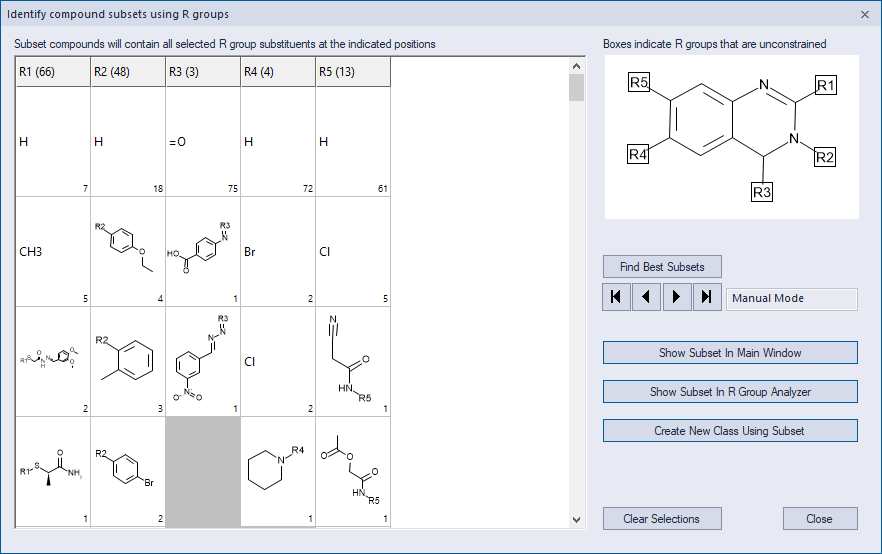
The dialog spreadsheet has one column for each of the R groups in the R table, and the cells of each column show all unique substituents for that group. The number in the lower-right corner of each cell is the number of compounds containing that substituent at that position. Note that because of this particular row and column format, some of the spreadsheet cells might be empty, since each R group can have a different number of unique substituents.
The dialog can be used in two different modes, one called Manual Mode and one called Automatic Mode. In Manual Mode, you click on spreadsheet cells to indicate that the final subset of compounds must contain the corresponding substituents at the indicated positions. For example, clicking CH3 under R1 indicates that all compounds in the final subset must contain CH3 at the R1 position. If more than one cell is selected in a given column, subset compounds can have any of those substituents at that position. If no cells are selected in a given column, that R group will be "unconstrained," meaning that any substituent will be allowed. After you have selected all of the desired substituents, you check for existence of the subset using the button labeled Show Subset In Main Window. If compounds are found that match all of the selections, they will be highlighted in the main R Table spreadsheet, and you can further analyze them without closing the dialog window. If no compounds are found that match the selections, a message window is displayed prompting you to alter the choice of selected substituents.
In Automatic Mode, ADMET Predictor discovers compound subsets automatically. To perform this operation, click the button labeled Find Best Subsets. A new dialog window "Generate subsets" will appear so that you can specify suitable options:
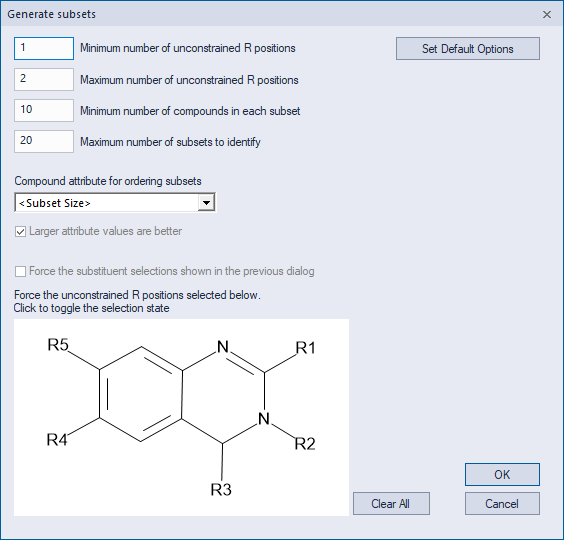
The first two dialog options let you specify the minimum and maximum number of R groups that will not be forced to have a specific substituent. The third option is the minimum number of compounds in each identified subset, while the forth is the Maximum number of subsets that will be identified. The box labeled "Compound attribute for ordering subsets" lets you specify a single attribute that is used to prioritize the identified subsets. Each identified subset will be assigned a score equal to the average value of this attribute among all subset compounds, and the retained subsets will be those with the best scores. For example, you can prioritize subsets with the largest average activity. The default setting of \<Subset Size> indicates that subsets with the most compounds will be given highest priority. Two additional options are available to control the composition of each subset. The first is the box labeled "Force the substituent selections shown in the previous dialog." This option imposes the same substituent constraints that were described in the earlier section on Manual Mode. Note that this check box will be inactive if the dialog spreadsheet contains no selections or if more than one selection exists in a single column. The second option allows you to force one or more R groups to be unconstrained. To perform this operation, click on the corresponding R group label in the window at the lower-left corner of the dialog. Once you have set all of the desired options, click OK to search for compound subsets that satisfy all of the constraints.
After an automatic search for subsets, the number of identified subsets, if any, will be shown in the window in the middle-right portion of the main dialog (see below). If subsets were found, the first one will be shown both in the dialog and in the main R Table spreadsheet. Subsequent subsets can be visualized using the navigation buttons under the Find Best Subsets button.
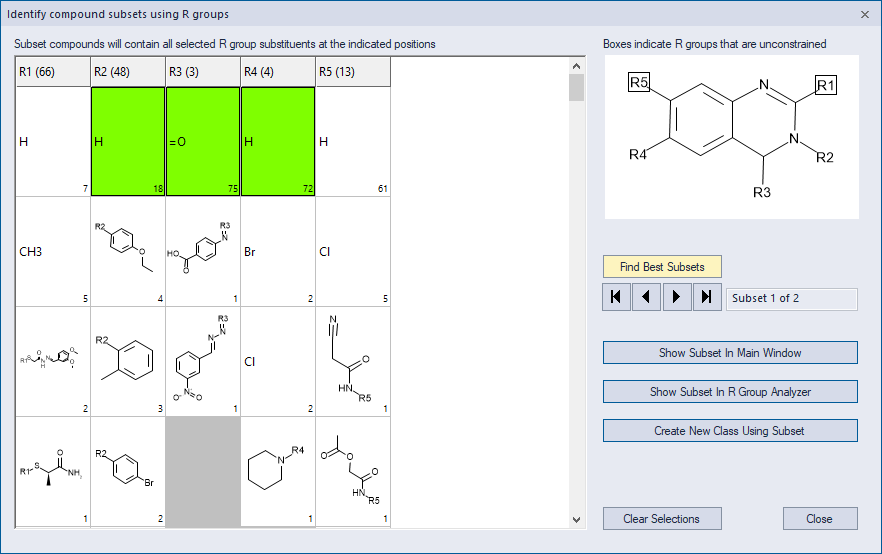
To create a new class for the current subset, click the button labeled Create New Class Using Subset. The new class will then be visible when you switch back to the Classes tab, and will be displayed immediately below the class of which it is a subset. The class will already have an R table defined, and that R table will have the (smaller) number of R groups indicated on the previous dialog.
The Show Subset In R Group Analyzer button will launch the R Group Analyzer window. This button works only after you have used the Find Best Subsets feature, and only when the currently displayed subset has exactly two unconstrained R groups, as is the case in the above image. When the RGA is launched, the Rn x Rm page will be displayed automatically, and the selected R Group Pair will include the two unconstrained R groups displayed on the dialog (R1 and R5 in the image above). Furthermore, the R Group Families navigation window at the bottom left of the RGA will show the family that matches the subset displayed in the dialog: namely, the subset with the specified substituents at the constrained positions (green cells in the image above).