

4.3.6. R-Table Explosion
Once an R table has been generated for a class, it is sometimes desirable to enumerate all or some of the combinatorial products that result from permuting the R group fragments at each substitution site. This process will lead to a list of molecules having the same common substructure as the class, but having novel combinations of R groups. One of the benefits of enumerating combinatorial products is that the resulting virtual library of molecules can be evaluated in silico to see whether any of the new molecules have improved properties relative to those of the original molecules in the class. Since the enumerated molecules share the same scaffold as the original ones, they are expected to have a high likelihood of being synthesizable, assuming that the original molecules are themselves synthesizable.
R TABLES>>Explode Products launches the Explode R table dialog shown below.
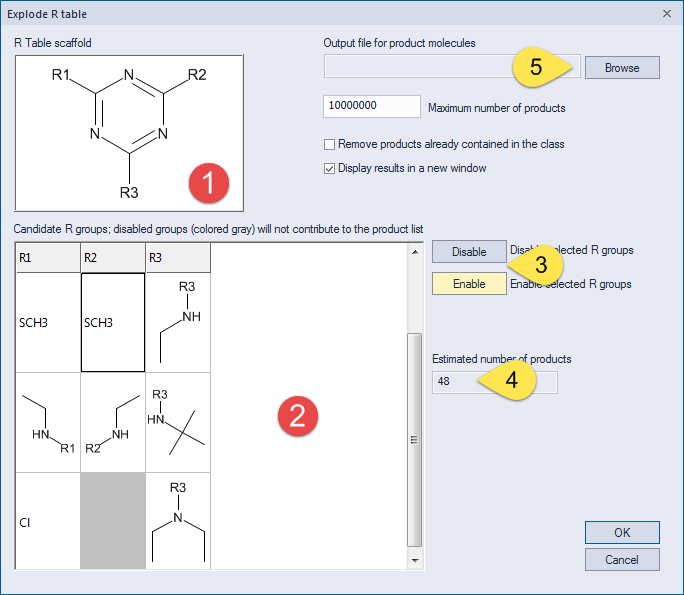
(1) The upper left-hand corner of the dialog displays the R table scaffold.
(2) Below the scaffold is a spreadsheet showing the candidate substituents, which are organized by column for each R group. Note that the spreadsheet displays only unique fragments at each position. For this reason, the spreadsheet columns may contain different numbers of cells.
(3) Depending on your preferences, certain substituents can be enabled or disabled in the spreadsheet (2) by selecting them and then clicking the Disable or Enable buttons, respectively, to the right of the spreadsheet. Cells containing disabled fragments will be colored gray, as illustrated in the figure above.
(4) To the right of the spreadsheet and below the buttons is a box displaying an estimate of the number of product molecules that will be generated in the enumeration. For the current example the count will be 48 initially, but it will change as fragments are disabled and enabled within the spreadsheet.
(5) Choose an output file for the product molecules by clicking the Browse button in the upper right-hand portion of the dialog. Supported output formats include SD (*.sd), SMILES (*.smi) and CTK (*.ctk) files.
The output file of enumerated products will be displayed automatically if the Display results... option is ON, as is the case in the screen shot shown above. If you leave the Remove products already contained in class box unchecked, products that are duplicates of those in the existing class will be written to the results file, along with a Product_In_Class attribute indicating the identifier of the original metching compound. If that option is ON, such products will be excluded from the output results, and no Product_In_Class attribute will be generated.