1.11.1. Control Window
The Spreadsheet Control Panel allows you to modify the spreadsheet appearance and to hide compounds falling outside of desired property ranges. You can display the panel using the menu item
VIEW >> Spreadsheet Controls
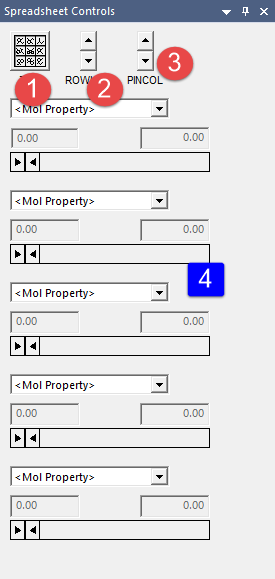
The button in the upper left-hand corner (1) of the window is used to switch between a “table” (default) and “tile” representation of the spreadsheet. The tile view is described in a subsequent section. The middle button (2) is used to change the heights of spreadsheet rows. The third button (3) has different uses depending on whether the spreadsheet has table or tile format. In table format, the button controls how many spreadsheet columns remain stationary as you scroll to the left or right; this is useful so that depictions can remain visible as you scroll to view the various data columns.
The next set of controls (4) are combo boxes that can be used to specify up to five individual molecule properties. Once a property is selected, the slider control beneath the relevant combo box will become active, allowing you to specify a desired range for the property using the two movable bars on the left and right sides of the slider. All compounds having a value outside of the specified range will become temporarily hidden. This is a convenient way to identify molecules that are of most interest to you. To unhide the compounds again, change the combo box selections back to “\<Mol Property>” or use the menu item View >> Hide/Unhide >> Clear Control Panel Filters or View >> Hide/Unhide >> Reset Control Panel Filter Ranges. Note that compounds hidden using the sliders can be made “permanently” hidden using the menu item View >> Hide/Unhide >> Hide Filtered. Once you have used this option, the hidden compounds cannot be unhidden using the sliders and can only be unhidden using View >> Hide/Unhide >> Unhide All. This is convenient if, for example, you have more than five properties on which to perform hiding, since now a single slider can be used more than once.
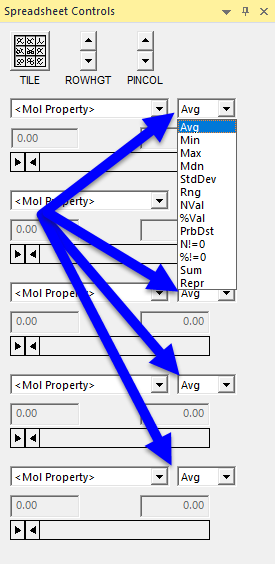
When the Classes tab is active, the Spreadsheet Controls panel shows additional controls to choose an aggregation function for each compound property (see below). Details on available aggregation functions are provided elsewhere.