1.11.2. Tiled Spreadsheet
There are three ways to convert the spreadsheet to Tile View.
-
Click on the the extreme left button in the Spreadsheet Control Panel
-
Choose the menu option: VIEW >> Tiled Spreadsheet
-
Use the keyboard shortcut: Ctrl+Alt+T
The Spreadsheet Control panel in Tile View changes slightly from the one described in the previous section. The first button (1) now represents "Switch to Table View". The middle button (2) has same functionality as in the Table View: namely, to change the height of the rows. The third button (3) is used to change the number of spreadsheet columns. The remaining controls (4) are the same as those described in the previous section. Each compound in the Tile View is annotated with its identifier (5) as shown below.
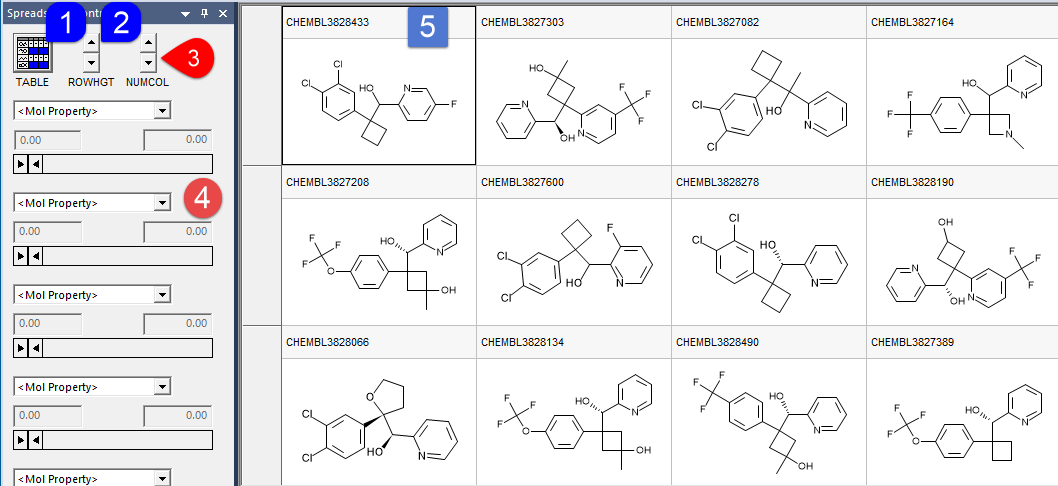
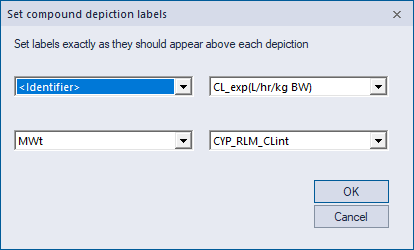
To display additional attributes above each structure depiction, double click on the "header" (5) of any tile. This will open a new dialog box "Set compound depiction labels" where you can select up to four attributes.
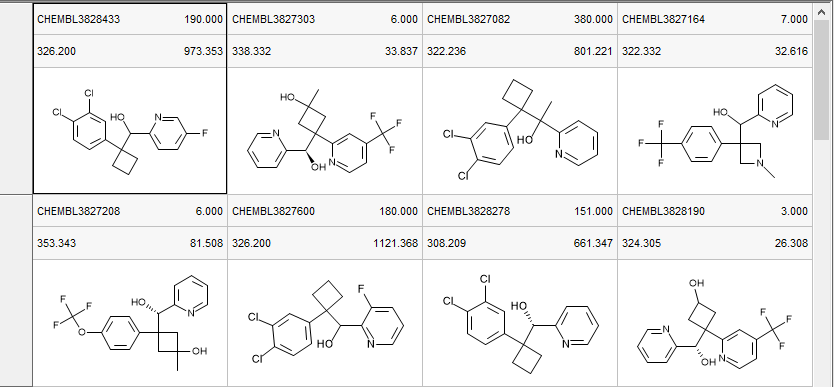
After clicking OK, the spreadsheet will appear as follows, assuming four attributes were specified.