

4.2.5. Adding Class Attributes
You can assign arbitrary text attributes to one or more classes in the spreadsheet. This provides a useful means of labeling classes with important notes for future reference. This can be achieved by adding a class comment or class attribute in the Classes Tab.
1. Class comments
To assign comments to one or more classes, select the classes of interest and choose the menu item Classes >> Add Comments.... The subsequent dialog box (Class comments, shown below) allows a new comment string (1) to be typed and provides options to replace existing comments (2) with the new one or to append the new one to existing ones (3). The Show Existing Comments button will copy the string from (2) and place it in (1). Once you press OK, a new column "Class comments" is added to the Classes tab spreadsheet.
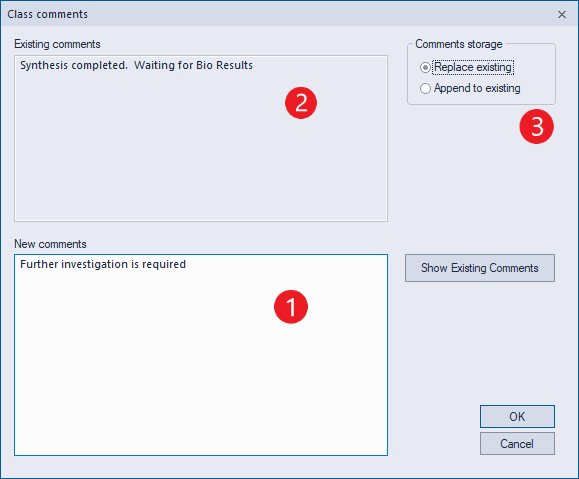
Once comments have been added, they can be viewed as columns in the Classes tab, searched using a query, and exported to file.
When a user combines two or more classes together or eliminates one or more classes to form singletons, class comments must be properly assigned to the newly created classes. By default, ADMET Predictor concatenates comments when combining classes and distributes them to singletons when eliminating classes.
2. Add attributes
You can add any number of text attributes to classes in the spreadsheet. To add an attribute, choose the menu CLASSES >> Add Attributes... This action will launch a dialog box "Add a class attribute"
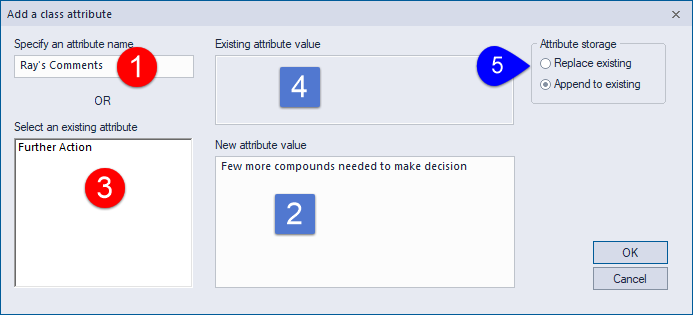
When adding the first attribute to Classes Tab, you will be asked to Specify an attribute name (1) and provide a New attribute value (2). When adding subsequent attributes, you will get an option to Select an existing attribute (3). If you select this option and the class already has an existing attribute, the value of that attribute will be shown in the Existing attribute value box (4). Similar to class comments, here you can replace or append to (5) existing attribute values.
Class attributes are essentially identical to class comments, but can be assigned arbitrary names (for example, “Ray’s comments”). As with molecule attributes, class attributes can be displayed in the Classes tab spreadsheet, exported to file and searched using the EDIT >> Find Text menu item.
When in the Classes tab spreadsheet, the menu EDIT >> Find Text opens a dialog "Find compounds using text query" which is very similar to the dialog that has been discussed before. The only difference between the two dialogs is within the red box shown below.
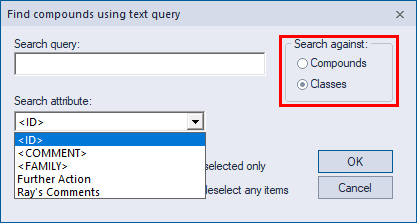
Toggling the radio button between Compounds and Classes options allows you to search against compounds or classes, respectively, using the Search query.
3. Modify attributes
Class attributes can be modified or deleted using the menu option CLASSES >> Modify Attributes...
This launches the "Class attributes" dialog, which is similar to the one used for editing molecule attributes.
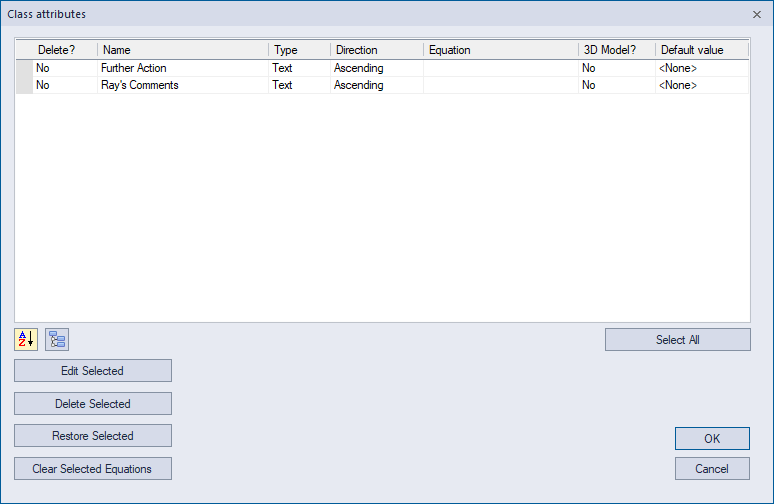
The dialog provides a list of all class attributes that have been added using CLASSES >> Add Attributes... in the Classes tab spreadsheet, along with their properties such as name, data type, etc. To change one of these properties, select the attribute and click the Edit Selected button. This dialog can also be used to delete attributes from the spreadsheet altogether.