

4.2.8. Comparing Classes
The CLASSES >> Compare Classes menu item provides options to compare classes to one another, on the basis of either structure or molecule membership. Some of the options are discussed below.
-
Find Structurally Similar Classes
The menu item CLASSES >> Compare Classes >> Find Structurally Similar Classes launches the dialog "Calculate similarity score against selected class" shown below.
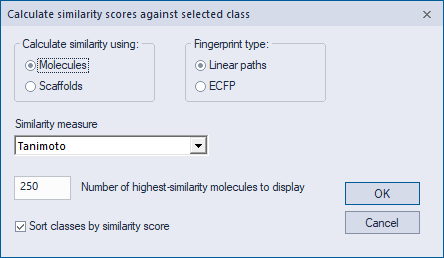
Molecules versus scaffolds. This option allows the user to choose whether molecules or scaffolds are used for the similarity calculations. If molecules are chosen, only the representative molecule from each class will be used in the calculations. If scaffolds are chosen, classes not containing a scaffold will be treated as having no similarity to the reference class.
Fingerprint Type. This option allows the user to choose the types of fingerprints to use for similarity calculations. Linear paths are based on unbranched fragments keys, while ECFP corresponds to extended-connectivity fingerprint keys.
Similarity measure. This box controls the precise metric used to calculate the similarity between two molecules, and currently offers four options: Tanimoto, Shared reference keys, Normalized Euclidean 1, and Normalized Euclidean 2. For the first two options, the first step in a similarity calculation is to make all key (descriptor) values binary (0/1); here the rule is simply to convert all non-zero key values to one (1), and to leave the remaining values as zero (0). The Tanimoto metric is defined as the number of keys having a non-zero key value for both the target molecule and the reference molecule, divided by the number of keys having a non-zero key value for either the target molecule or the reference molecule. The Shared reference keys metric is derived using the following rule: of all keys having a non-zero key value in the reference molecule, calculate the fraction of them that have a non-zero key value in the target molecule. The final two metrics are based on the common Euclidean distance. The first metric returns the value 1 – d / (F1 + F2), where d is the Euclidean distance and F is the square root of sum of squared feature elements. The second metric returns the value of exp(-d*d). Note that for each of the similarity metrics, scores are in the range [0,1], and larger scores indicate greater similarity.
Number of saved molecules. This box controls the number of highest-similarity molecules that will be saved from the screen. Similarity scores for these molecules will be visible within the Sim. Score column of the Classes tab. Note that molecules not in this most-similar subset will be assigned similarity scores of -1.
Sort classes. When this option is checked, the Classes tab will be sorted by similarity automatically. The reference class will be placed at the top, and remaining classes will be placed below it in order of decreasing similarity.
-
Find Overlapping Classes
All classes with at least one molecule in common with the single selected class will become selected.
-
View Similarity Scores
Displays similarity scores between the selected class and the other classes. Use this option only when you have previously calculated similarity scores using the selected class.
-
Delete Similarity Results
Deletes similarity-screening results for all classes that are currently selected.
-
Calculate Class Redundancy
This option displays the following dialog.
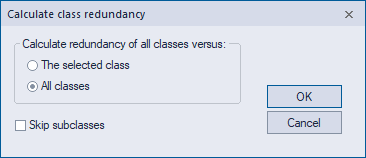
The dialog provides two additional methods to measure class similarity with respect to molecule membership. The first option is used to measure the similarity of all classes to the single selected class. A new column called Class Redundancy will be added to the Classes tab, displaying the percentage overlap – in terms of molecule members – between each class versus the selected class. The second option is used to perform a total pair-wise similarity comparison of all classes. After running this option, the Class Redundancy column lists, for each class, the class that is most similar to it, all classes with identical molecule membership, and all classes of which it is a subset. The latter two cases do not normally occur when classes are generated using one of the automated methods discussed in the Generating Classes section, but might occur if classes are modified or generated manually.
-
Eliminate Redundant Classes
Removes classes considered to be redundant with other classes. The subsequent dialog allows you to choose to eliminate duplicate classes and/or those that are subsets of other classes.
-
Make Classes Non-Redundant
Each compound belonging to more than one class is removed from all of them except the one with the largest scaffold. After performing this operation, each compound will belong to only one class.